
Meeting Notes
Overview
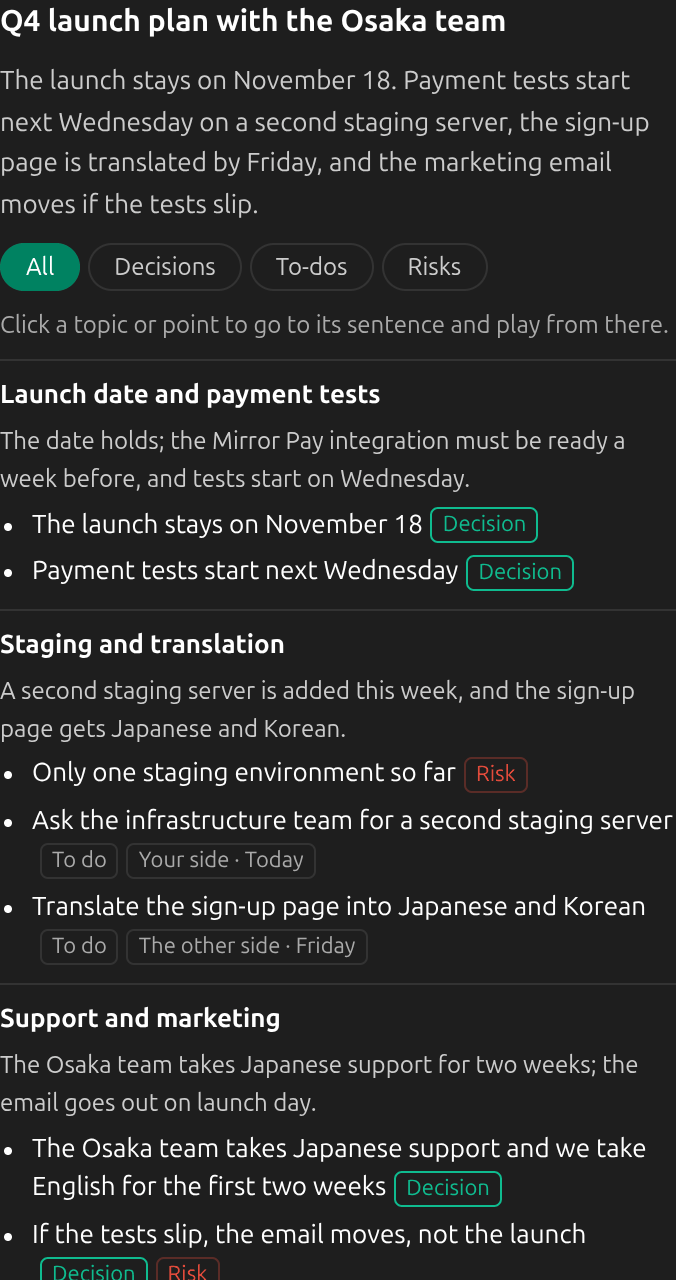
The desktop app can write notes for a session from its transcript: a title, an overview, the topics in order, and the decisions, to-dos and risks under each. Have them written after every session, or for any session in History when you want them. They are written by OpenAI, either with your own OpenAI key or by Kizuna AI, paid from your balance. During a session, live notes can keep a short version beside the conversation.
1Choose who writes the notes
Open Settings → Languages and line-up. The Notes stage is chosen on its own, whatever does the transcription. Kizuna AI needs a sign-in; the notes are paid from your balance, and the stage shows the estimated cost per hour. OpenAI uses your own key: add it under Accounts and keys, and OpenAI bills you directly. The line-up cannot be changed during a session.

2Have notes written after every session
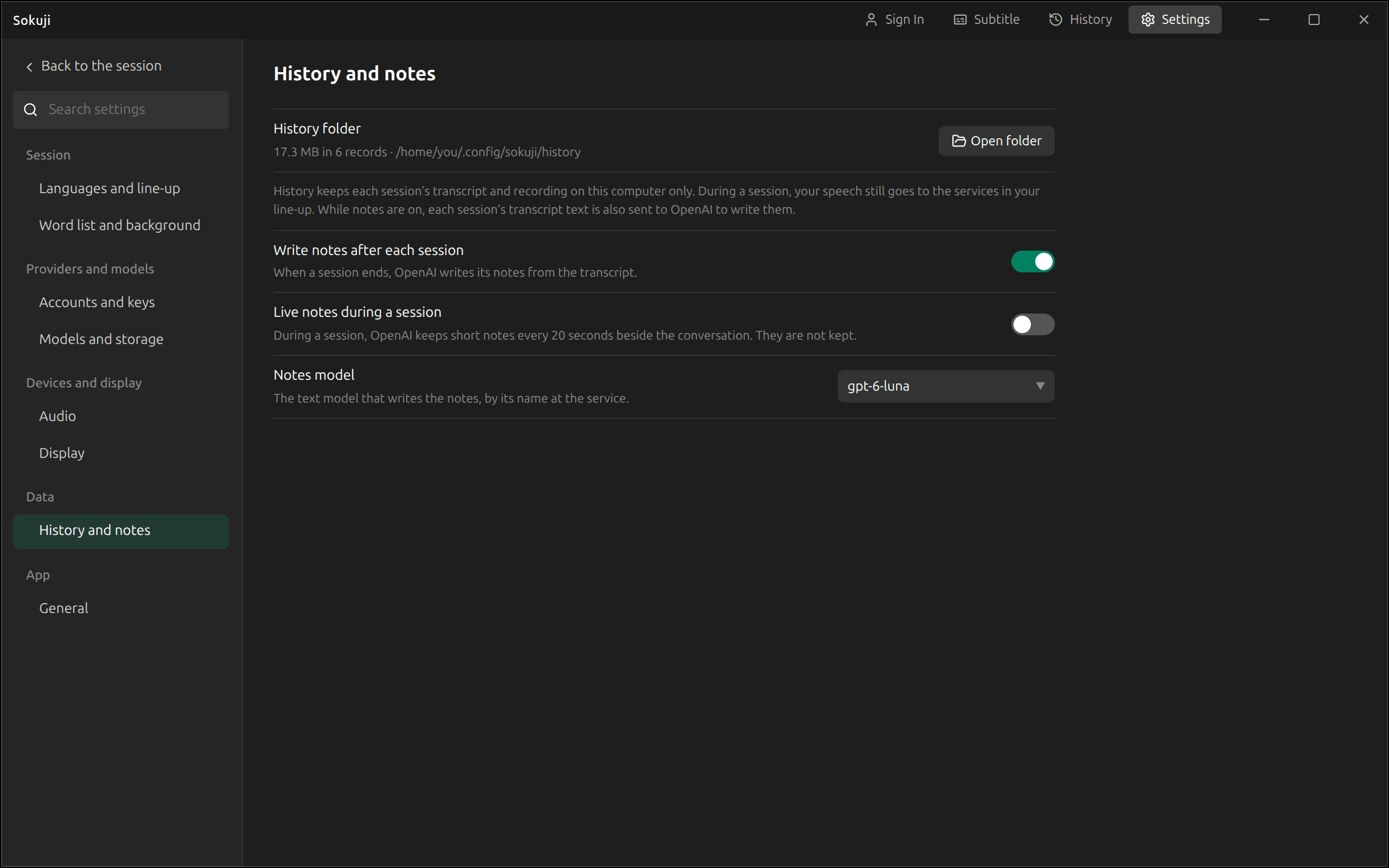
Open Settings → History and notes and switch on Write notes after each session. When a session ends, its notes are written in the background, and the session shows Writing notes in History until they are done. With your own key, Notes model on the same page chooses the OpenAI model; Kizuna AI uses a fixed model.
3See what is sent
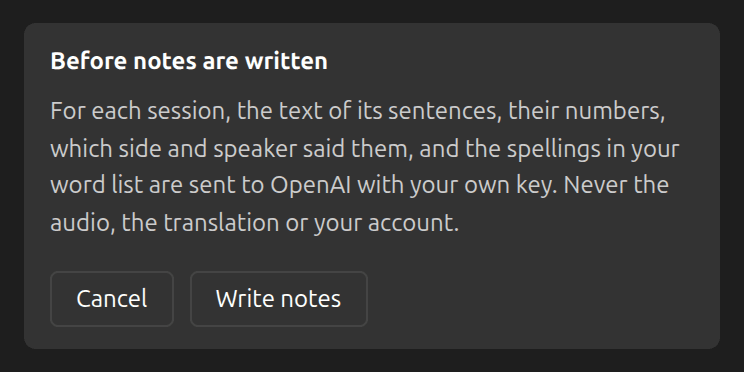
The first time, Sokuji explains what leaves your computer: the text of each sentence, its number, which side and speaker said it, and the spellings in your word list. Never the audio or the translation. With Kizuna AI it goes through Kizuna AI’s server to OpenAI, and Kizuna AI keeps none of it. Click Turn on (or Write notes) to go ahead.
4Write notes for any session
In History, open a session. If it has no notes yet, choose the Language of the notes and click Write notes; this works whether or not the switch is on. A session with notes has Write a new version, and Version switches between versions. Notes are written in the background: you can leave History, and Cancel stops them. A session needs at least a minute of transcript to have notes.

5Read and use the notes
Points are marked Decision, To do or Risk, and a to-do can say who owns it and by when. All, Decisions, To-dos and Risks show one kind at a time. Click a topic or a point to go to the sentence it came from and play the recording from there. Names to check lists names that speech recognition probably wrote wrong; see Correct a Session. To share the notes, use Export → Copy notes (formatted for documents and for chats), or save them as .md or .txt.
6When notes could not be written
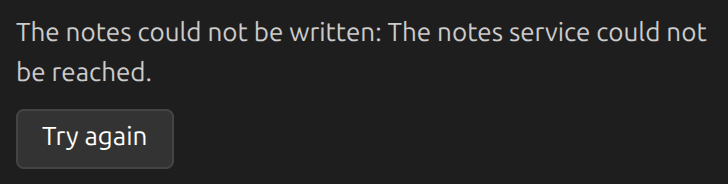
The session then says why, with Try again. Common reasons are a missing key or sign-in, a network problem, and an empty Kizuna AI balance; when your account can fix it, a link opens Accounts and keys. If you quit Sokuji while notes are being written, it asks first: Quit marks them cancelled, and you can write them again later.
Tips
- Notes written automatically are in your own language when the session has one; otherwise they are in the language of the interface. For other languages, write a new version and choose its language.
- Your word list is sent with the notes, so the names in it come out spelled right.
- With Kizuna AI, a member of an organization pays from the organization’s balance unless they chose to use their own.
- A session that ended because Sokuji was closed gets no automatic notes; open it in History and click Write notes.
Frequently Asked Questions
Do notes work in the browser extension?
No. Notes, like History, are in the desktop app only.
What do notes cost?
With your own key, OpenAI charges your OpenAI account. With Kizuna AI, each set of notes is taken from your balance; the Notes stage in the line-up shows the estimate per hour of meeting, and the Wallet page of your Kizuna AI account lists each charge under Meeting notes.
Are the notes rewritten when I correct the transcript?
No. A word fix can change the notes too, but notes are never rewritten on their own. Click Write a new version to have them written again from the corrected transcript.
Does Kizuna AI keep my transcripts?
No. The transcript text passes through Kizuna AI’s server on its way to OpenAI and is not kept. What is counted is what the notes cost.
Troubleshooting
Still stuck? Send us feedback from the account menu, or write to support@kizuna.ai. You can also ask in GitHub Discussions.