
Pronunciation Readings: See How the Other Language Is Said
Overview
Readings show how the other side’s language is pronounced, as small text above the words: pinyin over Chinese, kana over Japanese kanji, romanization over Korean, and Latin letters over Russian and Ukrainian. They help when you read a translation aloud, or follow the other side, without knowing how the words sound. Readings are only drawn on screen: they are never sent to the AI provider, and the transcript, exports and copied text stay as they were.
1Turn readings on
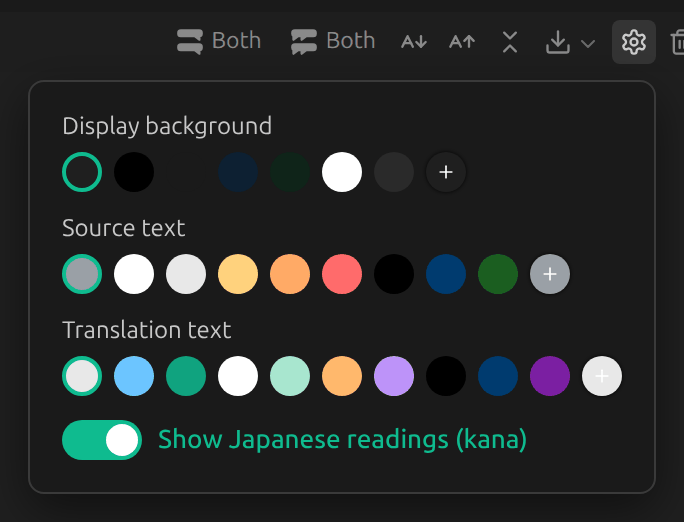
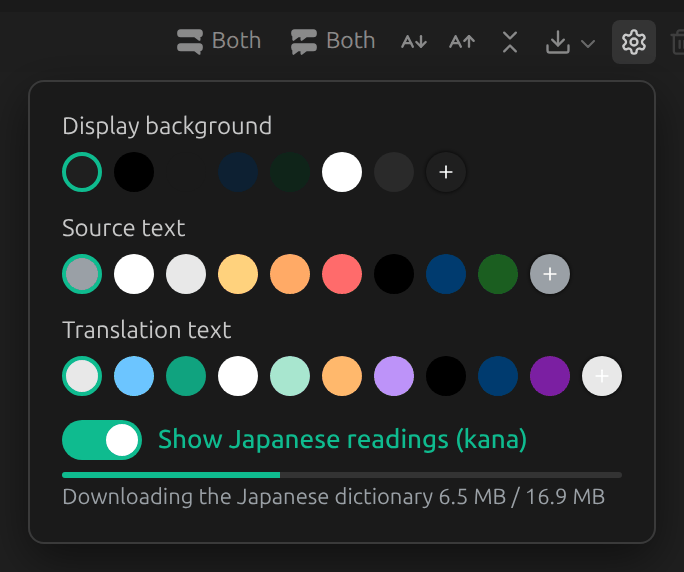
Click the gear in the toolbar above the conversation to open the display settings. When your target language has readings, the panel has a switch that names it, here Show Japanese readings (kana). Turn it on.
2Which lines get readings
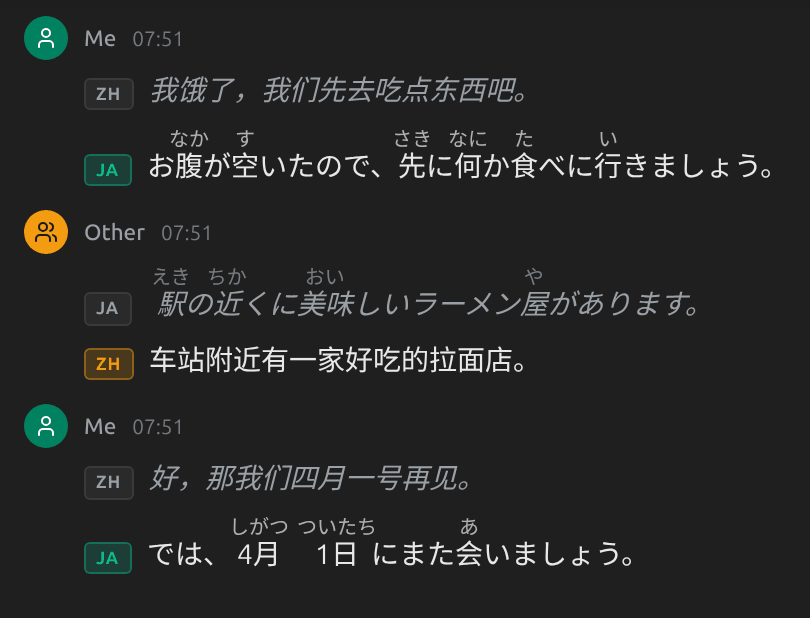
Readings go on every line in your target language: your translations, and the other side’s own words when they speak it. Lines in other languages stay as they are. Here Chinese is translated into Japanese: my translations get kana, and so does what the other side says in Japanese. In a face-to-face conversation, each line follows its own language.
3Chinese: pinyin
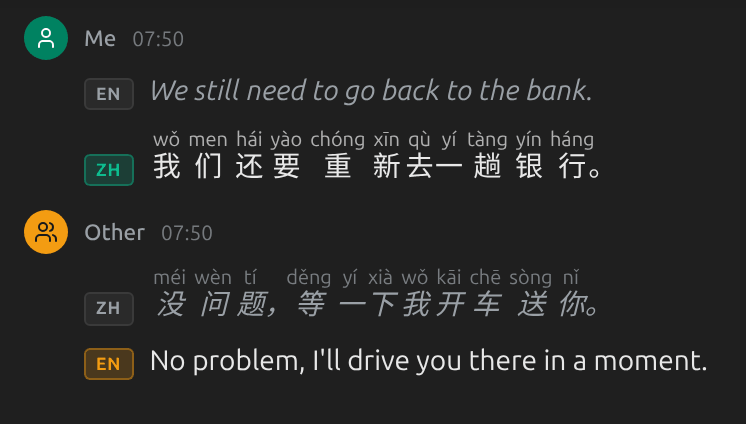
Each character gets its pinyin, with tone marks. A character with more than one reading is read in context (还 hái, 重新 chóng, 银行 háng), and the tone changes of 一 and 不 are shown as they are spoken (一趟 yí tàng).
4Korean: romanization
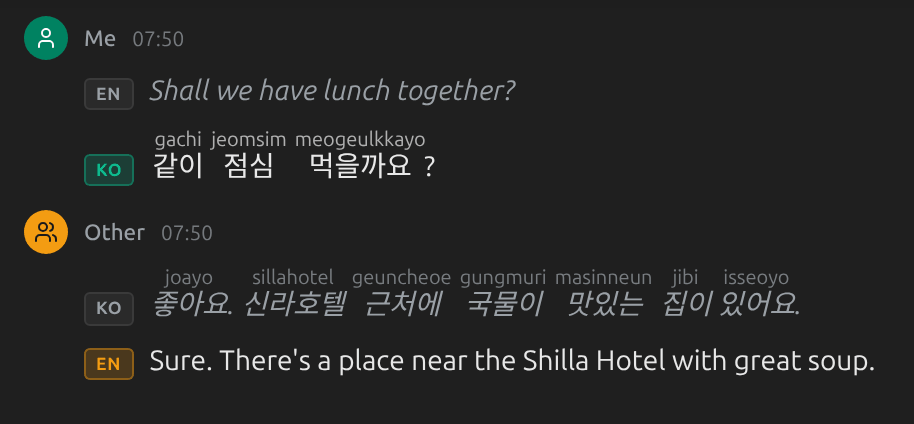
Each word gets its Revised Romanization, written the way the word sounds rather than letter by letter: 같이 gachi, 국물이 gungmuri, 신라호텔 sillahotel.
5Russian and Ukrainian: Latin letters
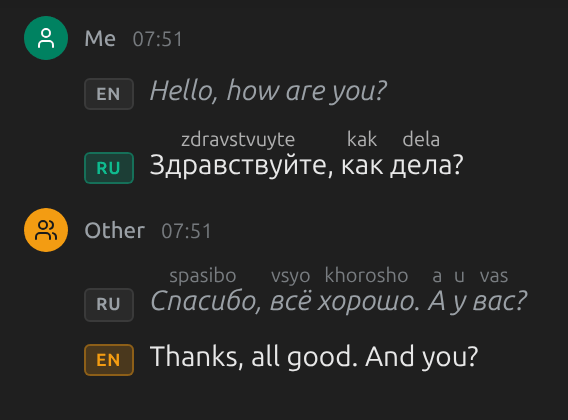
Each word is spelled in Latin letters: Russian in the BGN/PCGN system (Здравствуйте zdravstvuyte, всё vsyo), Ukrainian in the national system of 2010 (Київ kyiv). The letters follow the spelling, which is not always how a word sounds.
6Japanese: kana and the dictionary
Kana go over the kanji only; hiragana and katakana are left as they are. Japanese readings need a 17 MB dictionary, which downloads the first time you turn them on and is kept for later. The panel shows the download while it runs. If it fails, or Japanese readings stop working, the panel says so and offers Retry.
7In the subtitle view
In the desktop app, the subtitle view has its own display settings, with its own readings switch, independent of the conversation’s. Readings show while the subtitles are expanded, not in the compact view. The browser extension shows readings in its side panel, not in the subtitles it draws over the meeting page.
Tips
- The switch appears only when your target language has readings: Chinese (Simplified), Japanese, Korean, Russian or Ukrainian. Traditional Chinese and Cantonese have none yet.
- With a two-way target such as Chinese ⇄ English, the Chinese half gets readings.
- While a line is still being spoken, its last word gets its reading once the line is finished.
- Chinese, Korean, Russian and Ukrainian readings need no download.
Frequently Asked Questions
Why is a Japanese reading wrong?
The dictionary gives each word one reading and cannot tell from the meaning which one is meant. 空いている reads あいている (vacant) even in 電車が空いている, where すいている (not crowded) is meant, and 辛い reads つらい (painful) even for a spicy curry, where からい is meant. Numbers with counters (一人, 3日, 4月1日) and お腹が空いた are handled. A word newer than the dictionary, such as 令和, can also be misread.
Can I get romaji for Japanese?
Not yet. Japanese shows kana for now.
Do readings need the internet?
Readings are worked out on your computer. The only download is the Japanese dictionary, once.
Do they use much memory?
Japanese readings use about 170 MB while they are on, and turning the switch off frees it. The other languages use very little.
Does clearing my downloaded models remove the dictionary?
Yes. It downloads again the next time Japanese readings are on.
Troubleshooting
Still stuck? Send us feedback from the account menu, or write to support@kizuna.ai. You can also ask in GitHub Discussions.