
Translation Modes: Me, Other and Both
Overview
Sokuji translates in one of three directions. You choose it with the mode switch at the bottom left of the main window, or the setup guide sets it from the scenario you pick. The mode cannot change while a session is running.
1Choose a mode
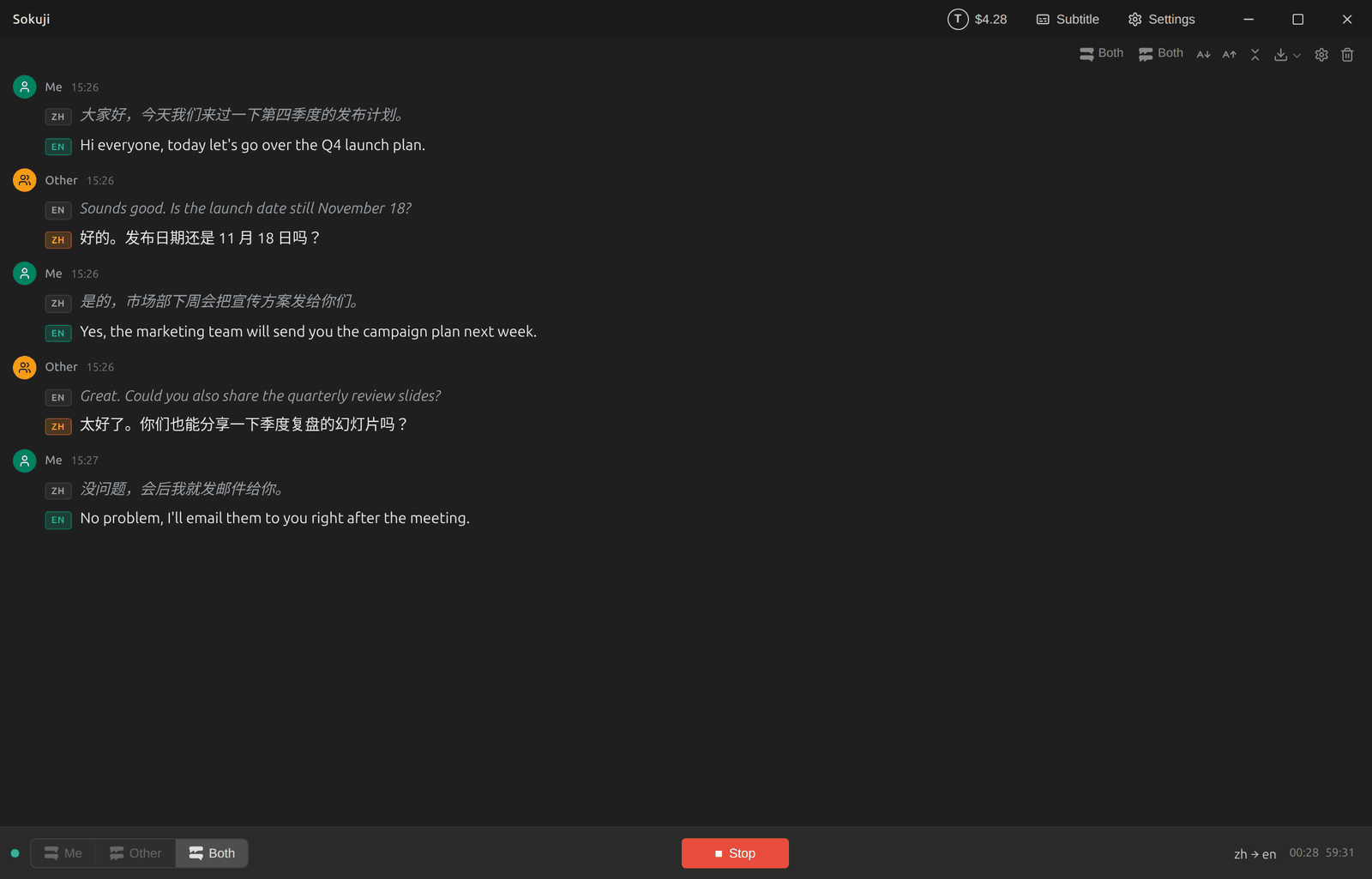
Me translates your voice for the other side: they hear it through the virtual microphone (unless Text Only is on) and you see it as subtitles. Other translates the other side’s voice for you, as text, from Other’s audio. Both does the two at the same time.

2Read the conversation
Your lines are marked Me in green and the other side’s Other in orange. Each line shows the original speech in grey with its language, and the translation below it.
3Check the devices a mode uses
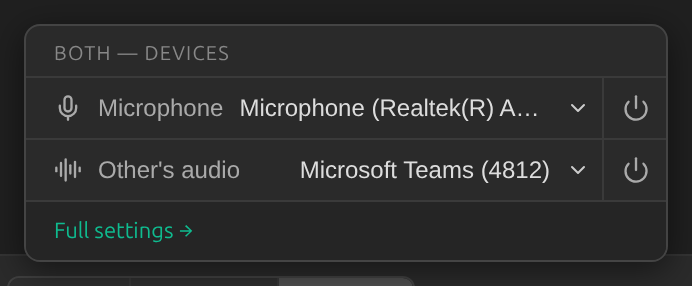
Click the selected mode to see which devices it uses (your microphone, Other’s audio) and switch them on or off. Full settings → opens the Settings panel.
Tips
- The other side’s speech is always translated as text; Sokuji only speaks your side.
- The speaker monitor, which lets you hear the translated voice yourself, only works in Me mode.
- To change the mode, stop the session first.
Frequently Asked Questions
Which mode do I need?
To follow what others say: Other. To be understood: Me. For a conversation in both directions: Both. The KizunaAI guides walk through each case step by step.
Why is a mode greyed out during a session?
The mode is locked while a session runs. Stop the session, change the mode, and start again.
Troubleshooting
Still stuck? Send us feedback from the account menu, or write to support@kizuna.ai. You can also ask in GitHub Discussions.