
PalabraAI Setup Tutorial
Overview
This tutorial will guide you through setting up PalabraAI for use with Sokuji. PalabraAI specializes in real-time WebRTC translation with minimal latency, making it ideal for live conversations.
Specialization
PalabraAI is optimized specifically for real-time translation with support for 60+ source languages and 40+ target languages.
Two kinds of Palabra credentials — Sokuji accepts both
Palabra has two separate consoles, and each issues a different kind of credential. The Platform (platform.palabra.ai/api-keys) issues a single API Key; the older App (app.palabra.ai/dev/api-keys) issues a Client ID + Client Secret pair. Sokuji supports both: in Settings, a switch under the PalabraAI provider selects Platform API Key or App Client ID/Secret. If you are starting from scratch, use the Platform — it is the default in Sokuji and Palabra's newer console. If you already have App credentials, they keep working; just switch to App mode.
1Pick a credential type
Decide which console you will use, then follow only one of the next two steps. New to Palabra? Register at platform.palabra.ai/register and use the Platform API Key (step 2). Already have a Client ID and Client Secret from the App? Skip to step 3 — there is no need to create anything new.
2Platform: create an API Key
Go to platform.palabra.ai/api-keys and sign in. Create a new key and give it a descriptive name such as "Sokuji". The key is shown only once, right after creation — copy it immediately and store it somewhere safe; once the page is refreshed it cannot be viewed again. If you lose it, delete the key and create a new one.
3App: create a key and copy both values
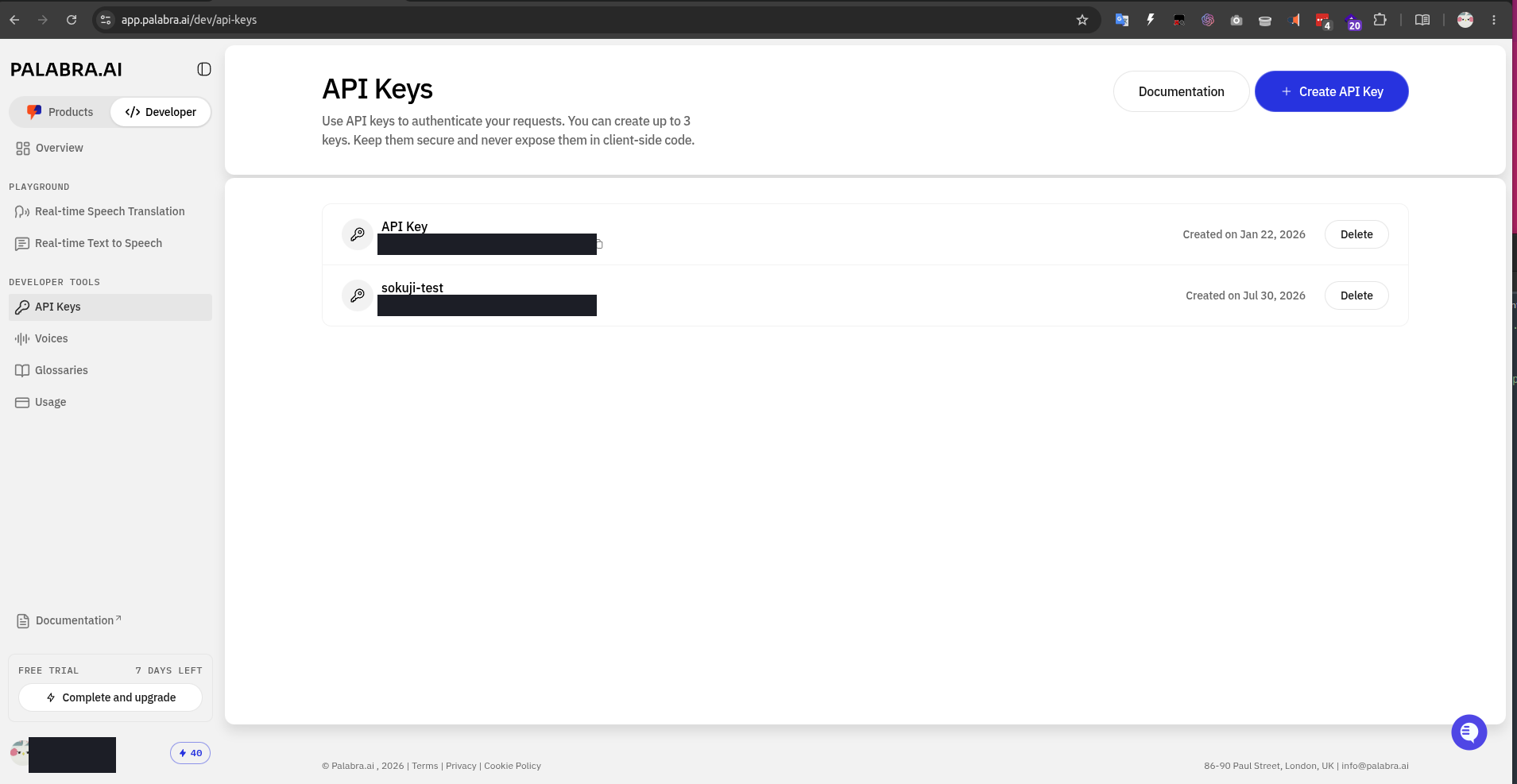
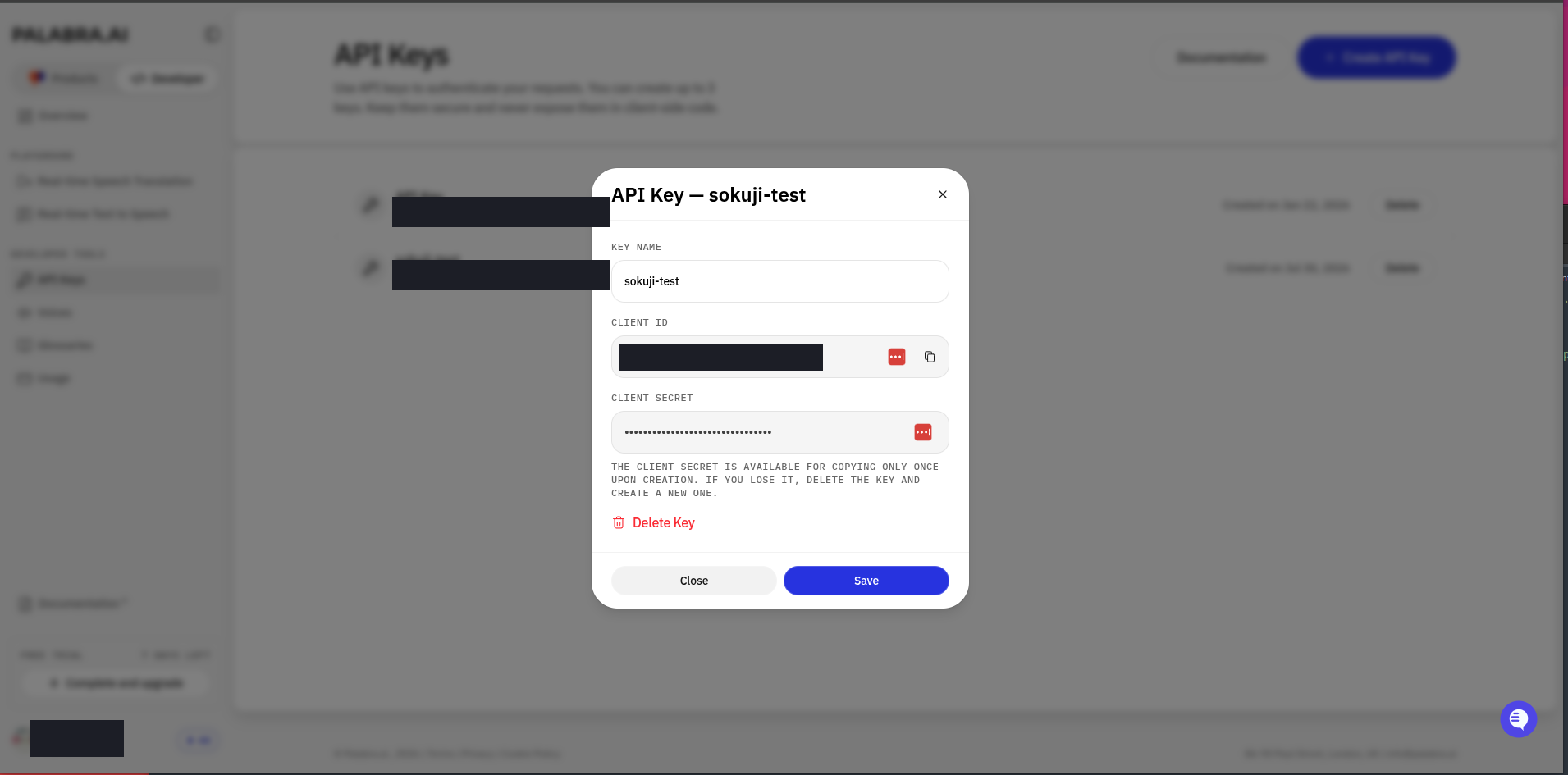
Go to app.palabra.ai/dev/api-keys and sign in. This page is the Developer tab of the Palabra App, under Developer Tools → API Keys. Click + Create API Key, give it a descriptive name such as "Sokuji", then open the key and copy both values: the Client ID and the Client Secret. The Client Secret can only be copied once, at creation time — afterwards it is masked and cannot be recovered. If you lose it, delete the key and create a new one. Each account can hold up to 3 keys.
4Check your credit balance
PalabraAI is a paid service: if the account runs out of credits, a session will fail to start or stop partway through. Before you start, check the credit balance and free-trial status in the console you created the credential in (in the App they are shown at the bottom-left of the sidebar and on the Usage page), and confirm that you still have credits.
5Configure in Sokuji
Open Sokuji and navigate to the Settings panel. Select "PalabraAI" as your AI provider. Use the switch above the credential fields to pick the mode that matches where you created the credential: Platform API Key shows a single API Key field — paste your key there; App Client ID/Secret shows two fields — paste the Client ID and Client Secret into their respective fields (make sure the two are not swapped). Either way, check there are no extra spaces, click Validate to confirm the credential is accepted, then choose your voice setting (default_low or default_high), configure your source and target languages, and click Save Settings.
6Test your setup
Start a translation session to verify everything is working. Click the Start Session button, speak into your microphone, and you should hear the translated audio output with minimal delay.
PalabraAI-Specific Features
WebRTC Technology
PalabraAI uses WebRTC for ultra-low latency streaming, making it ideal for real-time conversations. The service automatically handles:
- Audio compression and transmission
- Network optimization
- Automatic quality adjustment
- Echo cancellation and noise reduction
Language Support
PalabraAI supports extensive language combinations:
- 60+ source languages including major world languages and regional variants
- 40+ target languages with regional specificity (e.g., Spanish for Mexico vs Spain)
- Optimized for commonly requested language pairs
Automatic Processing
Unlike other providers, PalabraAI handles most audio processing automatically:
- No manual turn detection configuration needed
- Automatic audio quality optimization
- Built-in noise reduction
- Adaptive streaming based on network conditions
Troubleshooting
Common Issues
Authentication Error: Check that the mode switch in Sokuji matches the console the credential came from: a key from platform.palabra.ai belongs in the API Key field under Platform API Key; a Client ID + Client Secret pair from app.palabra.ai belongs under App Client ID/Secret. Sokuji never tries the other mode automatically, so a Platform key pasted into the Client ID field (or vice versa) will always fail. If you no longer have the key or the Client Secret, delete it in the console and create a new one.
Session Fails to Start: Check the credit balance and free-trial status of the account you created the credential in — an empty balance is the most common cause. Then confirm that your firewall/network allows WebRTC connections.
Connection Issues: PalabraAI uses WebRTC, so ensure your firewall/network allows WebRTC connections.
Audio Quality Issues: Try switching between default_low and default_high voice settings based on your network conditions.
Language Pair Not Working: Verify that your selected source and target language combination is supported.
Network Requirements
- Stable internet connection (minimum 1 Mbps upload/download)
- Low network latency (preferably under 100ms)
- WebRTC-compatible network configuration
- Avoid VPNs if possible for lowest latency
Need More Help? Check the PalabraAI documentation or visit our GitHub repository for support.