
Using Sokuji with Microsoft Teams
Overview
This guide will walk you through setting up and using Sokuji with Microsoft Teams (Web version) for real-time language translation during your meetings.
1Install Sokuji Extension
Make sure you have the Sokuji extension installed in your Chrome or Edge browser. You can get it from the Chrome Web Store.
Tip
The extension icon should appear in your browser toolbar after installation.
2Open Microsoft Teams Web
Navigate to teams.live.com or teams.microsoft.com and sign in with your Microsoft account. Then join or start a meeting.
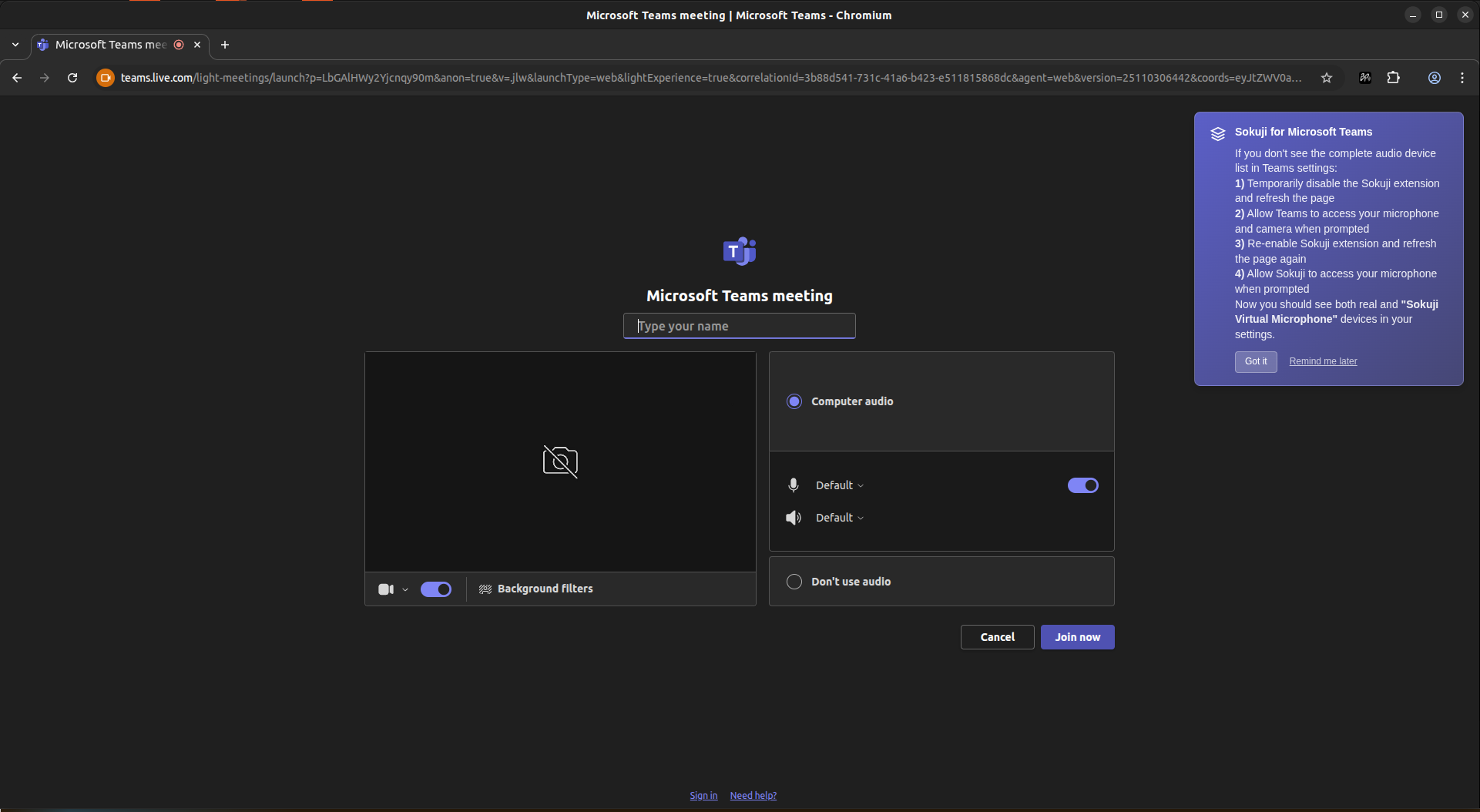
Tip
Sokuji works with the web version of Teams. The desktop app is not supported.
3Grant Permissions to Teams
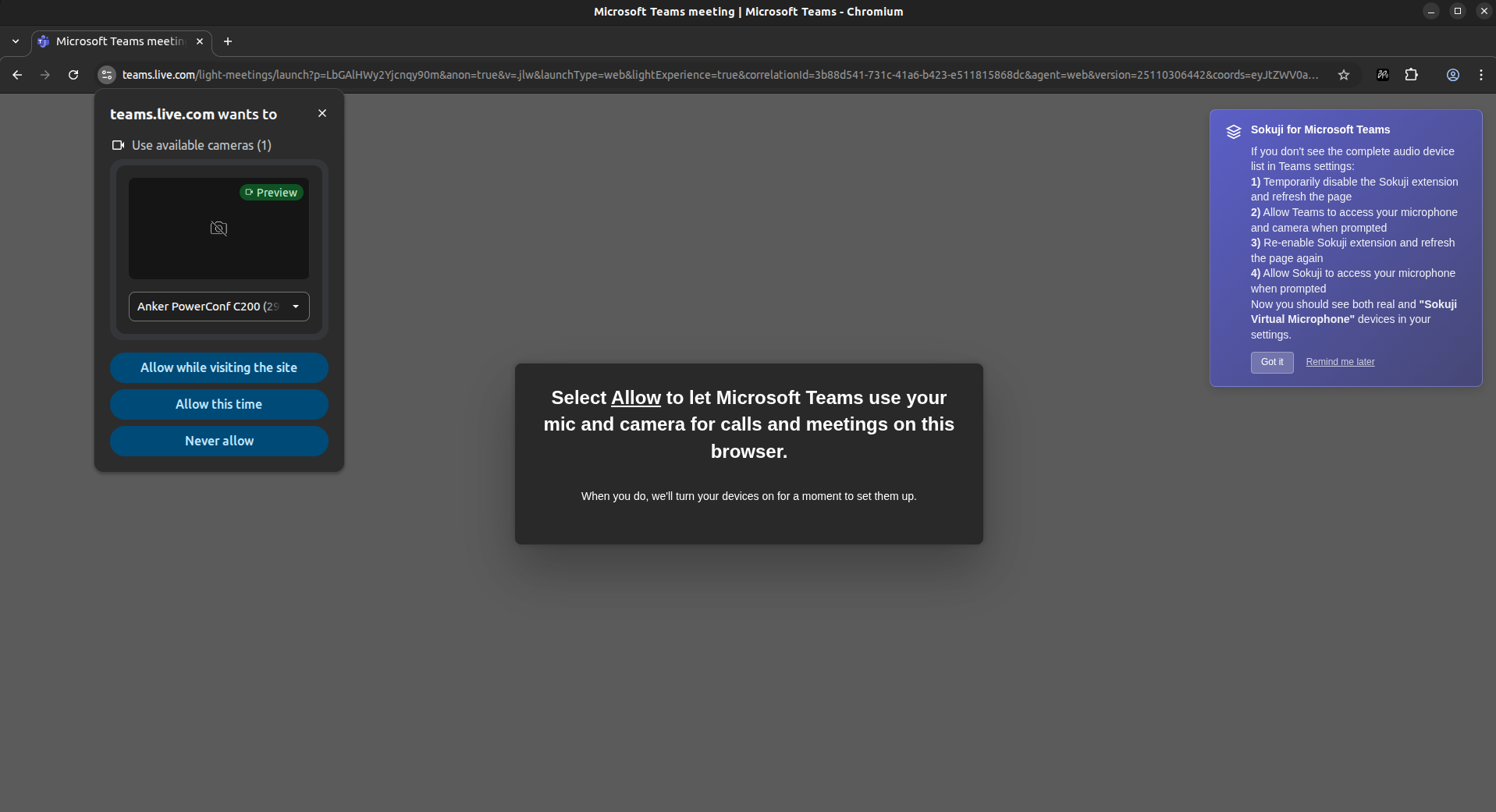
If this is your first time using Teams, you need to allow Teams to access your camera and microphone. Click "Allow while visiting the site" or "Allow this time" when prompted.
Tip
This step is required for Teams to access your real devices. If you skip this, you will only see the Sokuji Virtual Microphone in device settings.
4Grant Permissions to Sokuji
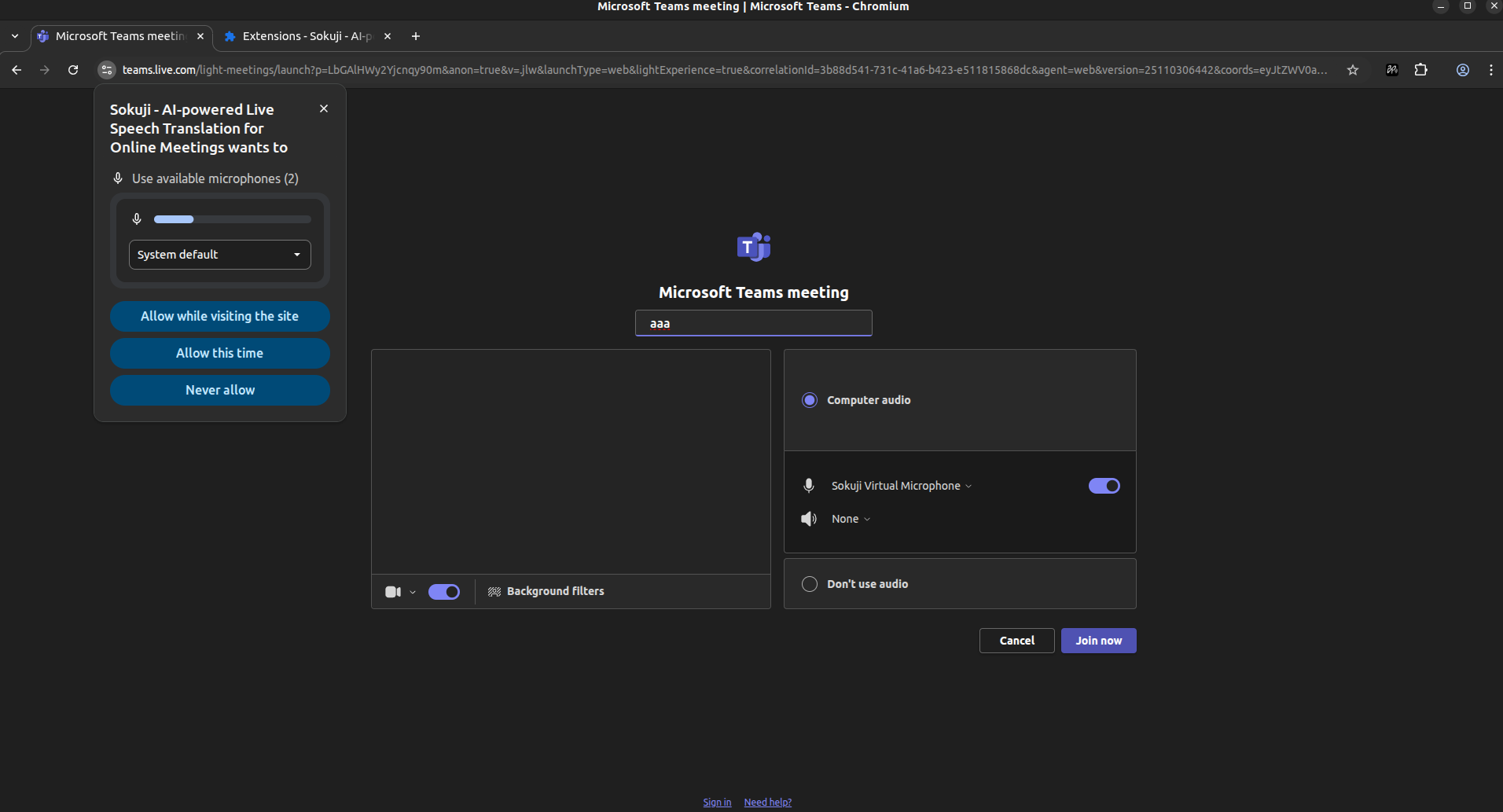
If you have previously granted permissions to Teams, you will also need to grant microphone permission to Sokuji. Select your preferred microphone from the dropdown and click "Allow while visiting the site".
Tip
Sokuji needs access to your real microphone to capture your voice for translation.
5Troubleshoot: Only Virtual Microphone Visible
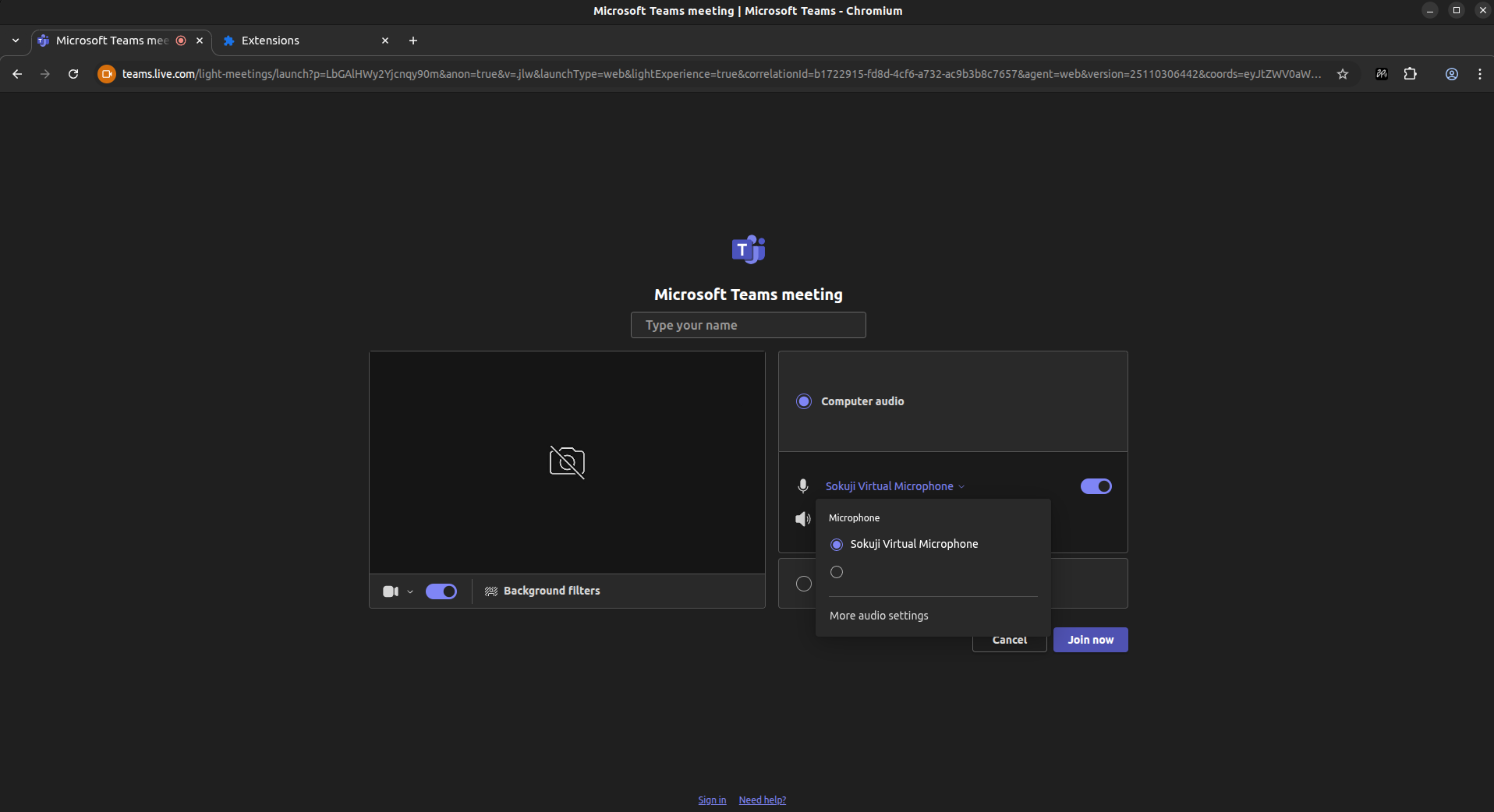
If your microphone dropdown only shows "Sokuji Virtual Microphone" and no other devices (as shown), it means Teams hasn't been granted permission to access your real devices. To fix this: 1) Click the puzzle piece icon (Extensions) in your browser toolbar, find Sokuji and click the three-dot menu, then select "Disable" or toggle it off, 2) Refresh the Teams page, 3) Allow Teams to access your microphone and camera when prompted, 4) Go back to Extensions, find Sokuji and click "Enable" or toggle it on, 5) Refresh the Teams page again.
Tip
You can also manage extensions by typing <code>chrome://extensions</code> (Chrome) or <code>edge://extensions</code> (Edge) in your address bar.
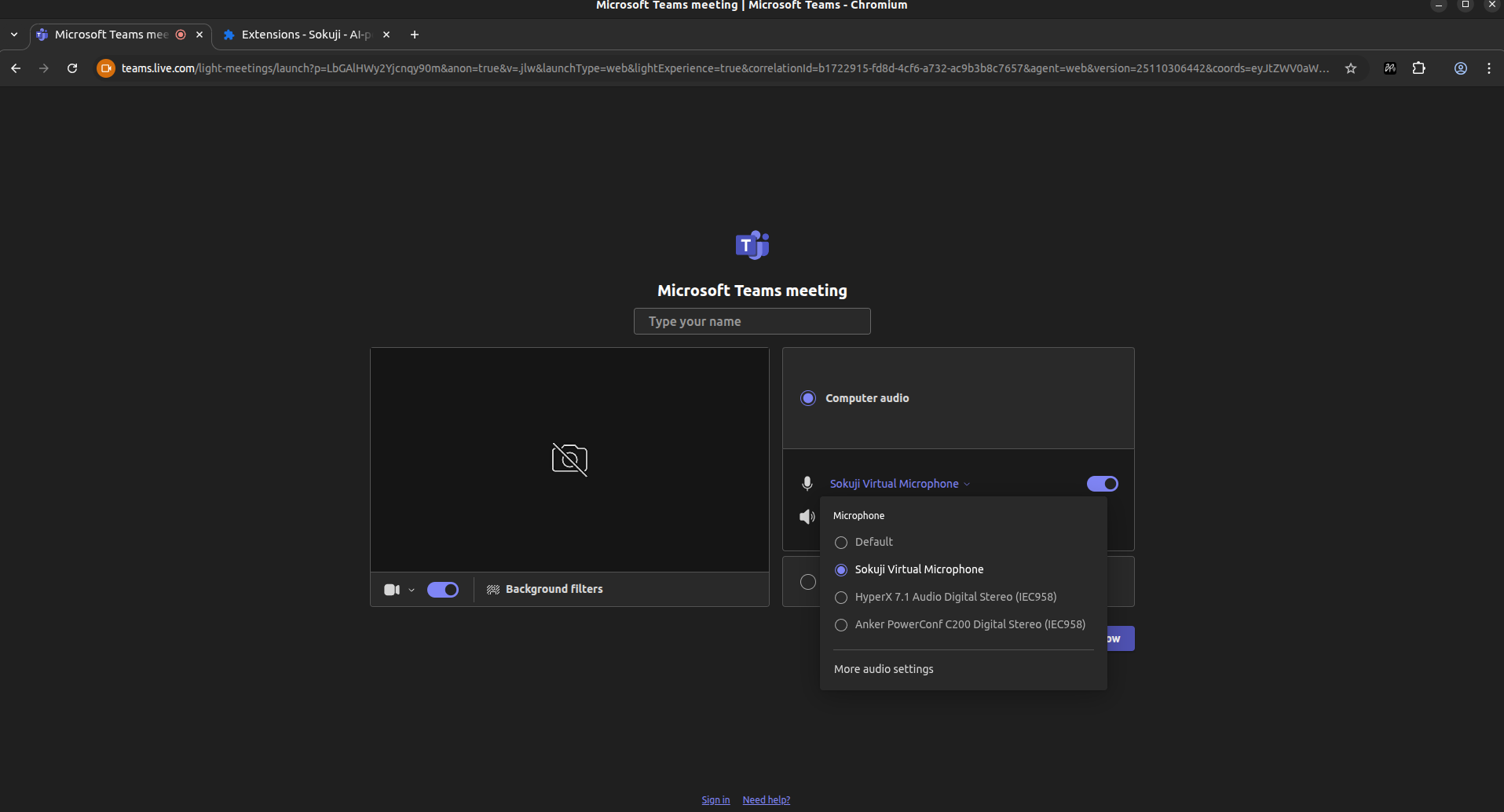
6Select Sokuji Virtual Microphone
Once both Teams and Sokuji have the correct permissions, you should see all your devices in the dropdown. Select "Sokuji Virtual Microphone" as your microphone.
Tip
You should see your real microphones alongside the Sokuji Virtual Microphone in the list.
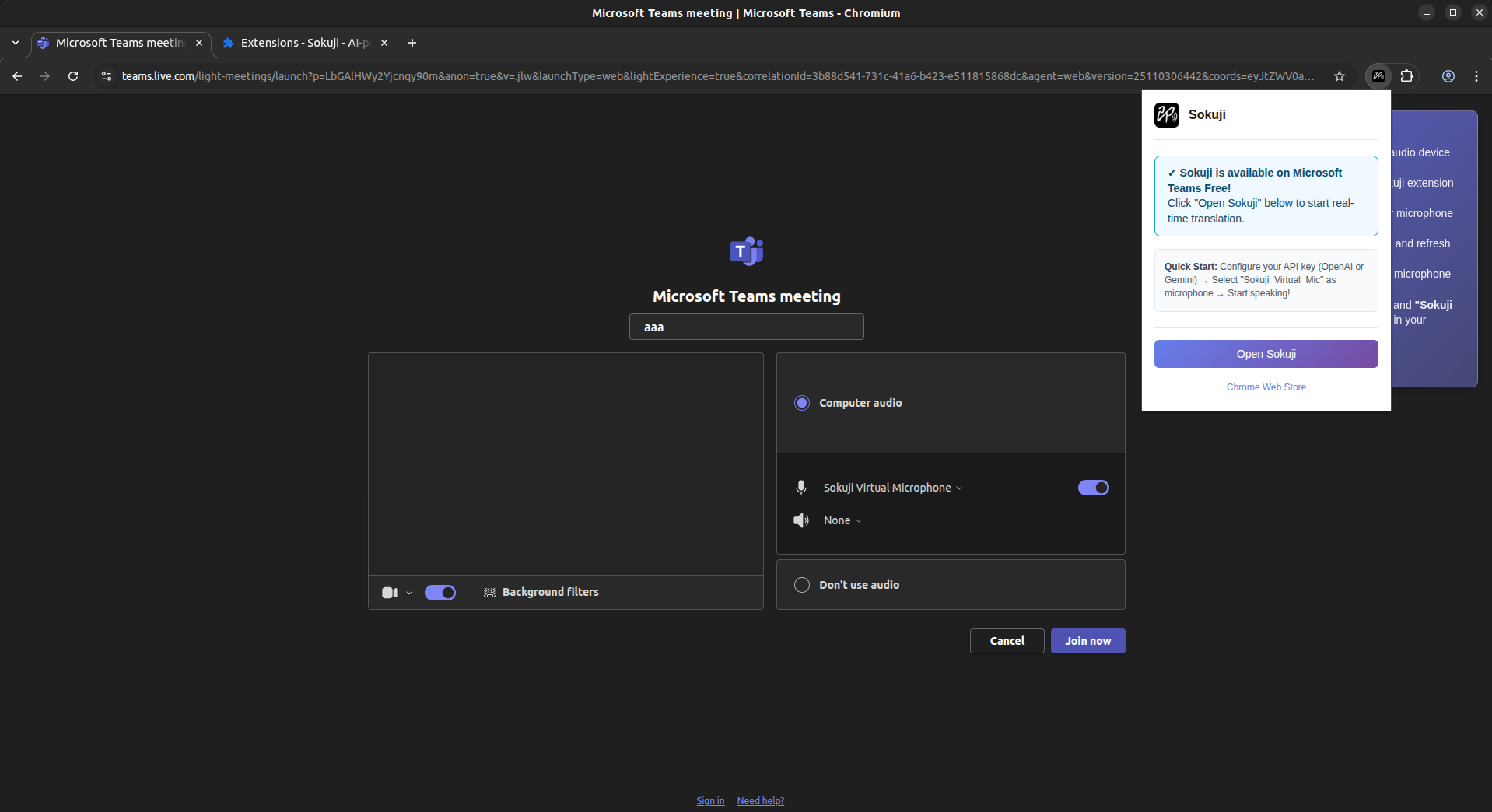
7Open Sokuji and Start Translation
Click the Sokuji icon in the top right corner of your browser, then click "Open Sokuji" to open the extension panel. Configure your translation settings and start speaking!
Tip
Speak at a natural pace and enunciate clearly for the best translation quality.
Tips for Best Results
- Use a good quality headset to minimize echo and background noise
- Test your setup before important meetings
- Keep sentences concise for more accurate translations
Frequently Asked Questions
Does Sokuji work with the Teams desktop app?
The Sokuji browser extension only works with web browsers. If you want to use the Teams desktop app, please use the Sokuji desktop application instead.
Can I use Sokuji in Teams channels or only in meetings?
Sokuji works in Teams meetings and calls. It doesn't translate text messages in channels or chats.
Why can I only see Sokuji Virtual Microphone in device settings?
This happens when Teams hasn't been granted permission to access your real devices. Temporarily disable Sokuji, refresh the page, allow Teams to access your microphone, then re-enable Sokuji and refresh again.
Troubleshooting
If you encounter any issues, please visit our GitHub repository or contact us at support@kizuna.ai for support.