
Subtitle Mode
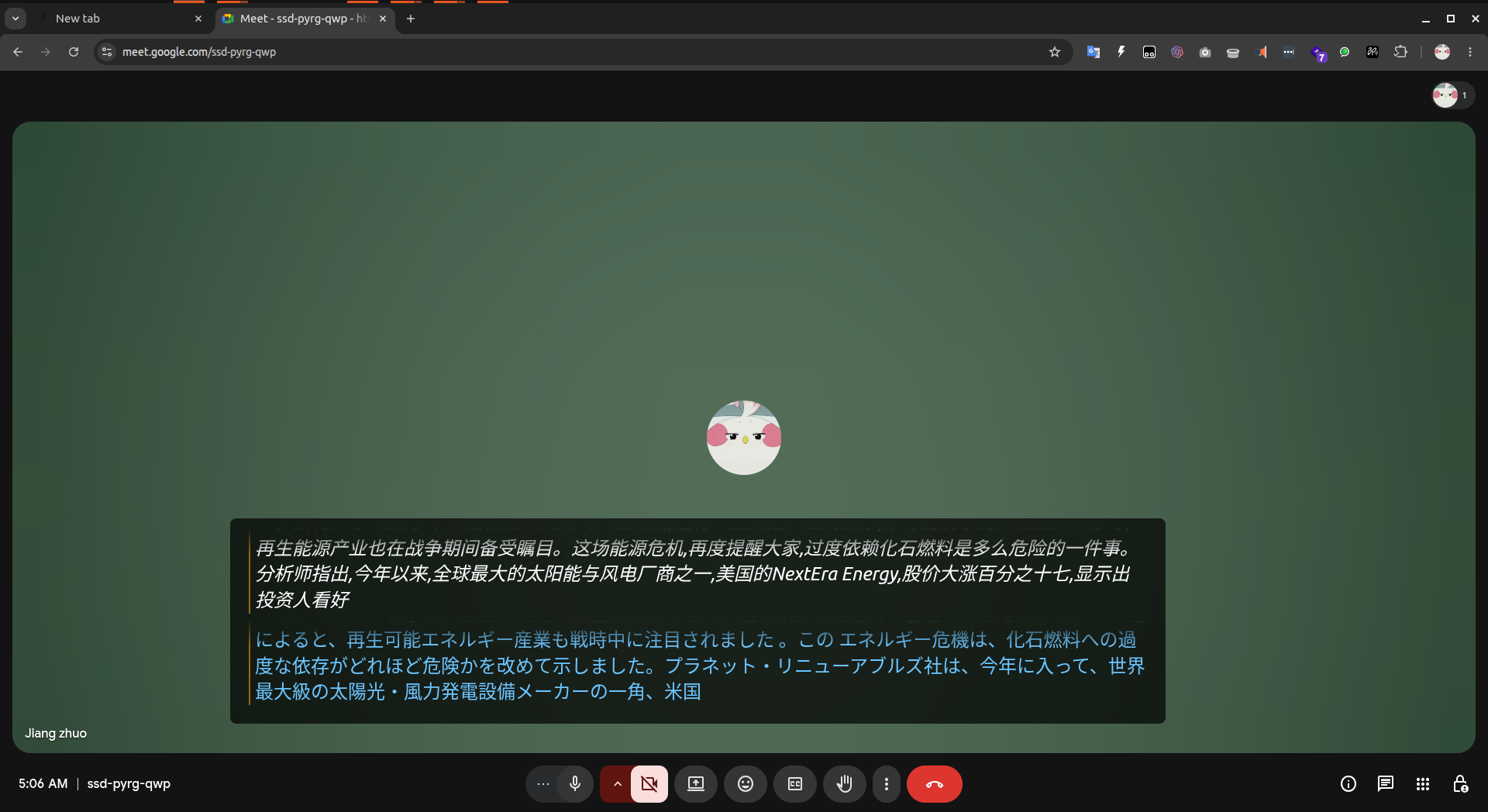
A translucent floating subtitle bar that overlays your video calls with live bilingual translation.
Overview
Subtitle Mode shrinks Sokuji into a slim, always-on-top bar pinned to the bottom of your screen. It shows the live bilingual translation stream while you continue working in another app, joining a video call, or watching a video. The main window does not need to stay in the foreground.
You can enter Subtitle Mode after starting a translation session. Subtitle Mode does not control session lifecycle — start and stop sessions from the main window.
How to Enter and Exit
Once a session is active, click the subtitle icon in the main panel toolbar. The window transforms in place: the title bar hides, the bounds shift to a floating bar at the bottom of your screen, and the bar pins above other windows.
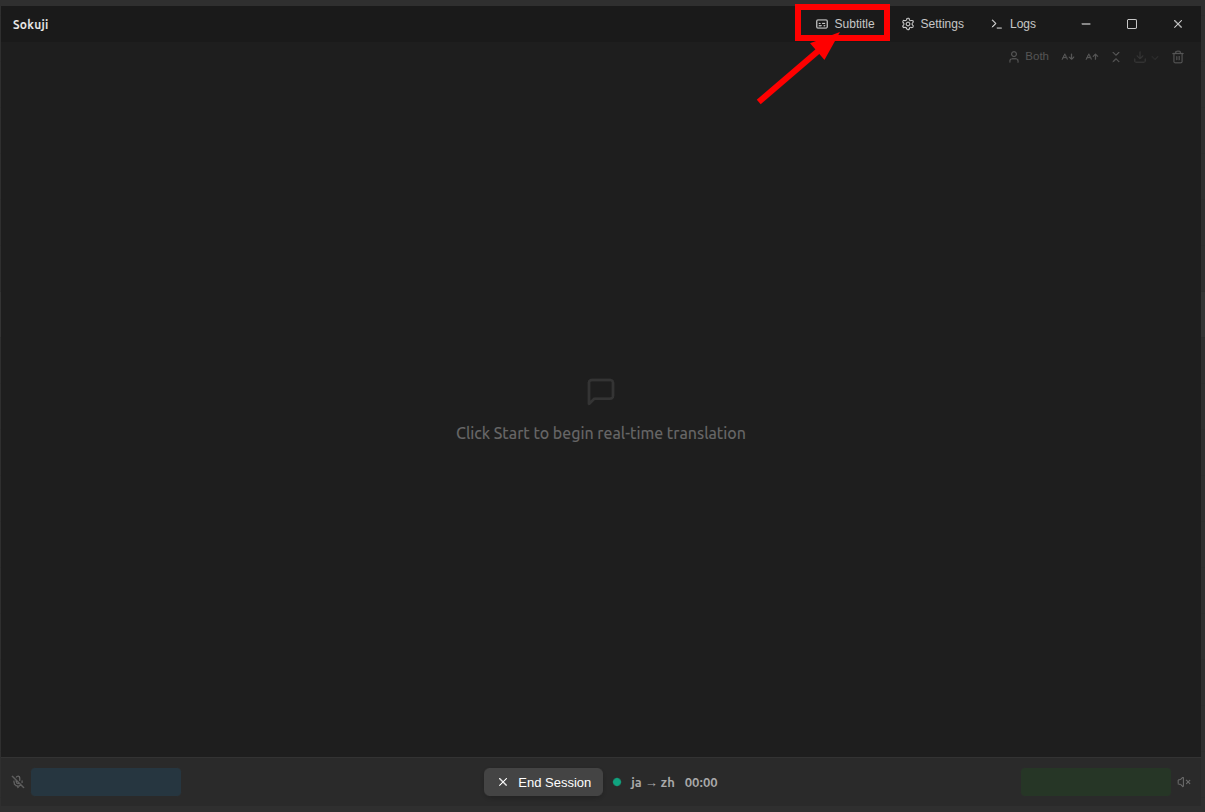
To leave Subtitle Mode, press ESC while the bar is focused, or click the ✕ button on the right edge of the bar. The main window restores to its previous size and position.
Floating Bar Layout
The bar is divided into three segments. The whole bar acts as a drag region (when not locked); interactive controls opt out.
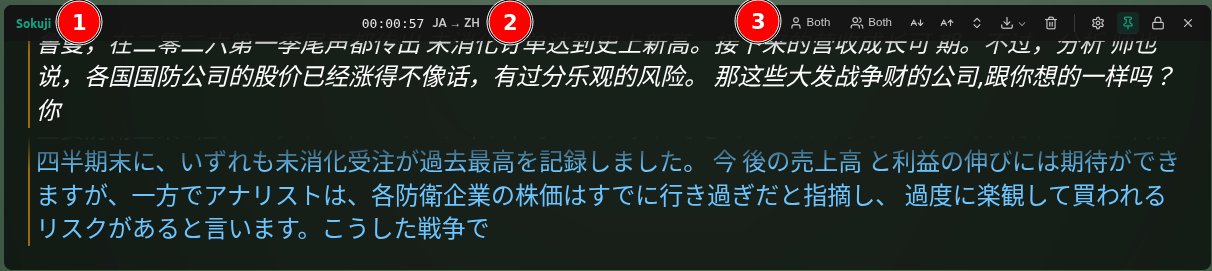
| Segment | Contents |
|---|---|
| Left | Sokuji logo and a reserved quota slot for future use. |
| Center | Session timer (HH:MM:SS) and the active language pair (e.g., ZH → EN). Read-only. |
| Right | Display-mode toggles (speaker / participant), font size, compact toggle, Export, Clear, Settings, Pin, Lock, and Exit. |
Customization
Click the gear on the right of the bar to open the settings popover. All values persist across launches.
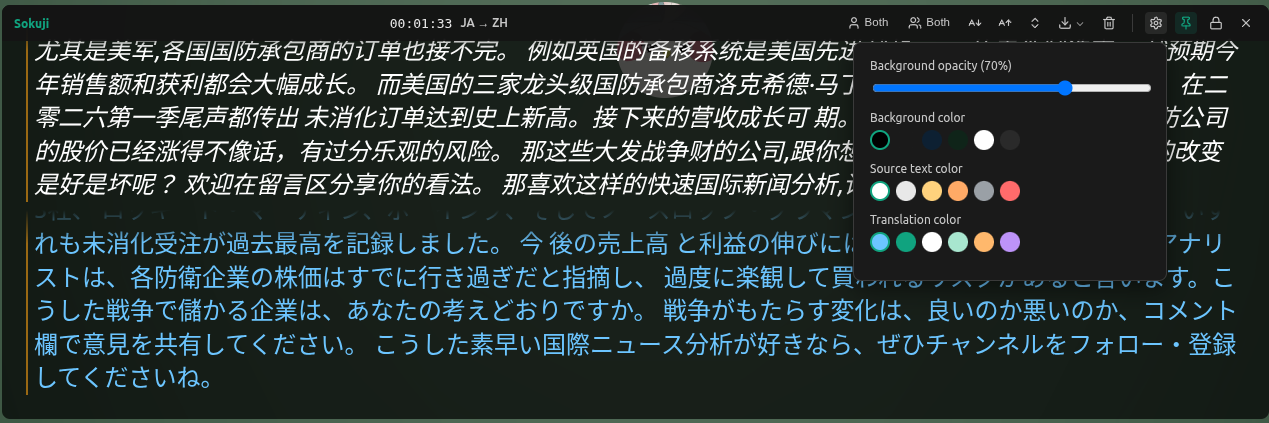
| Field | Range | Effect |
|---|---|---|
| Font size | 16 – 48 px | Scales subtitle text. |
| Compact mode | On / Off | Hides row header, language badge, and play button to maximize subtitle real estate. Default On. |
| Background opacity | 0 – 100 % | Controls how transparent the bar is over the underlying window. 0% is fully transparent (text only). |
| Background color | 6-swatch palette | Sets the bar background color. Works with the opacity slider. |
| Source text color | 6-swatch palette | Color of the recognized source-language text. |
| Translation text color | 6-swatch palette | Color of the translated target-language text. |
Pin and Lock
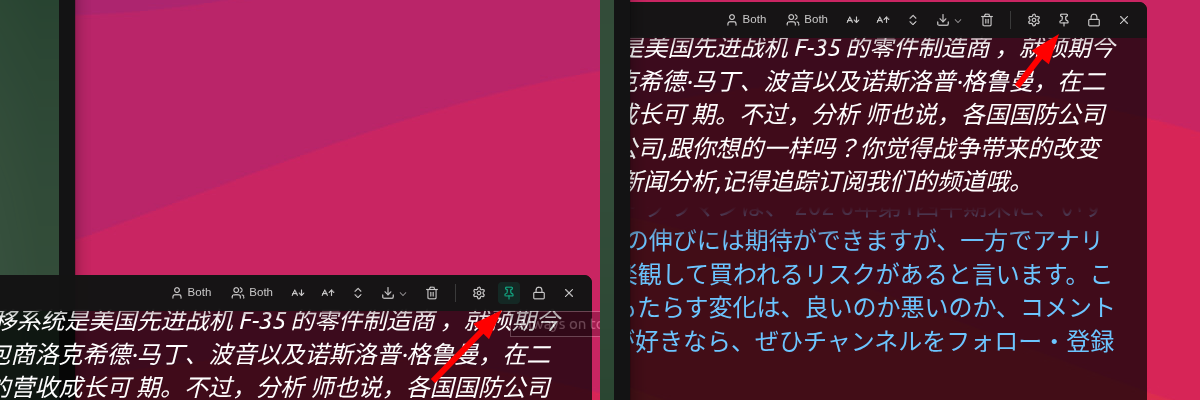
Two toggles on the right of the bar control window behavior independently:

| Control | Behavior |
|---|---|
| Pin | When active, the bar stays above all other windows. When off, clicking another app sends the bar to the back. Default On. |
| Lock | When active, both position and size are frozen — you cannot drag the bar or resize it from the edges. Toggle off to reposition or resize. Default Off. |
Compact vs. Expanded Subtitle Rows

Subtitle Mode defaults to compact rows: a small color dot indicates the speaker, with source and translation text rendered inline. Switch off compact mode to show the full row header (with language badge and play button) — useful if you want richer context at the cost of vertical space.
Tips and Limitations
- Window position and size are remembered across launches.
- Source and target language cannot be changed from inside Subtitle Mode — return to the main window first.
- Subtitle Mode is a presentation surface only; start and stop sessions from the main window.
- Locking disables both moving and resizing; unlock to reposition.
- On some older Linux desktop environments without compositor transparency, the background may render as opaque. Functionality is unaffected.
Frequently Asked Questions
Why is the Subtitle Mode button disabled?
The button is enabled only when a translation session is active. Start a session in the main window first, then click the subtitle icon.
Does it work in the browser extension?
No — Subtitle Mode is available in the Sokuji desktop application only (v0.26.0 and later). Browser extension support is planned for a later release.
Can I show only the translation, or only the source language?
Yes. The Display Mode buttons in the right cluster of the bar are the same controls as in the main window — toggle each side between source-only, translation-only, or both.
How do I exit Subtitle Mode?
Press ESC while the bar is focused, or click the ✕ button on the right edge of the bar. The window restores to its previous size and position.
Are my color and size choices remembered?
Yes. Font size, compact mode, background opacity, background color, and the source/translation text colors all persist across app launches.