
Face-to-Face Conversation Across Two Languages
Overview
This guide sets up the Sokuji desktop app for two people at one computer who speak different languages: a visitor at a front desk, a meeting across a table, a talk with a relative. You share one microphone and each wear one earbud. What you say is read to the other person in their language, what they say is read to you in yours, and both sides appear as subtitles. Nothing is sent into a meeting app, and you need no virtual audio cable. It uses KizunaAI (Powered by Soniox). The screenshots are from Sokuji 0.44.0 on Windows: I speak Chinese, the other person speaks English, and we share a pair of earbuds, mine in the left ear and theirs in the right.
1Set up Sokuji with KizunaAI
If you have not done so yet, follow the KizunaAI quick start to install Sokuji and sign in.
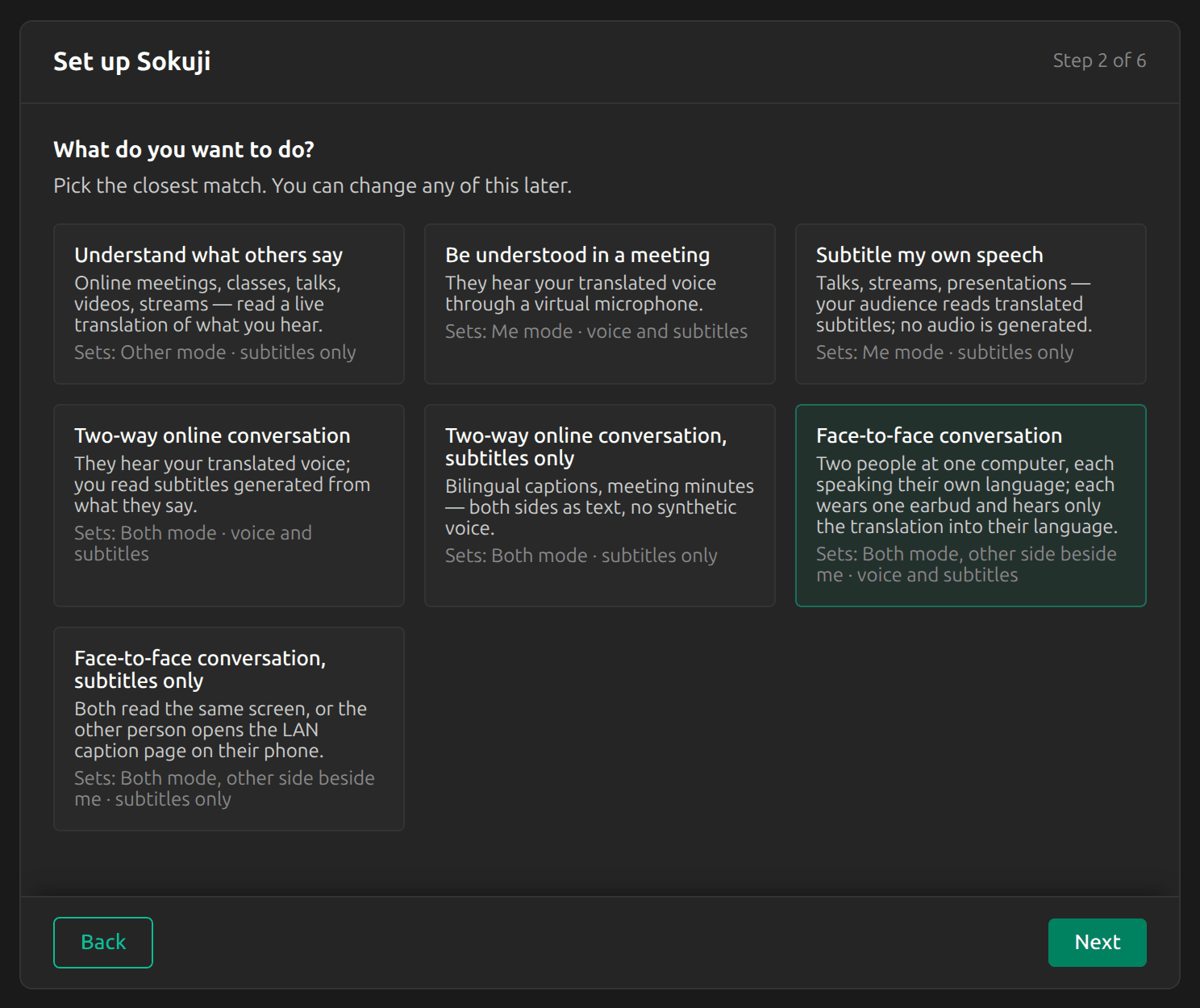
2Choose “Face-to-face conversation”
In the setup guide, choose Face-to-face conversation. It puts Sokuji in Both mode with the other side beside you, and reads both translations aloud. If you have already finished the setup, use the next step instead.
3Put the other person beside you
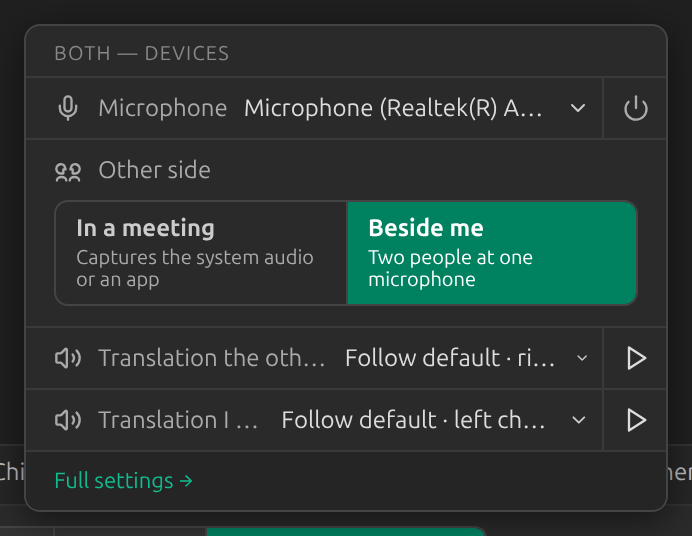
Click Both in the mode switch at the bottom left of the main window; if its panel does not open, click Both again. Under Other side, choose Beside me. The mode switch now carries a Face-to-face tag, and the panel shows what face-to-face uses: your microphone, and where each translation plays.
Tip
Other’s audio is not needed: the other person speaks into your microphone, and Sokuji captures no system audio. Other side cannot change while a session runs.
4Set the two languages
In Settings, under Translation Languages, set I speak to your language and they hear to the other person’s. The line underneath reads the other way round. Here: I speak Chinese, they hear English, and the line says “They speak English → I hear Chinese”.
Tip
Do not leave I speak on Auto Detect. In Both mode Sokuji has to know your language to translate the other person into it, and Start stays disabled until you choose one.
5Choose one microphone for both of you
Under Microphone, pick a microphone that hears you both, such as the built-in microphone of a laptop placed between you, or a desk microphone. The microphone of a headset hears only the person wearing it.
6Put in the earbuds and set the ears
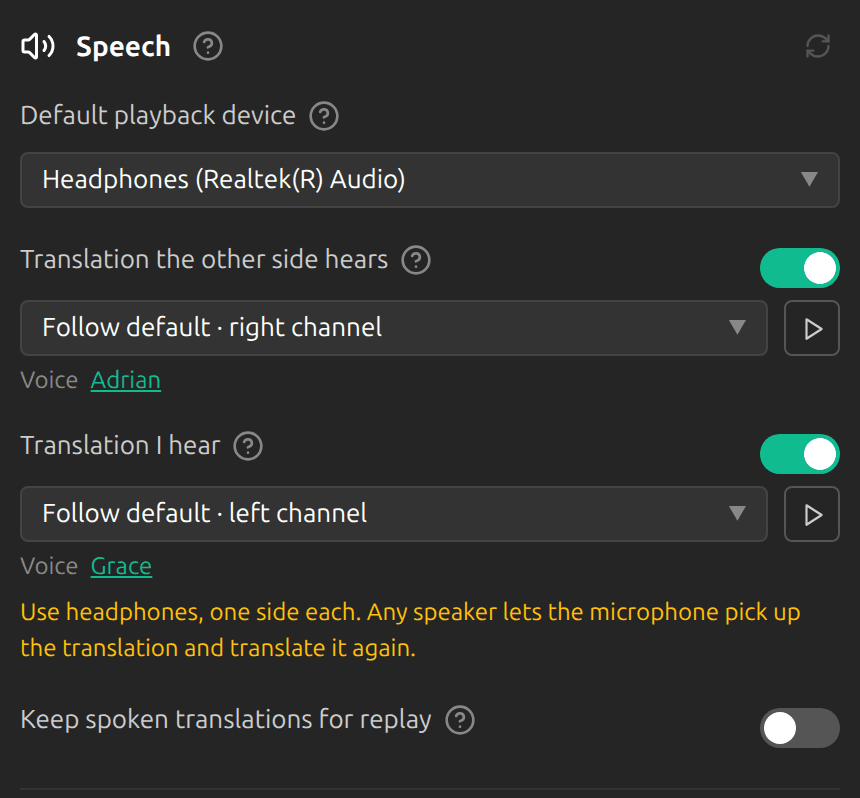
You wear the left earbud, the other person the right one. In the Speech block, Translation the other side hears plays your translation in the other person’s ear (right channel), and Translation I hear plays theirs in yours (left channel), both on the default playback device. The play button beside each row plays a short tone in that ear. To swap ears, choose the other channel in each row; to give each of you a headset of your own, choose a device in each row. Ears and devices can change during a session too.
Tip
One earbud each, never a speaker: through a speaker the microphone picks up the translation and translates it again. I hear it too and Passthrough are not shown in face-to-face.
7Pick the two voices
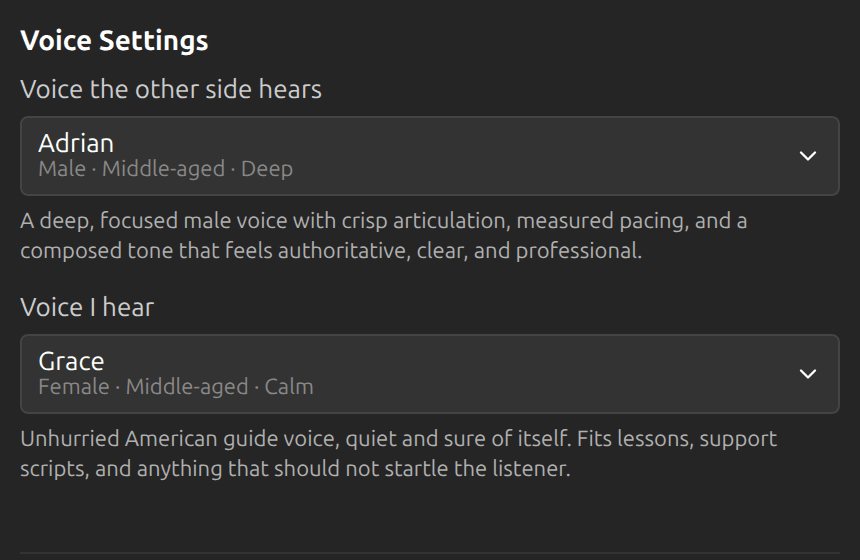
Click the voice name under either row, or open Settings → Advanced → Provider. Voice the other side hears is the voice the other person hears your translation in: a preset or your own cloned voice. Voice I hear reads the other person’s translation to you, from the preset voices. By default the two are different voices. The voices guide has more.
8Start and take turns
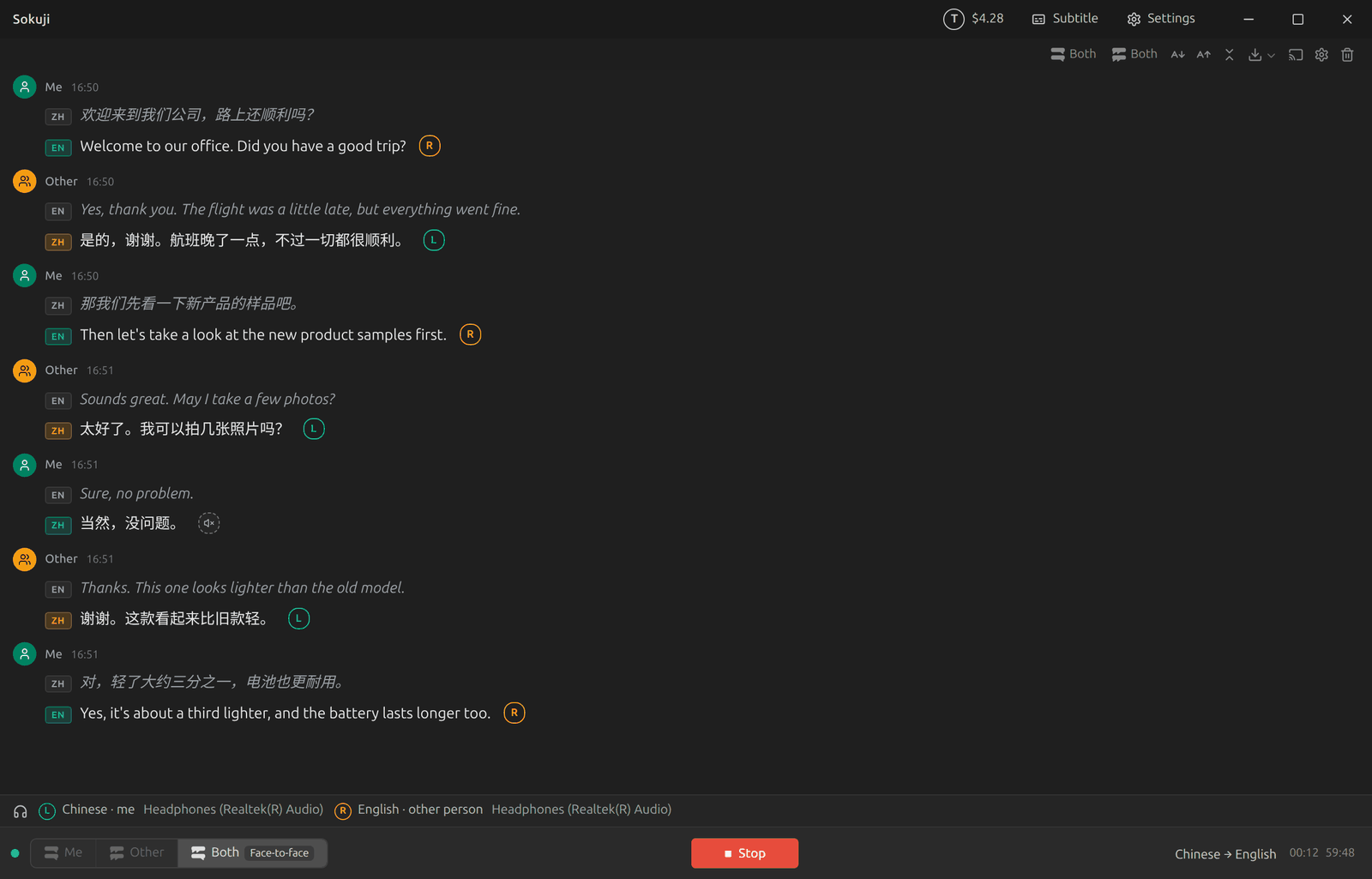
Click Start and speak in turn. Each sentence appears with its translation and is read into the listener’s ear: yours into the other person’s, theirs into yours. The strip above Start shows each person’s ear, language and device, here L Chinese · me and R English · other person, and each translated line carries an L or R tag for the ear it plays in. A line marked with a crossed-out speaker is not played: its translation came out in the speaker’s own language, which can happen when someone mixes both languages, so it is read to no one.
Tips for Best Results
- Take turns and pause at the end of each sentence. When you both talk at once, one microphone hears you mixed together.
- Keep to your own language. A sentence in the other person’s language may come out translated into your own, and then it is read to no one.
- Translation the other side hears and Translation I hear are fixed once a session runs. Stop the session to change them.
- Stop the session when the conversation ends: a running session keeps using your balance.
Frequently Asked Questions
Can we use subtitles only?
Yes. Choose Face-to-face conversation, subtitles only in the setup guide, or switch off Translation the other side hears and Translation I hear in the Speech block before you start. You then both read the screen, and in the desktop app the other person can also follow on their phone through caption sharing. You can also switch off just one of the two, for example when the other person would rather read.
What does a face-to-face conversation cost?
It always runs as one shared session: Shared session in Both mode is fixed to Enabled. With voice, both halves are spoken, your translation and the other person’s, so it costs more per minute than subtitles only and needs a higher balance to start. The billing guide has the details.
Do I need VB-CABLE for this?
No. Face-to-face plays both translations in your earbuds and sends nothing into a meeting app.
Which providers can do face-to-face?
KizunaAI, and Soniox with your own API key. Other providers cannot translate two people at one microphone.
Is there a button to swap the ears?
No. Choose the left or right channel in each of the two rows of the Speech block, or in the panel that opens from the mode switch.
Troubleshooting
Still stuck? Send us feedback from the account menu, or write to support@kizuna.ai. You can also ask in GitHub Discussions.