
KizunaAI Quick Start (Powered by Soniox)
Overview
KizunaAI is the quickest way to start with Sokuji: there is no API key to create. You sign in with a Kizuna AI account, and Soniox does the speech recognition, translation and speech synthesis. Accounts with a verified email address get a trial credit (currently US$0.50, valid for 7 days); after that you top up your balance and pay only for what you use, with no subscription. This guide walks through the first launch of the Sokuji desktop app. The screenshots are from Sokuji 0.41.1 on Windows; macOS and Linux look the same.
1Install Sokuji
Download the desktop app from the download page and install it (see the Windows, macOS and Linux guides). On first launch, Sokuji opens a six-step setup guide.
Tip
On Windows, Sokuji asks to install VB-CABLE, a free virtual audio driver, when it starts. Click Install Now if you want the other side of a call to hear your translated voice.
2Pick the interface language
This is only the language of Sokuji’s menus and buttons. You choose the languages to translate between later. Click Next.
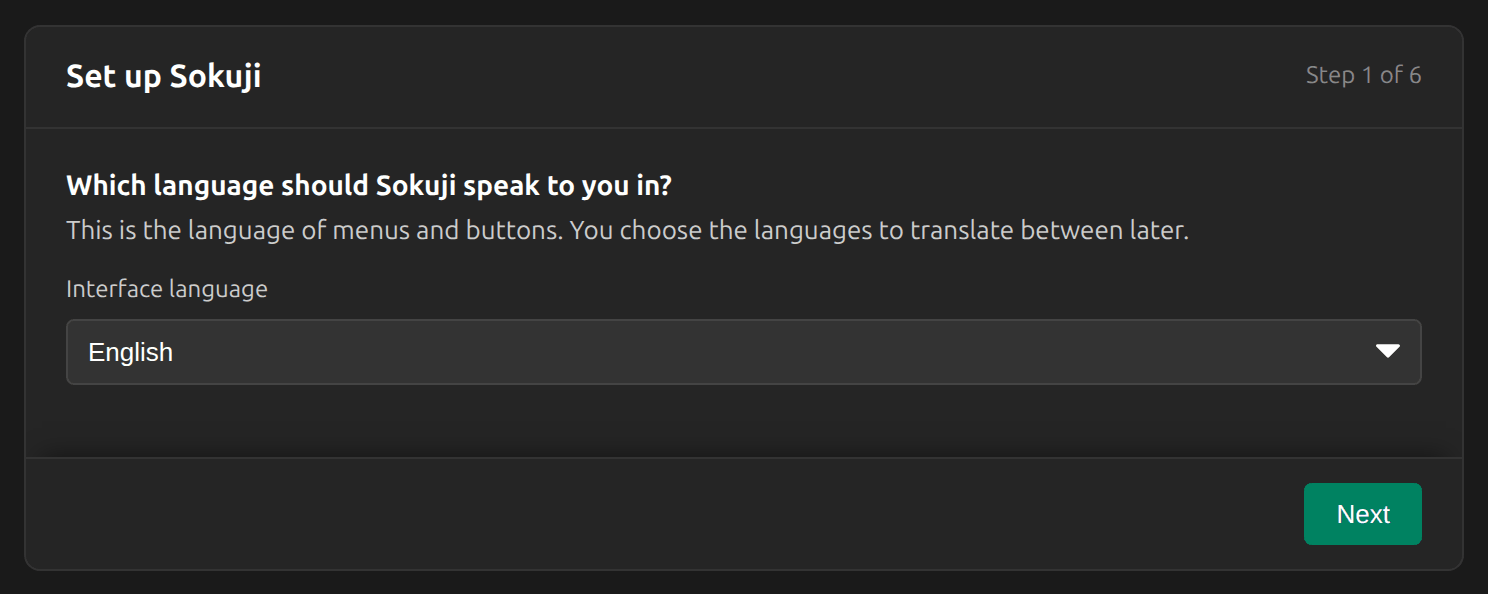
3Tell Sokuji what you want to do
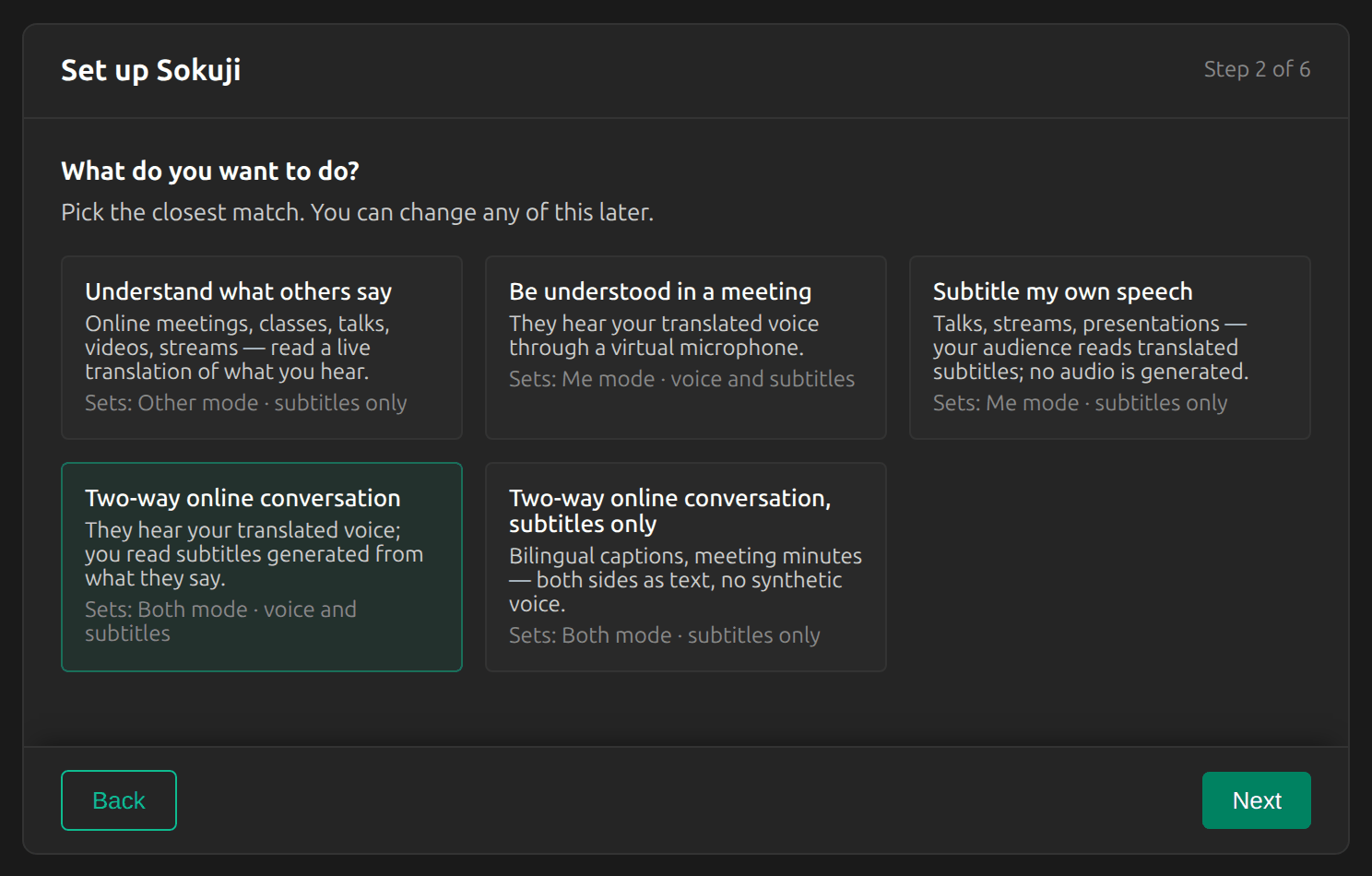
Pick the card closest to how you will use Sokuji. It sets the translation mode (Me, Other or Both) and whether translations are spoken or shown as subtitles only. Understand what others say gives you a live translation of what you hear; Be understood in a meeting lets the other side hear your translated voice; Two-way online conversation does both at once. You can change this later.
Tip
For a video call with someone who speaks another language, choose Two-way online conversation, then follow the two-way meeting guide.
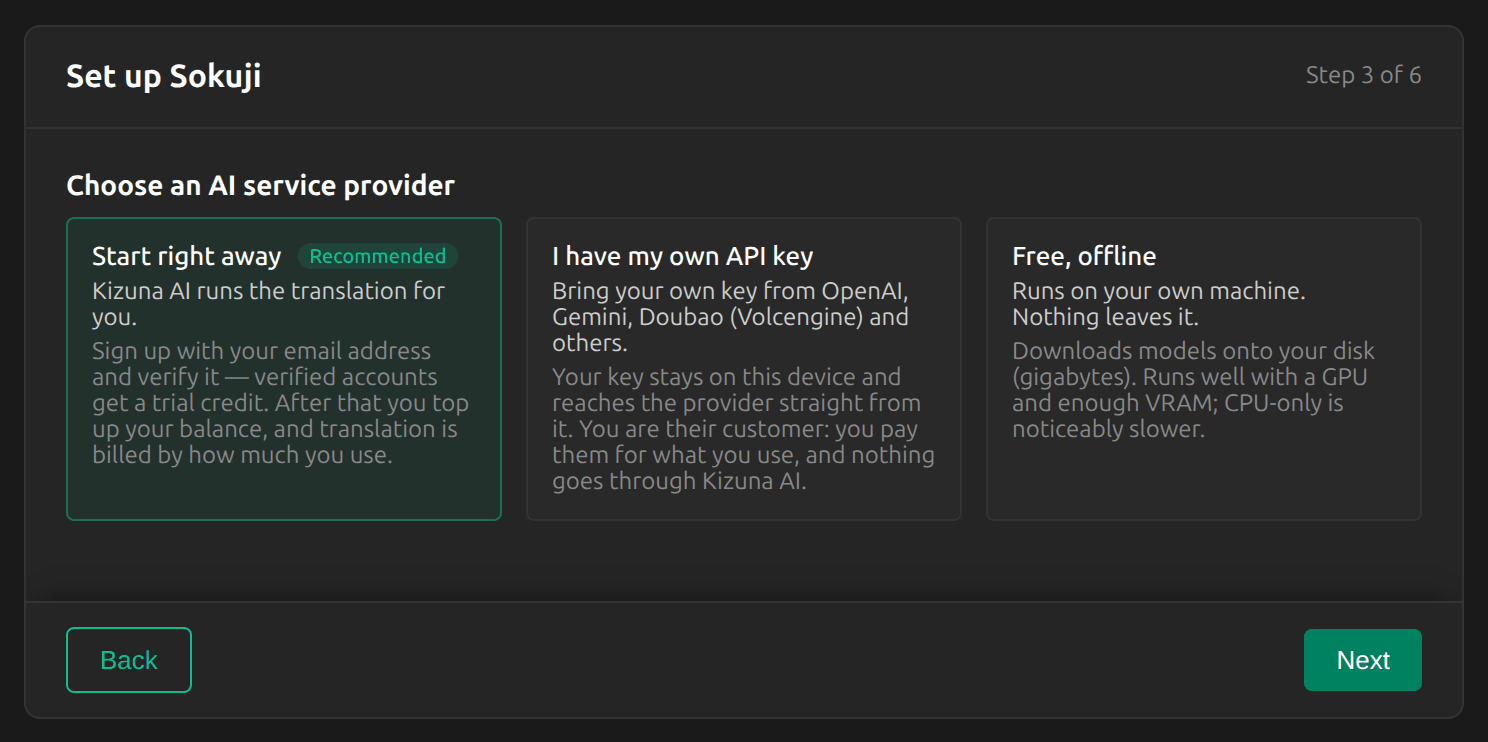
4Choose “Start right away”
Choose Start right away. Kizuna AI then runs the translation for you through Soniox, so there is no API key to create or paste. Click Next.
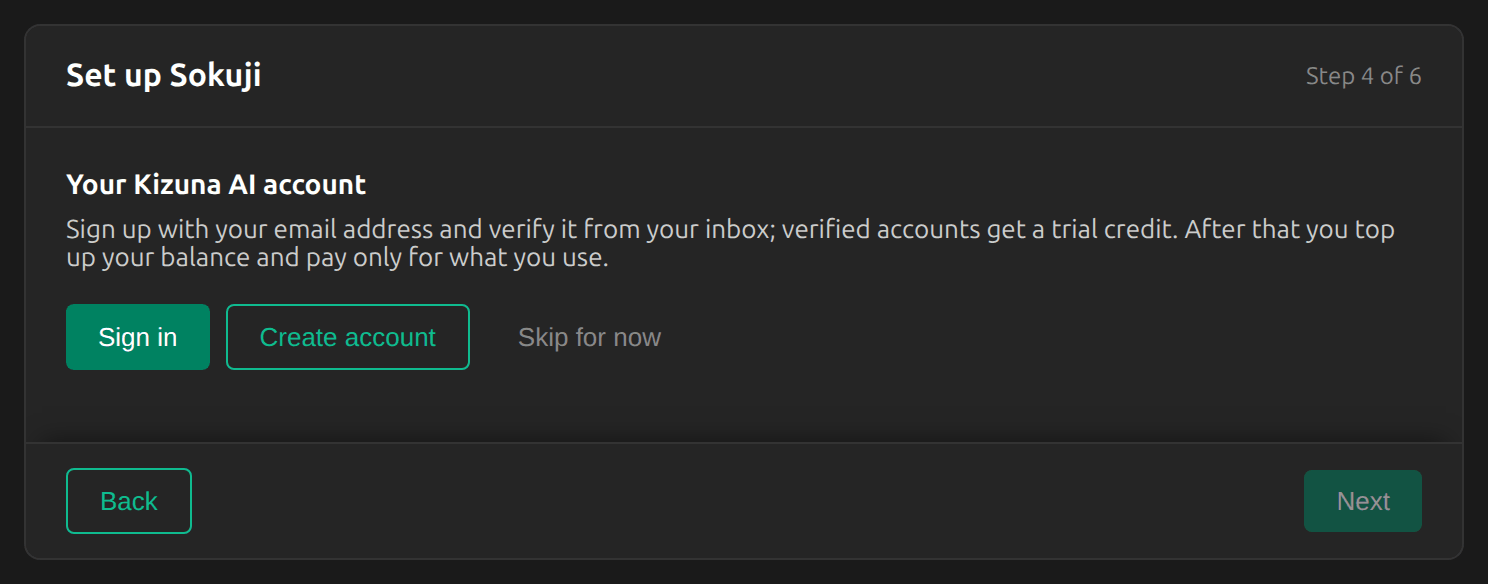
5Sign in or create an account
Click Create account if you are new to Kizuna AI, or Sign in if you already have an account.
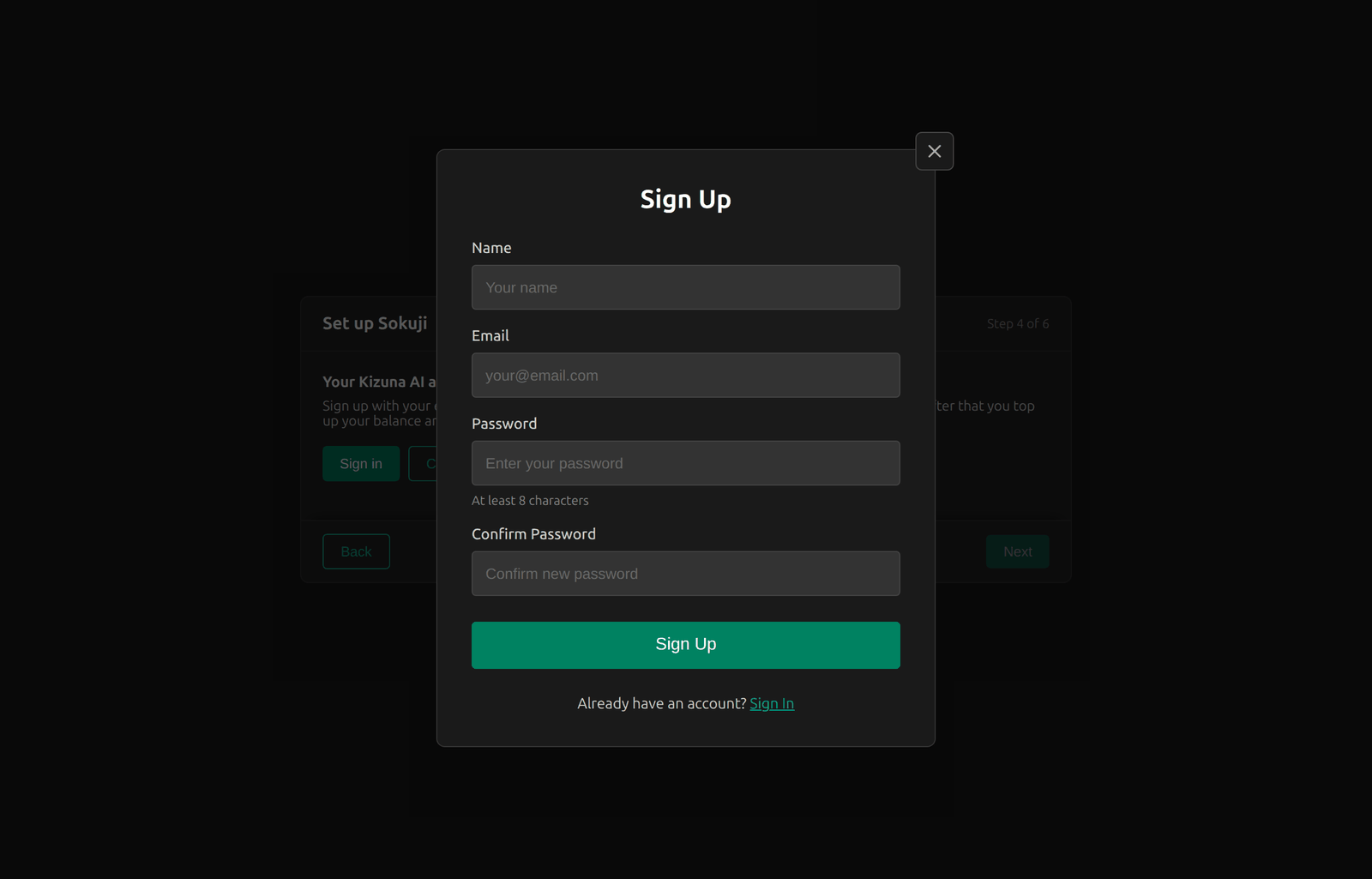
6Fill in the sign-up form
Enter your name, your email address and a password of at least 8 characters, then click Sign Up. The same account also signs you in to the Kizuna AI website, where you manage your balance.
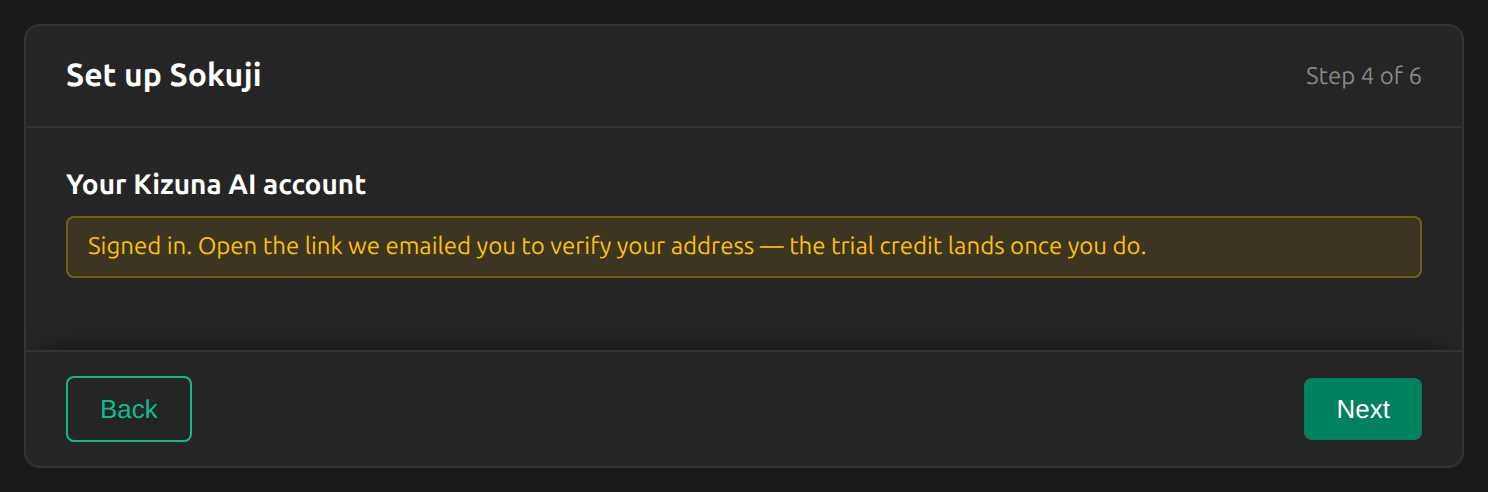
7Verify your email address
Sokuji signs you in straight away and emails you a verification link. Open that link: the trial credit is added to your balance once your address is verified. Then click Next.
Tip
No email? Check your spam folder. You can finish the setup in the meantime; the credit shows up on the account button as soon as you verify.
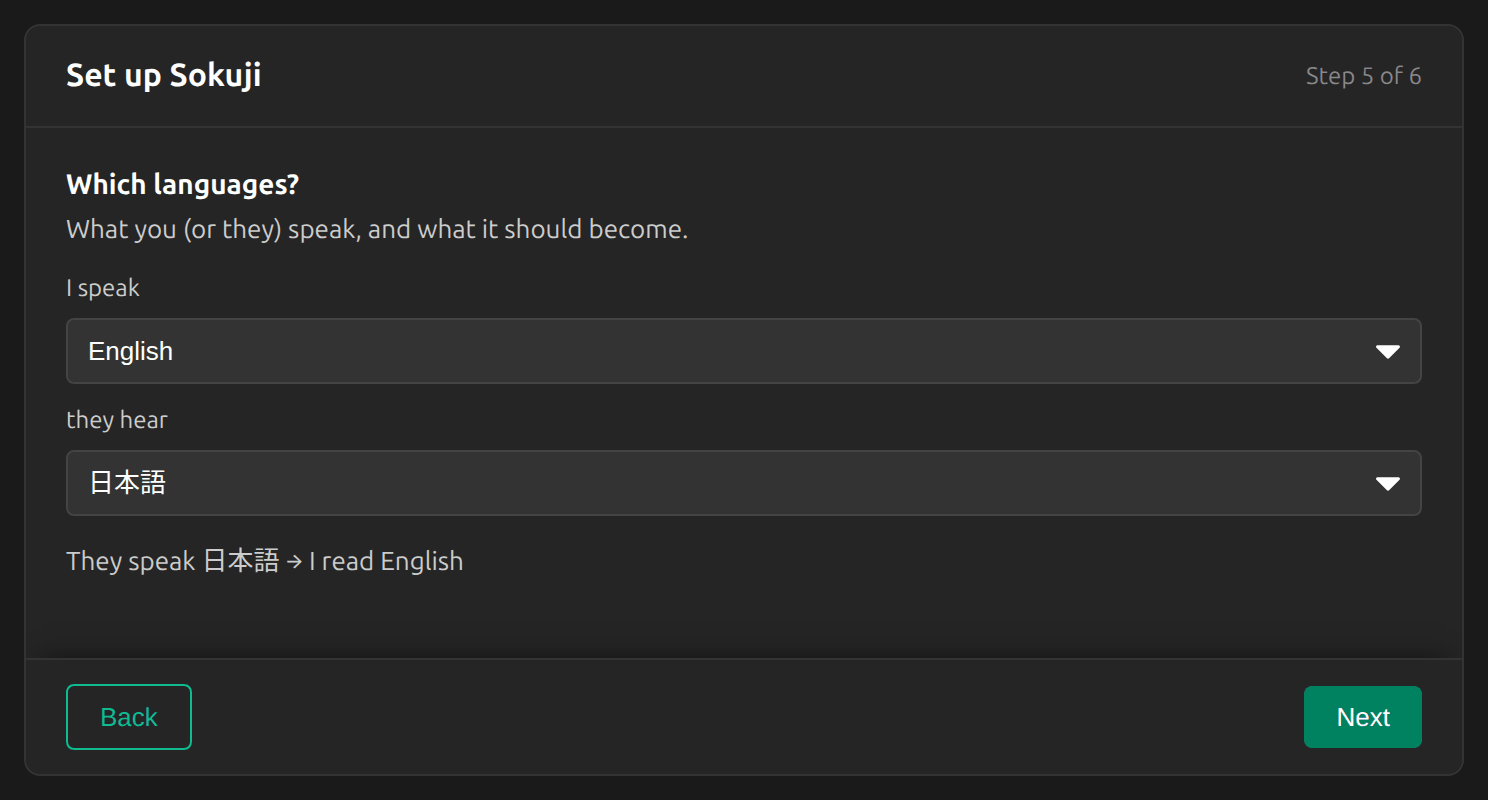
8Choose your languages
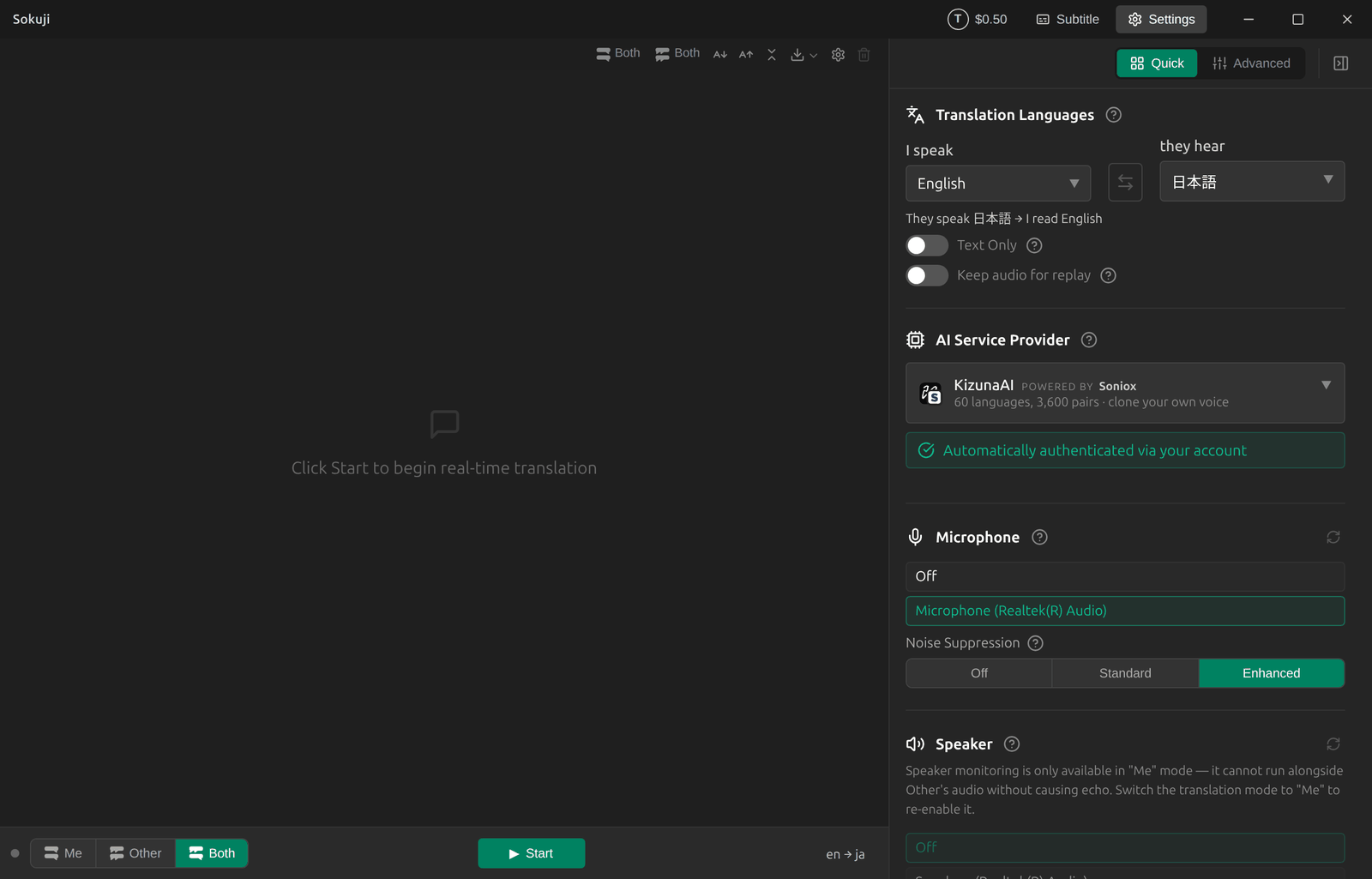
I speak is your language; they hear is the language the other side gets. In two-way mode the reverse direction is set for you, and the line underneath shows it: here, “They speak 日本語 → I read English”.
Tip
If the other side’s speech is translated too (Other or Both mode), set I speak to a specific language rather than Auto Detect. Otherwise Sokuji cannot tell which language to translate them into, and Start stays disabled.
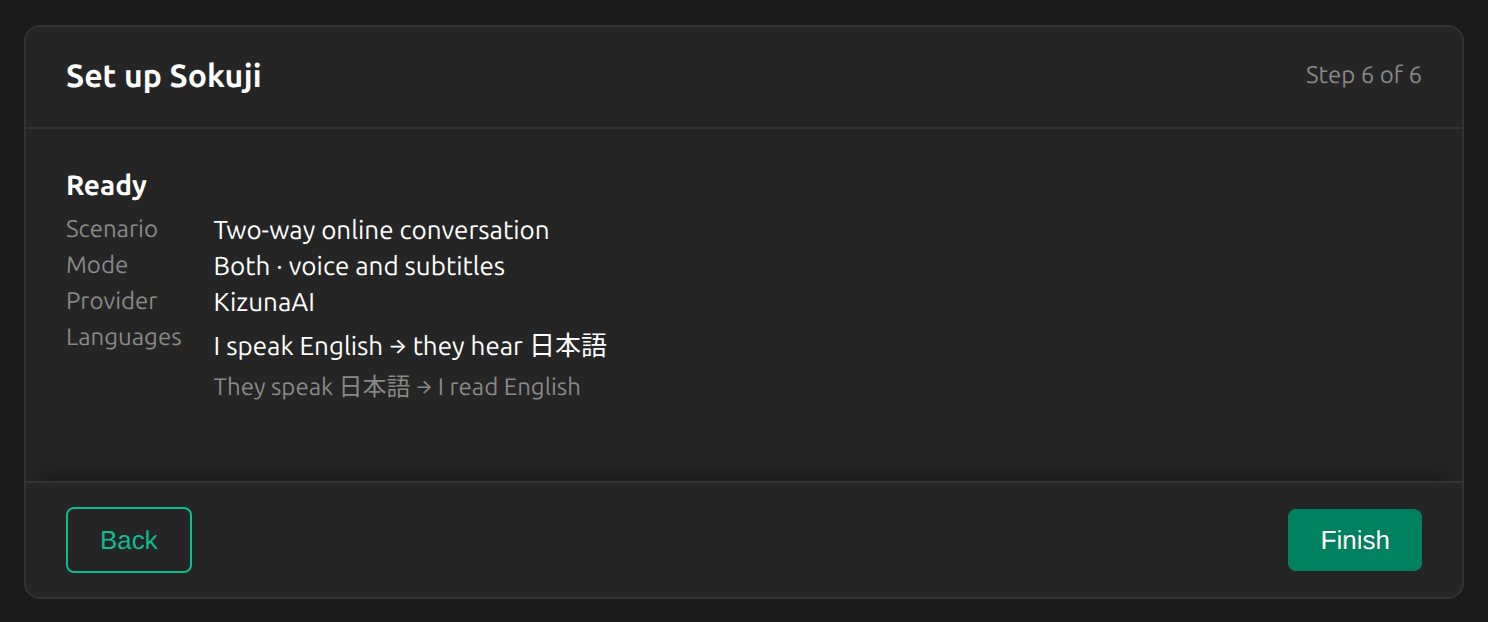
9Review and finish
Check the summary and click Finish. A short tour of the main window follows. You can skip it and replay it any time from Settings → Help.
10Choose your microphone and start
The Settings panel on the right shows what the setup chose. Under Microphone, pick the microphone you speak into. Then click Start at the bottom of the window. If Start stays grey, hover over it: the note tells you what is still missing.
Tip
Both mode also needs Other’s audio to be set, so that Sokuji knows which app the other side is speaking from. The two-way meeting guide covers this.
11Check your balance and top up
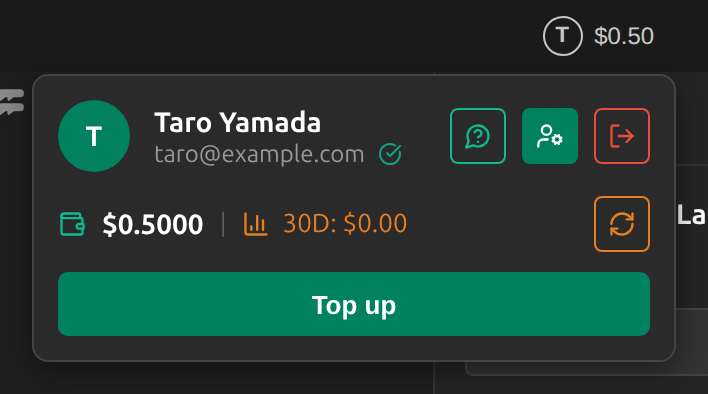
The account button in the title bar shows your balance. Click it to see your email address, your balance and what you spent in the last 30 days. Top up opens the billing page of your Kizuna AI account in your browser, where you add funds and can see the current rates before you pay.
Tips for Best Results
- Use headphones. Without them, your microphone can pick up the translated voice and translate it again.
- Switch on Text Only when you only need subtitles. Generating speech costs extra.
- Stop the session when you are done: a running session keeps using your balance.
- A red dot on the account button means the balance is too low to start a session; an amber dot means your email address is not verified yet.
Frequently Asked Questions
What does it cost?
Translation is paid from a prepaid balance, by use, with no subscription. The rate depends on what a session does (for example, spoken output costs more than subtitles only). The billing page of your Kizuna AI account lists the current rates before you top up.
What happens when my balance runs out?
Sokuji does not start a session while the balance is too low, and a running session stops when its balance is used up. Top up, then click Start again.
Where does my audio go?
Sokuji sends your audio straight to Soniox, using a short-lived key issued for your account. Kizuna AI handles your account and billing.
How do I run the setup guide again?
Open Settings, scroll to Help and click Run setup again.
Troubleshooting
Still stuck? Send us feedback from the account menu, or write to support@kizuna.ai. You can also ask in GitHub Discussions.