
Export and Auto-Save the Conversation
Overview
Sokuji can copy the conversation to the clipboard or save it as a text or JSON file, and can save it for you every time a session ends.
1Open the export menu
Click the download button in the toolbar of the main window (in the desktop app, the subtitle window has one too).
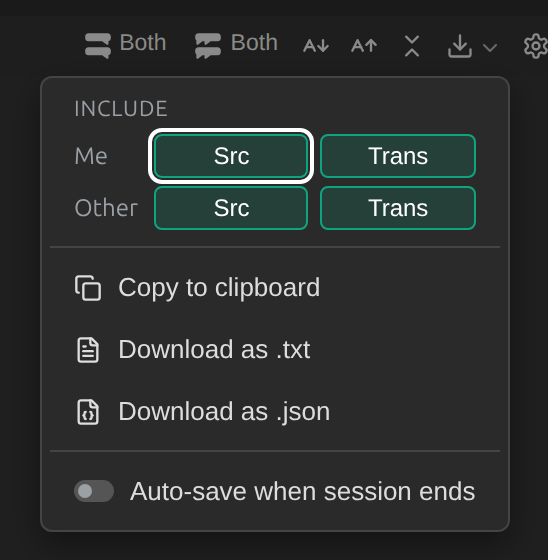
2Choose what to include
Under Include, choose whether to keep the original (Src) and the translation (Trans) for Me and for Other. The choices start from what the conversation currently shows.
3Copy or download
Copy to clipboard, Download as .txt or Download as .json. Files are named like sokuji-conversation-20260928-152728.txt. The text file starts with the provider and languages, then one line per message: [15:26:56] Me: Hi everyone, today let’s go over the Q4 launch plan.
[15:26:56] Me (trans): 皆さん、こんにちは。今日は第4四半期のリリース計画を確認しましょう。
[15:26:57] Other: 承知しました。リリース日は今も11月18日ですか?
[15:26:57] Other (trans): Sounds good. Is the launch date still November 18?
4Save automatically
Switch on Auto-save when session ends. The desktop app then saves the whole conversation as a .txt file in your Downloads folder each time you stop, and shows a notice with Show in folder. The browser extension downloads the file instead.
Tips
- Use the JSON file for other tools: each message has its time, its side (you or the other side), and whether it is the original or the translation.
- Export before you clear the conversation.
Frequently Asked Questions
Does auto-save run if I close the extension’s side panel?
No. Stop the session first, then close the panel.
Where does the desktop app save the file?
In your Downloads folder. If a file with the same name exists, Sokuji adds a number to the new one.
Troubleshooting
Still stuck? Send us feedback from the account menu, or write to support@kizuna.ai. You can also ask in GitHub Discussions.