
Windows Installation Guide
This guide will walk you through installing Sokuji on Windows systems. Sokuji is available as a .exe installer for easy installation on Windows 10 and Windows 11.
Download for WindowsSystem Requirements
- Windows 10 (version 1903 or later) or Windows 11
- 64-bit processor
- 4GB RAM minimum (8GB recommended)
- 200MB available disk space
- Internet connection for AI translation services
- Microphone and speakers/headphones
Step 1: Download Sokuji
Visit the official GitHub releases page to download the latest version of Sokuji for Windows.
Choose the Right Installer
- .exe installer - Standard installer for Windows
- Portable version - No installation required (if available)
Step 2: Run the Installer
Once downloaded, locate the installer file and run it to begin installation.
Windows Defender SmartScreen
When you run the installer, Windows Defender SmartScreen may prevent the app from starting:
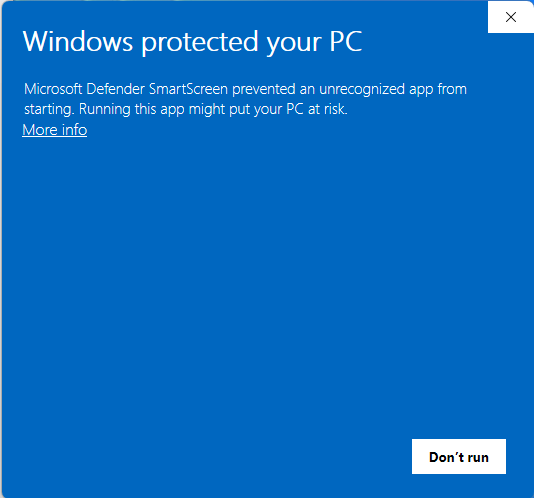
- Click "More info" on the SmartScreen warning
- The window will expand to show more details:
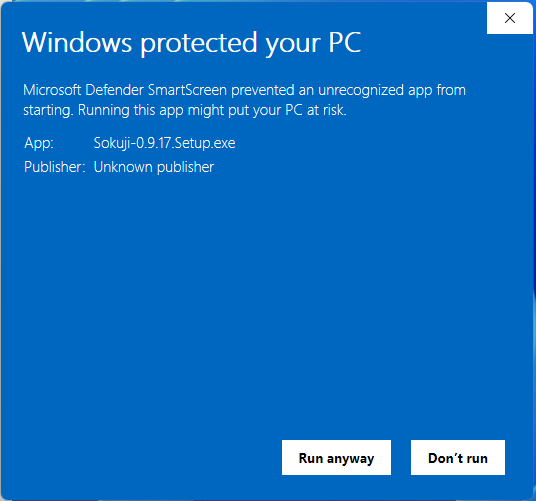
- Click "Run anyway" to proceed with the installation
Step 3: Install VB-CABLE Virtual Audio Device
Sokuji requires VB-CABLE virtual audio device to route audio to other applications. The installer will prompt you to install it automatically.
VB-CABLE Installation
After bypassing SmartScreen, you'll see the VB-CABLE installation prompt:
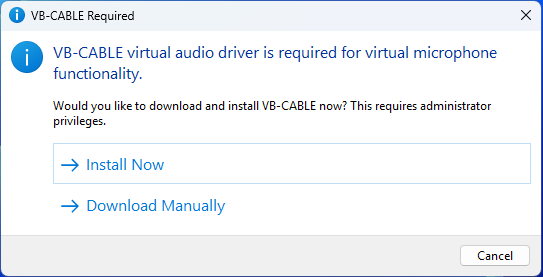
- Click "Install Now" to automatically download and install VB-CABLE
- Alternatively, you can click "Download Manually" to get it from vb-audio.com/Cable
- When the User Account Control prompt appears, click "Yes" to allow the installation:
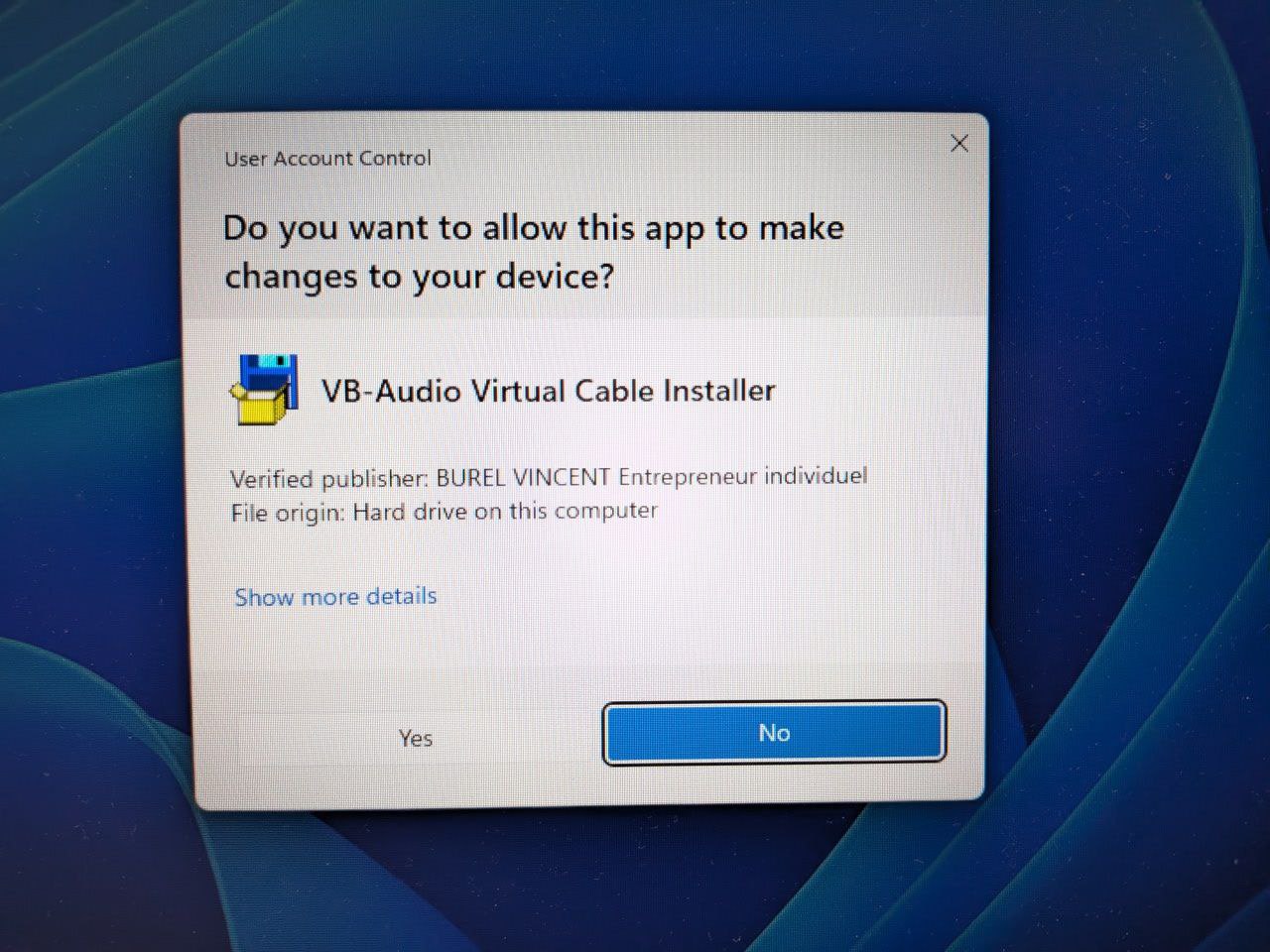
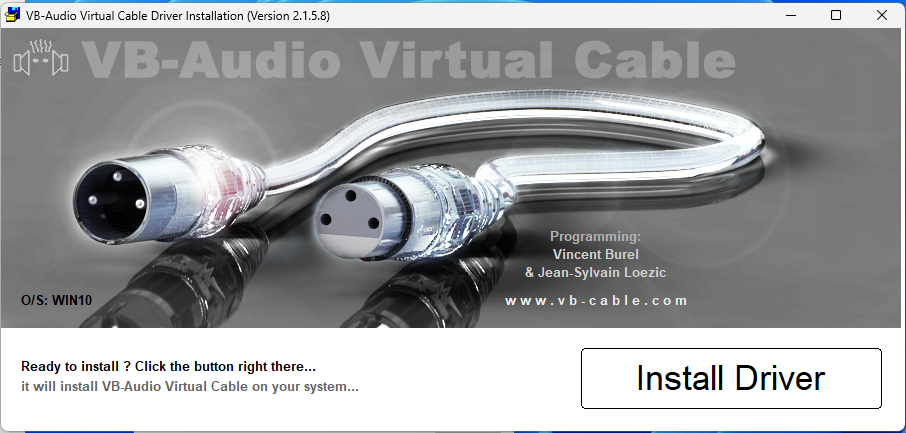
- The VB-CABLE installer will open. Click "Install Driver":
- Wait for the installation to complete. You'll see a success message:
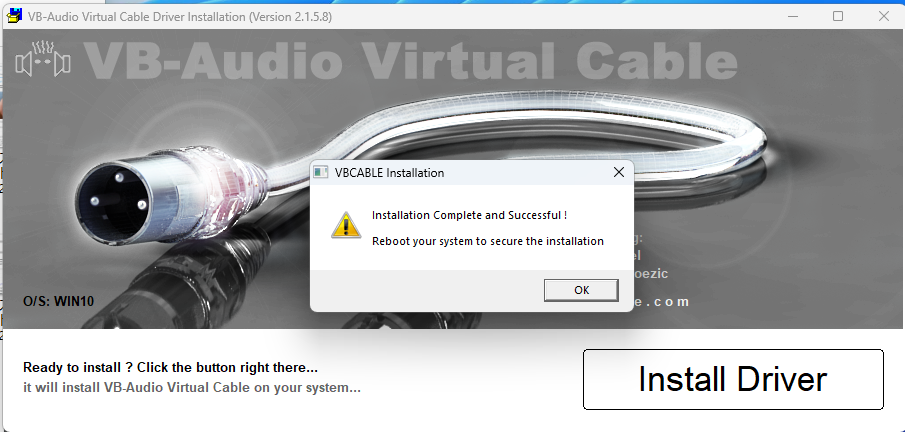
- Click "OK" on the installation complete dialog
- The final confirmation will appear:
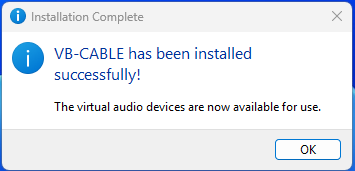
- Click "OK" to finish the VB-CABLE installation
Step 4: First Run Setup
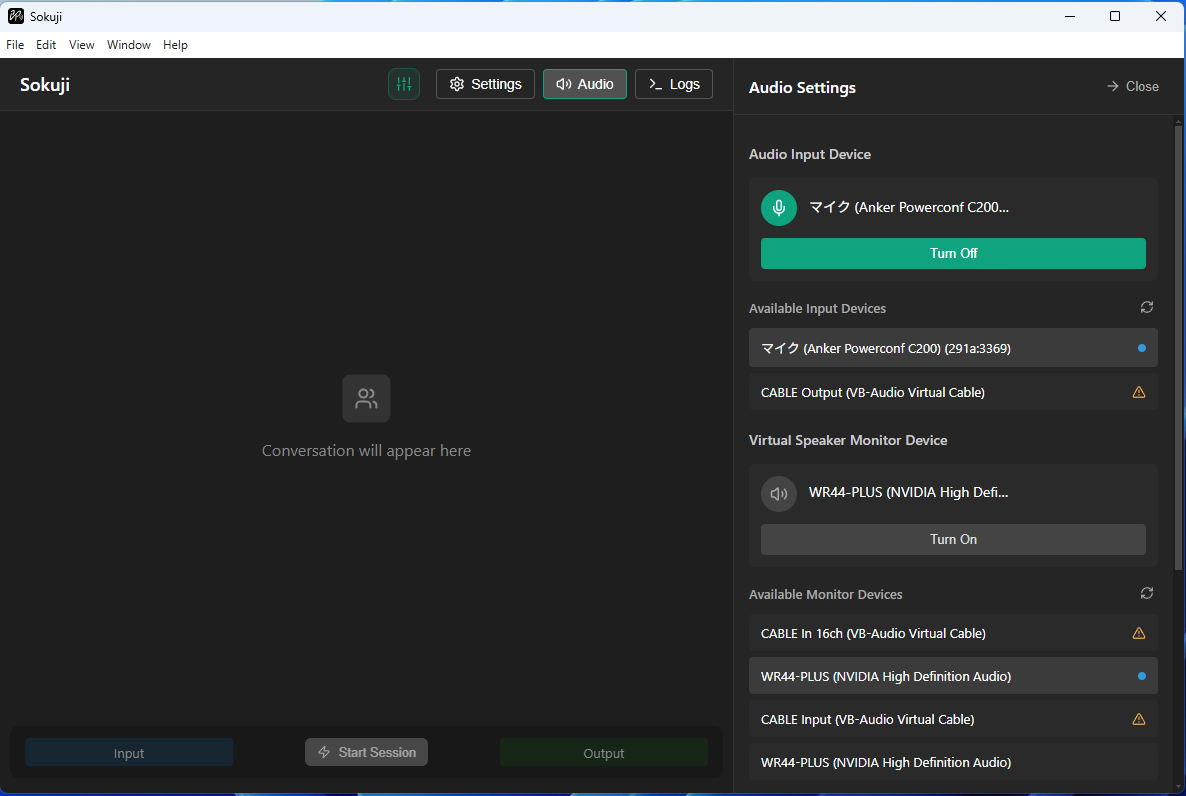
After VB-CABLE installation, Sokuji will launch automatically and you'll see the audio configuration page:
Verify Audio Devices
To verify VB-CABLE was installed successfully, open Windows Sound Settings (right-click the speaker icon in the system tray → "Sound settings"):
- CABLE Output (VB-Audio Virtual Cable) - Should appear under Recording devices
- CABLE Input (VB-Audio Virtual Cable) - Should appear under Playback devices
Note: You will not see these CABLE devices in Sokuji's device list — this is by design. Sokuji hides them to prevent accidental audio feedback loops, and automatically detects and uses VB-CABLE in the background.
Complete Setup
- Configure your preferred AI provider (OpenAI, Google Gemini, etc.)
- Enter your API key for the selected provider
- Select source and target languages
- Test the audio input/output devices
- Select your physical microphone as the Audio Input Device
- Choose your speakers/headphones as the Virtual Speaker Monitor Device
Troubleshooting
Windows Defender blocks the installation
- Click "More info" on the SmartScreen warning
- Click "Run anyway" to proceed with installation
Microphone not detected
- Open Windows Settings → Privacy → Microphone
- Ensure "Allow apps to access your microphone" is enabled
- Make sure Sokuji is listed and enabled in the app list
- Check your microphone is properly connected and set as default device
No audio output
- Right-click the speaker icon in system tray
- Select "Open Sound settings"
- Verify your output device is correctly selected
- Check the volume levels are not muted
Application won't start
- Try running as Administrator (right-click → Run as administrator)
- Check if antivirus software is blocking the application
- Reinstall the application
- Ensure you have the latest Windows updates installed
VB-CABLE devices not detected
- Restart your computer - This often resolves device recognition issues
- Check Windows Sound Settings:
- Right-click the speaker icon in system tray
- Select "Sound settings"
- Look for "CABLE Input" in playback devices
- Look for "CABLE Output" in recording devices
- Manually reinstall VB-CABLE:
- Download from vb-audio.com/Cable
- Extract the ZIP file
- Run VBCABLE_Setup_x64.exe as Administrator
- Restart your computer after installation
- Check Device Manager:
- Open Device Manager (Win+X → Device Manager)
- Look under "Sound, video and game controllers"
- Verify "VB-Audio Virtual Cable" is listed without errors