
Doubao AST 2.0 Setup Tutorial
Overview
This tutorial will guide you through setting up Doubao AST 2.0 for use with Sokuji. Doubao AST 2.0 is a speech-to-speech simultaneous interpretation service with automatic voice cloning capabilities.
1Register a Volcengine Account
Go to volcengine.com and sign up for an account. If you already have a ByteDance/Volcengine account, you can sign in directly.
2Navigate to the Speech Console
After logging in, select "Doubao Simultaneous Interpreting 2.0" from the left menu, or visit the Speech Console directly.
3Create an Application
In the Speech console, click "Create Application" to create a new application. Name it (e.g., "Sokuji Translation") and confirm creation.
4Get APP ID and Access Token
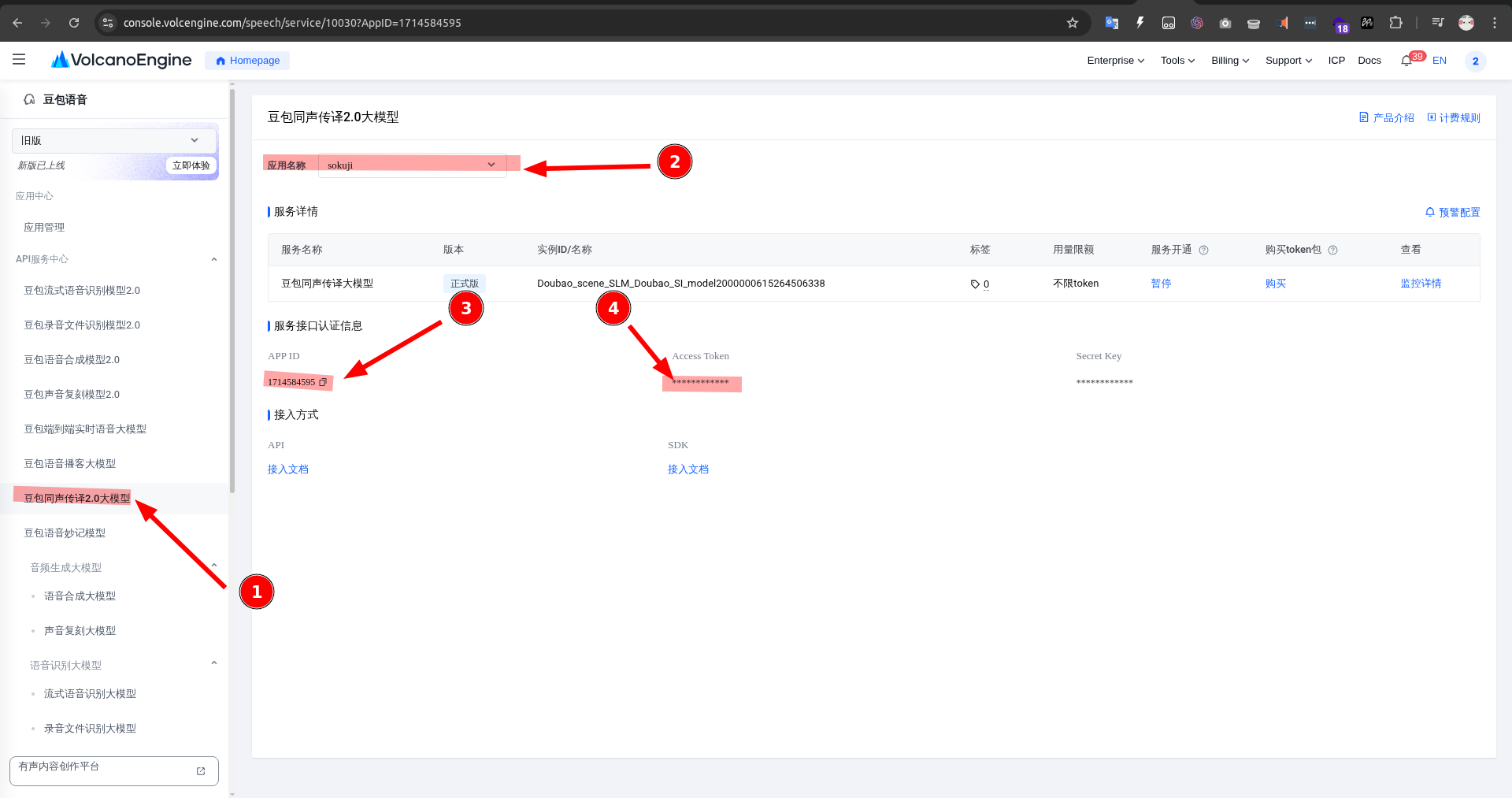
Click "Doubao Simultaneous Interpreting 2.0" in the left menu. Select your newly created application from the application name dropdown at the top of the page, then copy the APP ID and Access Token shown below.
5Configure in Sokuji
Open Sokuji and select "Doubao AST 2.0" as your AI provider in the settings panel. Enter your APP ID and Access Token, choose source and target languages, and set the turn detection mode (Auto or Push-to-Talk).
6Test the Connection
Click the Start Session button and speak into your microphone to verify that speech-to-speech translation is working. You should hear the translated audio output.
Features
What is Doubao AST 2.0?
Doubao AST 2.0 is an end-to-end speech translation service:
- Speech-to-speech simultaneous translation without intermediate text steps
- Automatic voice cloning: translated speech preserves the speaker's voice characteristics
- Low-latency real-time translation processing
- Supports bidirectional translation for multiple language pairs
Supported Languages
Currently supports the following language combinations:
- Chinese (zh) — supports translation to/from all target languages
- English (en) — supports bidirectional mode with Chinese
- Japanese (ja), Indonesian (id), Spanish (es)
- Portuguese (pt), German (de), French (fr)
Turn Detection Modes
- Auto mode: The system automatically detects speech start and end, suitable for natural conversations
- Push-to-Talk mode: Manually control when to speak, suitable for noisy environments or when precise control is needed
Troubleshooting
Common Issues
Authentication Error: Verify that your APP ID and Access Token are correctly copied without extra spaces.
Connection Error: Check your network connection and ensure firewalls are not blocking WebSocket connections. If using a proxy, make sure it supports WebSocket.
Unsupported Language Pair: Confirm that your selected source and target language combination is within the supported range of Doubao AST 2.0.
Tips for Best Results
- Use a stable network connection for best translation quality
- Use in a quiet environment for the best speech recognition
- If translation quality is not ideal, try switching turn detection modes
- Regularly check usage and quota in the Volcengine console
Need more help? Visit the Volcengine Speech console for official documentation or check our GitHub repository for support.