
Noise Suppression
Overview
Noise suppression cleans up your microphone before your speech is translated, so background noise, typing and fans are not mistaken for speech.
1Choose a level
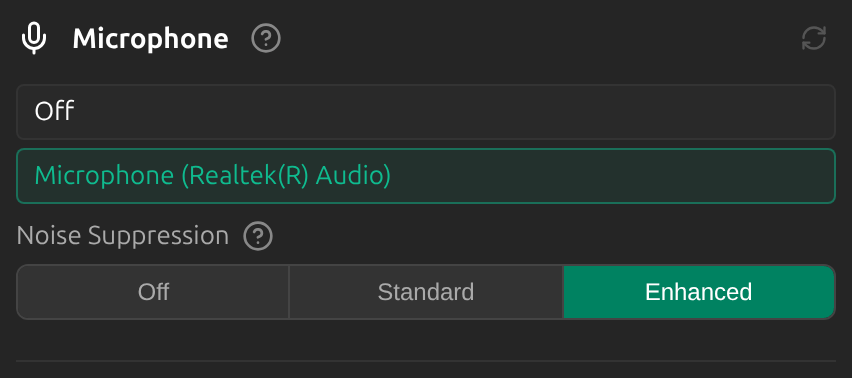
In Settings, under Microphone, choose Noise Suppression: Off, Standard (lightweight, lowest delay) or Enhanced (strongest, the default). If Enhanced cannot run on your computer, Sokuji uses Standard instead. You can change it during a session.
2How the two modes work
Both modes run entirely on your computer; your microphone audio is not sent anywhere for noise suppression.
Standard uses RNNoise, a very small neural network combined with classic signal processing. Every 10 ms it splits the sound into frequency bands and turns down the bands it judges to be noise. It is light and adds almost no delay, and works best on steady noise such as fans or air conditioning.
Enhanced uses GTCRN, a larger neural network. It looks at the whole frequency spectrum in overlapping 32 ms windows and predicts which parts belong to your voice, then rebuilds the audio from those parts. It copes better with changing noise such as typing, other people talking or street sounds, at the cost of more processing and a few tens of milliseconds of extra delay.
Tips
- Try Off if your headset already cancels noise, or if your voice sounds clipped.
- Noise suppression applies to your microphone only, not to Other’s audio.
Frequently Asked Questions
Which level should I use?
Keep Enhanced unless it causes problems. Standard uses less processing; Off leaves your microphone as it is.
Troubleshooting
Still stuck? Send us feedback from the account menu, or write to support@kizuna.ai. You can also ask in GitHub Discussions.