
Qwen LiveTranslate Setup Tutorial
Overview
This tutorial will guide you through setting up Qwen LiveTranslate for use with Sokuji. Qwen LiveTranslate is Alibaba Cloud's real-time speech-to-speech interpretation model (qwen3.8-livetranslate-flash-realtime): one streaming session listens, translates and speaks, across 60 languages, 29 of them with a voice. It is available in the desktop app and the browser extension.
1Choose a Storefront
Qwen LiveTranslate is sold at two storefronts, each with its own account and keys: QwenCloud (international) and 千问云 (mainland China). A key from one does not work at the other. Pick the one you can sign up and pay with; Sokuji works with either.
2Create an API Key
Sign in and open the API keys page: home.qwencloud.com/api-keys on QwenCloud, or platform.qianwenai.com/home/api-keys on 千问云. Create a key, give it a name (e.g. "Sokuji") and copy it right away — the full key is shown only once. A QwenCloud key works only in the region it was created in, and Sokuji dials the Singapore endpoint, so select Singapore in the console's region selector (its default) before creating the key.
3Configure in Sokuji
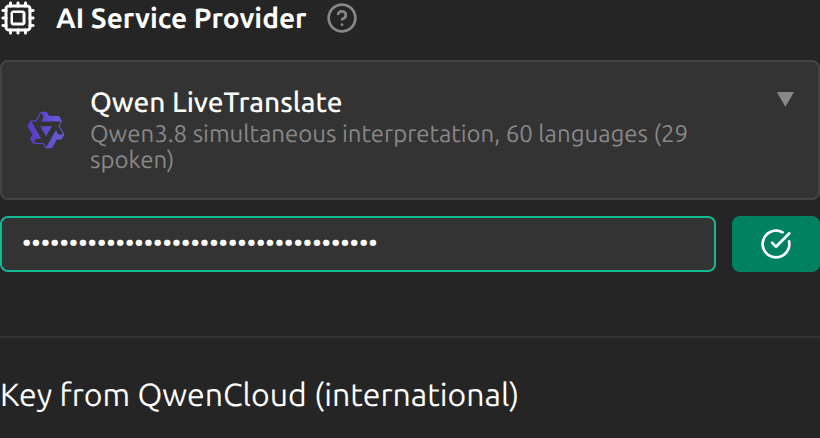
Open Sokuji and select Qwen LiveTranslate as your AI service provider in the settings panel. Paste the key and click Validate. Sokuji finds out which storefront the key belongs to and shows it under the key — "Key from QwenCloud (international)" or "Key from 千问云 (mainland China)"; there is nothing to pick.
4Choose the Languages
Under Translation Languages, set I speak to your language or to Auto Detect — the model identifies the spoken language itself — and they hear to the target. While the translation is spoken, the target list offers the 29 languages Qwen can speak; with text only, all 60.
5Pick a Voice
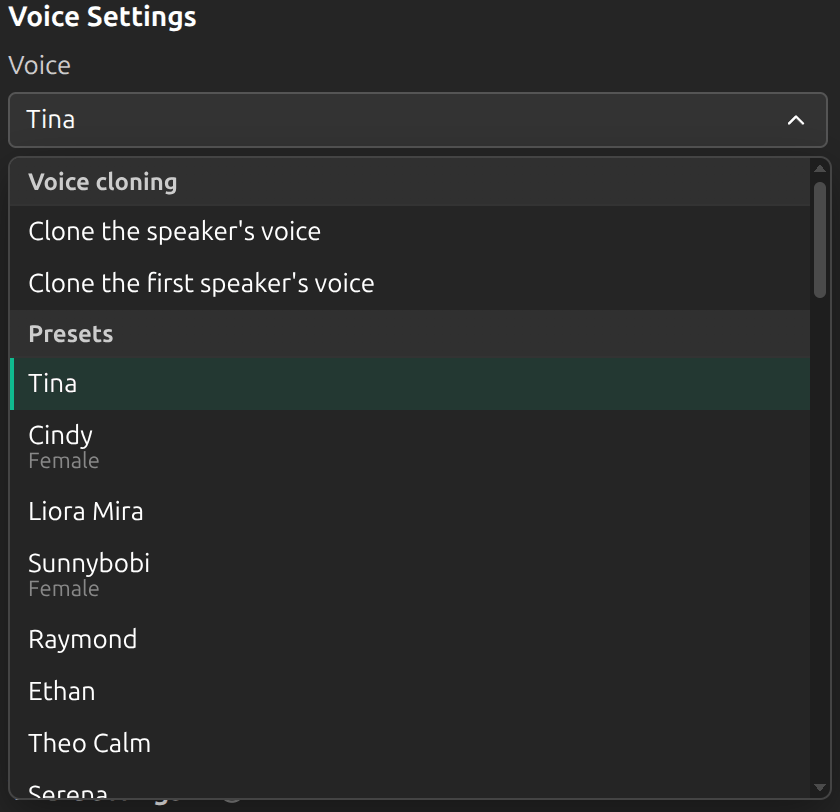
In Settings → Advanced → Provider → Voice Settings, choose one of 47 preset voices, or let Qwen speak in your own voice: Clone the speaker's voice clones it live on every turn, with nothing to record first; Clone the first speaker's voice clones it once at the start and keeps it. Every preset speaks every spoken language. While Translation I hear is on, a second row, Voice I hear, picks the voice that reads the other side to you.
6Add Preferred Translations (optional)
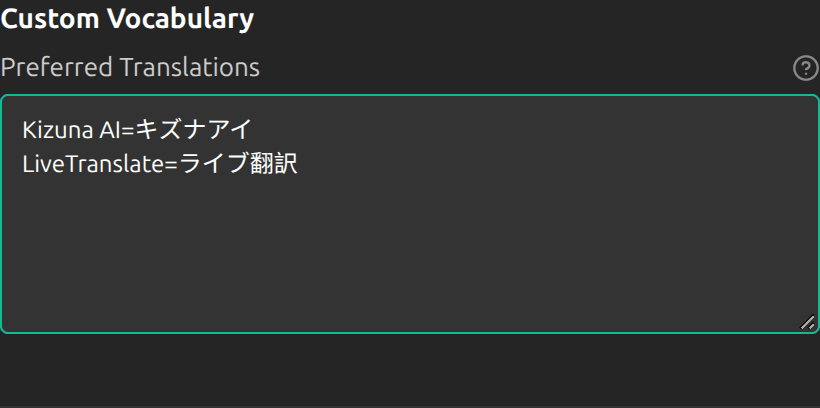
Under Custom Vocabulary → Preferred Translations, enter one source=target per line, for example Kizuna AI=キズナアイ. This biases how a term is translated — a preference, not a guaranteed replacement: names with an established rendering work best, while common words may keep the model's own wording. Entries are directional; in Both mode, add a reverse line for the other direction.
7Let Qwen See Your Screen (optional)
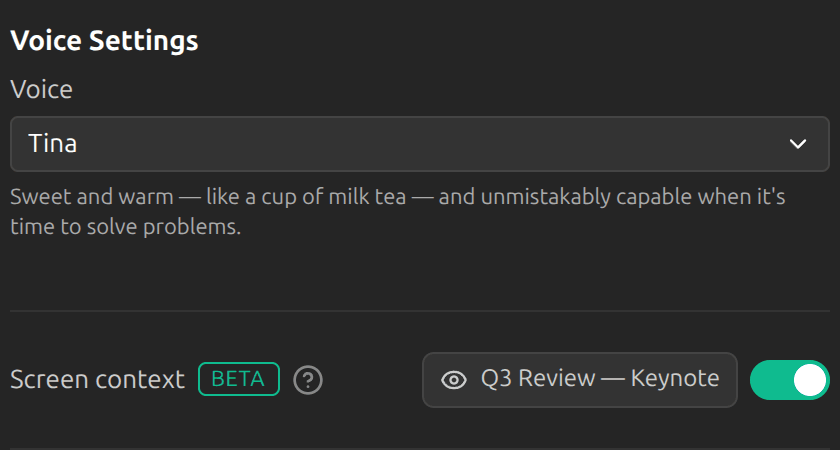
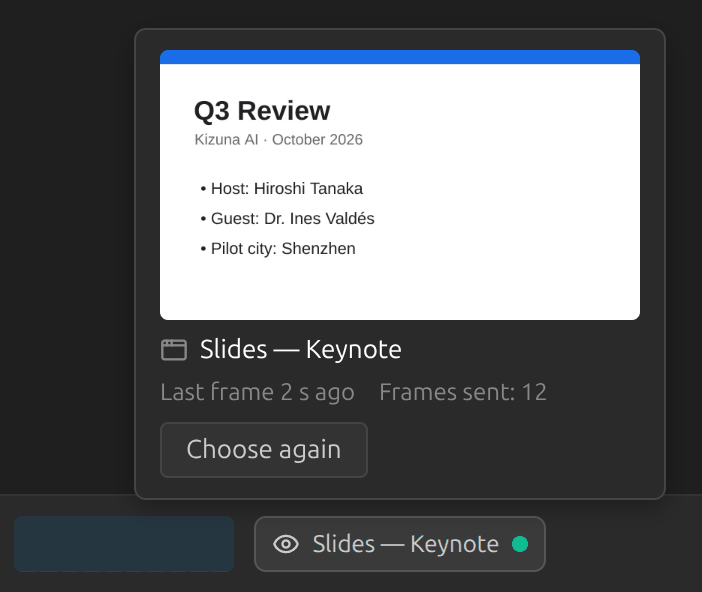
Turn on Screen context under the voice settings. In the desktop app, turning it on opens Choose what the model can see: pick the window or screen, and its name is shown with the switch, where you can change it. Sokuji keeps the choice until you quit and uses it when each session starts; if that window is gone or shows nothing, it asks again, and Start without screen context turns the switch off. On Linux with Wayland the system's own chooser appears when the session starts instead. In the browser extension the meeting tab is used. When it shows what is being talked about — the shared slides, a lecture's deck, a video's captions — the names on it come out right in the transcript and the translation. Pictures of that area only go to Alibaba Cloud's Qwen service in the region of the session; Kizuna AI never receives them. A chip in the control bar shows what is being seen; if the window goes away, translation continues on audio and, in the desktop app, the chip offers Choose again. With your own key, Alibaba Cloud bills the pictures it sees per second of speech, at its image-input rate, beside the audio. With a Kizuna AI account, screen context adds to the charge for every second of speech while it is on, in Both mode for each direction; the rate is on the billing page.
8Set How Turns End
Speech Mode is a global setting shared by every provider: Auto, Push-to-Talk or Push-to-Translate. Under Auto, Qwen ends a turn on the server when the speaker changes or after a pause — VAD Settings → Silence Duration sets that pause, from 0.5 to 6 seconds (2.5 s by default). A shorter pause gives faster translations; a longer one keeps slowly spoken sentences in one piece.

9Test the Connection
Click Start Session and speak into your microphone to verify that real-time translation works. You should see the transcript and the translation. The spoken translation goes into the virtual microphone for the other side; to hear it yourself, turn on I hear it too in the Speech block (Quick settings, or Settings → Advanced → Audio).
Features
What is Qwen LiveTranslate?
Qwen LiveTranslate is Alibaba Cloud's end-to-end simultaneous interpretation model:
- Speech in, translated speech out, in one streaming session — no separate recognition, translation and synthesis steps
- 60 languages, 29 of them spoken; the source language can be detected automatically
- 47 preset voices, or the speaker's own voice cloned live from the conversation, with nothing to record
- Preferred translations for names and terms, and turn detection on the server
- Screen context: Qwen can see one window, tab or screen you choose, so on-screen names are recognized and translated as written
- Available in the desktop app and the browser extension
Supported Languages
Qwen speaks 29 target languages and writes 31 more:
- Spoken: Chinese, English, Arabic, German, French, Spanish, Portuguese, Indonesian, Italian, Korean, Russian, Thai, Vietnamese, Japanese, Turkish, Hindi, Malay, Dutch, Urdu, Norwegian Bokmål, Swedish, Danish, Hebrew, Finnish, Polish, Icelandic, Czech, Filipino, Persian
- Text only: Cantonese, Greek, Afrikaans, Asturian, Belarusian, Bulgarian, Bangla, Bosnian, Catalan, Cebuano, Estonian, Galician, Gujarati, Croatian, Hungarian, Javanese, Kazakh, Kannada, Kyrgyz, Latvian, Macedonian, Malayalam, Marathi, Punjabi, Romanian, Slovak, Slovenian, Swahili, Tajik, Azerbaijani, Ukrainian
- The source language can be any of the 60, or Auto Detect
Modes and Options
- Spoken or text only: in the Speech block, Translation the other side hears reads your translation aloud into the virtual microphone, and Translation I hear reads the other side's translation aloud to you. Switch either off and that side stays text only
- Two-way translation: in "Both" mode each direction runs in its own Qwen session; there is no shared session
- Face-to-face (two people at one microphone) is not available with Qwen; use Soniox for that
- Source language and translation mode: "Auto Detect" works when translating your own voice ("Me" mode). For "Other" or "Both" mode, pick a specific source language — auto-detect cannot be reversed to translate the other side into your language
- Turn detection runs on the server: automatic turns end on a speaker change or after the Silence Duration; Push-to-Talk and Push-to-Translate end a turn when you release the key
- The storefront follows the key: a QwenCloud key talks to the international deployment, a 千问云 key to the mainland one. From networks outside mainland China, the mainland deployment may answer with noticeably higher latency
- Screen context: a screen that shows something else makes recognition worse than audio alone; pick the window with the words being spoken, not the whole desktop
Troubleshooting
Common Issues
Authentication Error: If Validate says neither QwenCloud nor 千问云 accepted the key, check that it was copied in full with no extra spaces; a QwenCloud key must also have been created in the Singapore region. If the key was lost, create a new one in the console — keys are shown only once.
Rate Limited: A 429 during the check means the storefront is throttling requests for this key right now. Wait a moment and validate again.
Connection Error: Check your network connection and ensure firewalls are not blocking WebSocket connections. If using a proxy, make sure it supports WebSocket.
Target Language Only Supports Text Output: A session that speaks does not accept one of the 31 text-only languages as its target. Pick a target among the 29 spoken languages, or turn the spoken translation off for that side.
No Translated Audio: If you see the translation but hear nothing, check the Speech block: Translation the other side hears must be on. Your translation goes into the virtual microphone for the other side; to hear it yourself, turn on I hear it too and check the device on that row.
High Latency With a 千问云 Key: The mainland deployment can be slow to answer from networks outside mainland China. If every translation arrives seconds late, use it from a mainland network, or switch to a QwenCloud key.
Screen Context Stopped: The window closed or the capture failed; the session kept running on audio. In the desktop app, click the screen chip and choose again; in the browser extension, start the session again.
Tips for Best Results
- Use a stable network connection for the best real-time quality
- Use in a quiet environment for the best speech recognition
- Set the source language explicitly if auto-detection picks the wrong language
- Monitor your usage and spending in the storefront's console
Need more help? Visit the QwenCloud or 千问云 documentation for details or check our GitHub repository for support.