
Custom Vocabulary and Session Background
Overview
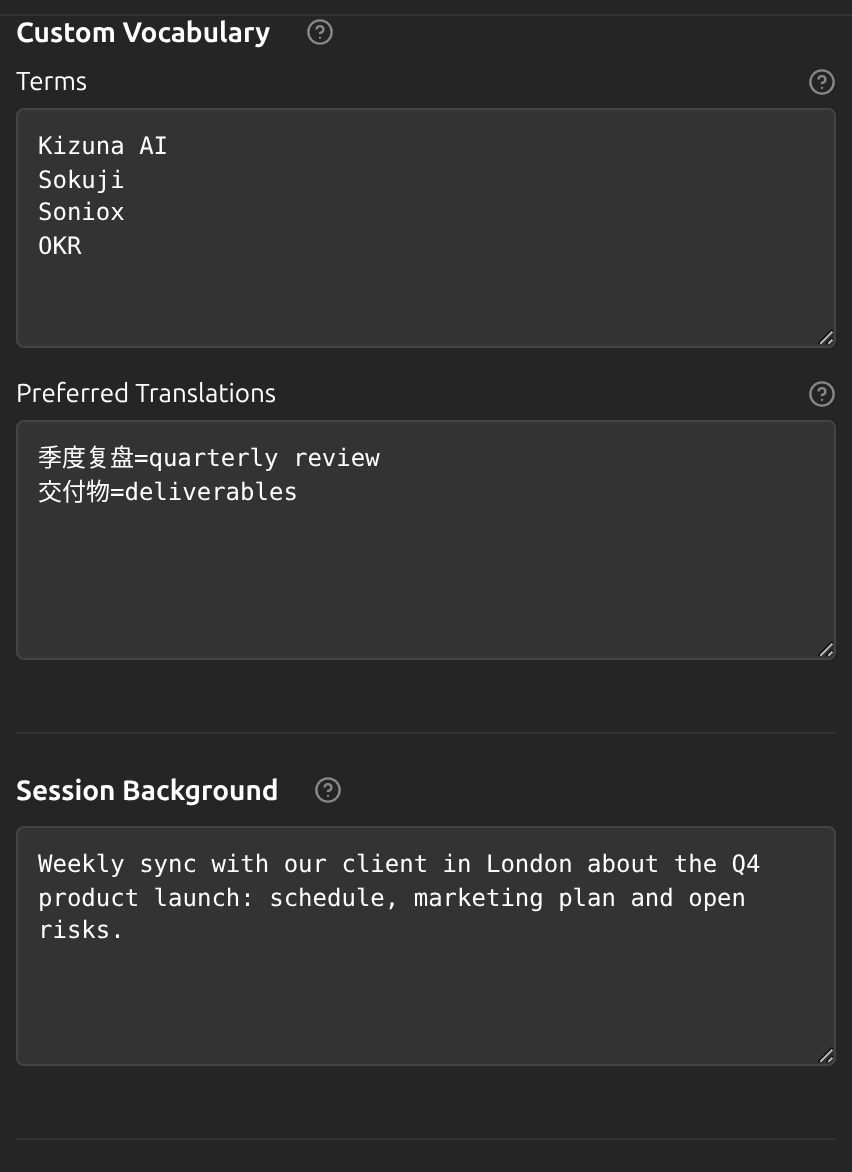
Names, product names and jargon are what real-time translation gets wrong most often. KizunaAI lets you tell it, before the meeting, which words to expect, how to translate specific terms, and what the meeting is about. All three fields are optional, in Settings → Advanced → Provider, and apply from the next session. The example is a call between 中文 and English.
1Open the fields
Open Settings, switch to Advanced with the button at the top right of the panel, and choose the Provider tab. Scroll to Custom Vocabulary and Session Background.
2List the terms
Under Terms, write one name or term per line: people, companies, products, acronyms and jargon. This helps recognition catch words it would otherwise mishear.
3Set preferred translations
Under Preferred Translations, write source=target, one per line, to say how a term should be translated, for example 季度复盘=quarterly review. It is a preference, not a guaranteed replacement: names with an established rendering work best, while common words may keep the model’s own wording.
Tip
Entries work in one direction. In Both mode, add the reverse line as well (quarterly review=季度复盘) if you want the term handled both ways.
4Describe the meeting
Under Session Background, paste the agenda, the topic or a few notes about the meeting. The context helps recognition and translation follow the subject.
5Start the session
Click Start. The vocabulary and background apply from the session you start next; a session already running keeps what it started with.
Tips
- Keep the lists short and specific to the meeting: a few dozen real names help more than a long generic glossary.
- Each field holds up to 4,000 characters. If the combined context is too large, the session background is shortened first.
- The fields are saved on this device, so the next meeting starts with them. Update them before each meeting.
Frequently Asked Questions
Why was my preferred translation not used?
Preferred translations steer the model rather than replace words mechanically. Established names work best; very common words may keep the model’s own wording. Check that the line is written in the direction being translated.
Do I need both fields?
No. Each helps on its own. Terms fix recognition of specific words; the background helps with the subject as a whole.
Troubleshooting
Still stuck? Send us feedback from the account menu, or write to support@kizuna.ai. You can also ask in GitHub Discussions.