
Choose a Voice or Clone Your Own
Overview
When Sokuji speaks your translation (Me or Both mode, with Text Only switched off), KizunaAI uses a voice. You can pick one of about 200 preset voices, or clone your own voice from a short recording so that the other side hears the translation in your voice. All of this is in Settings → Advanced → Provider. The screenshots are from Sokuji 0.41.1.
1Open the voice settings
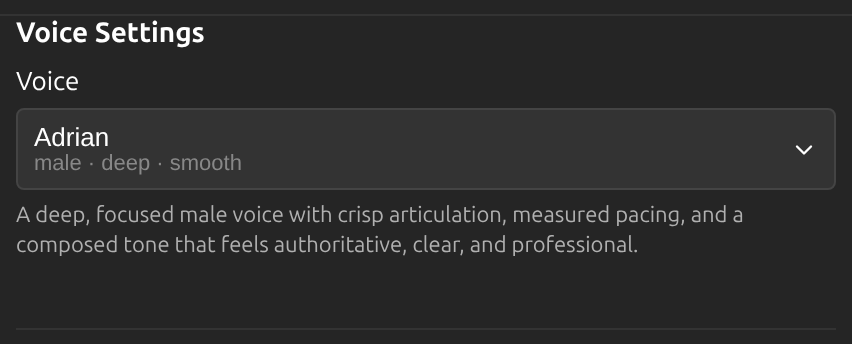
Open Settings, switch to Advanced with the button at the top right of the panel, and choose the Provider tab. Voice Settings shows the voice in use, with a short description of how it sounds.
2Browse and filter the preset voices
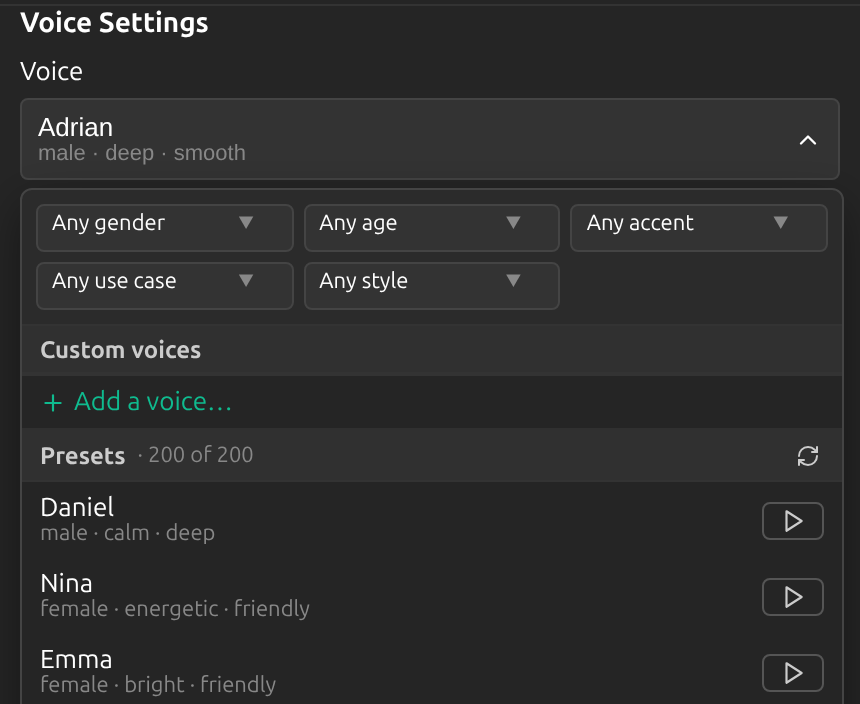
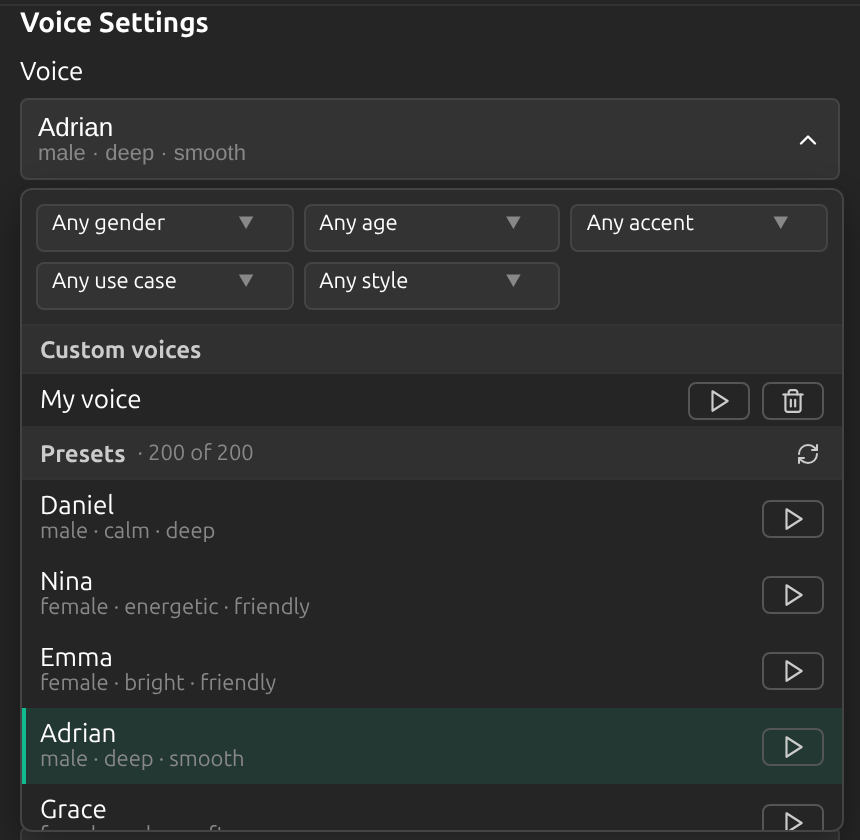
Click the voice to open the list. Narrow it down by gender, age, accent, use case and style, and press the play button to hear a sample. Previews are synthesized for you and charged to your account balance.
3Add your own voice
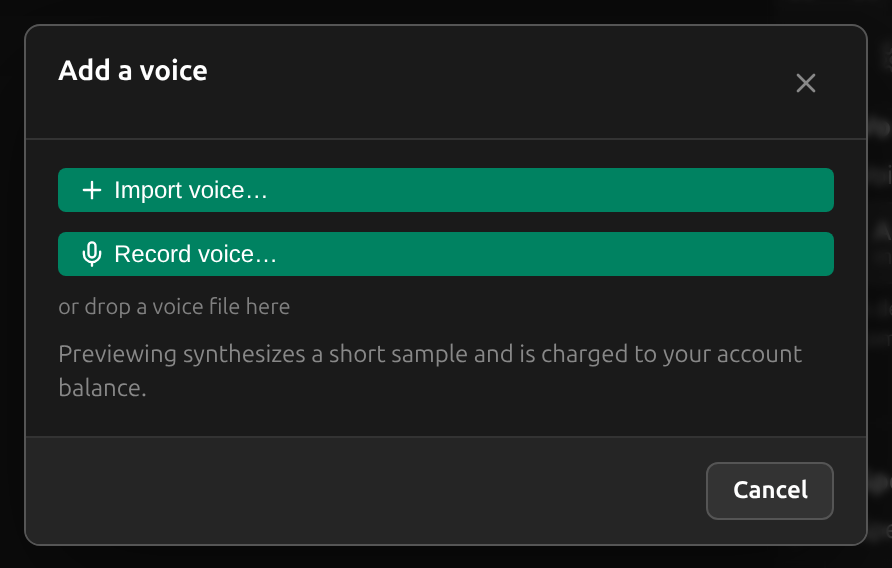
Under Custom voices, choose Add a voice…. Import an audio file with Import voice…, record straight away with Record voice…, or drop a file onto the dialog. The clip must be between 3 seconds and 2 minutes long, and at most 35 MB.
Tip
A clear recording of you speaking naturally, in a quiet room, gives the best result.
4Listen, confirm and clone
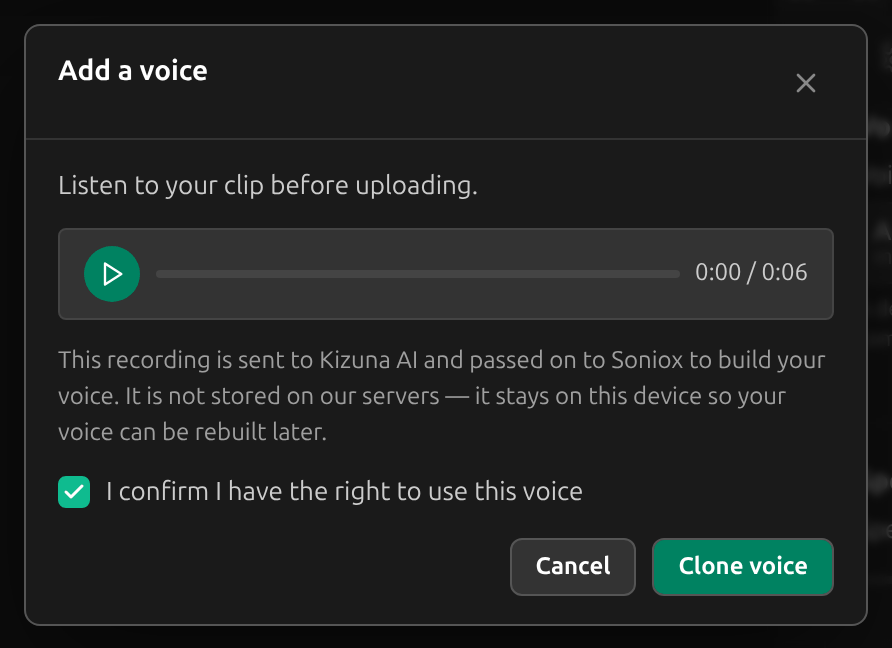
Listen to the clip, tick I confirm I have the right to use this voice and click Clone voice. The recording is sent to Kizuna AI and passed on to Soniox to build your voice. It is not stored on Kizuna AI’s servers; it stays on this device so your voice can be rebuilt later.
5Use “My voice”
Your clone appears as My voice under Custom voices. Select it like any preset; the play button previews it and the bin deletes it.
6Replace your voice
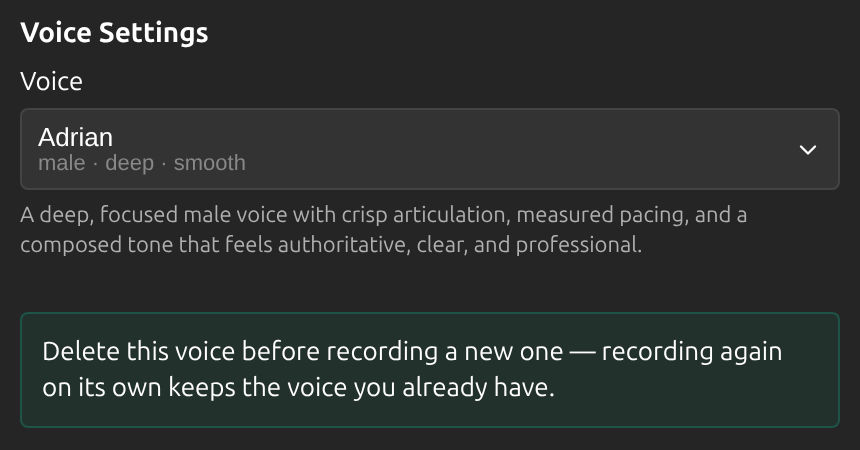
Each account has one custom voice. To use a new recording, delete My voice first and then add the new one: recording again on its own keeps the voice you already have.
7Adjust the speech speed
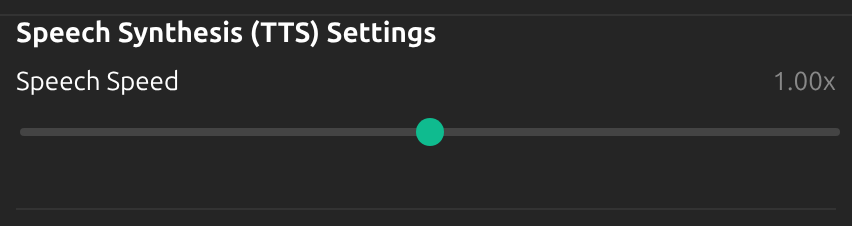
Under Speech Synthesis (TTS) Settings, Speech Speed makes the translated voice slower or faster, from 0.7× to 1.3×.
Tips
- A voice is only used when translations are spoken. With Text Only switched on, and for the other person’s side, which is always shown as text, no voice is needed.
- Building a custom voice and previewing voices need a balance on your account.
- Settings are locked while a session runs. Stop the session to change the voice.
Frequently Asked Questions
Why does a session use a built-in voice instead of My voice?
Sokuji tells you when this happens and why. The most common reasons: this device has no copy of your recording (record it again in Settings to use your voice on this computer), all custom voice slots are busy for the moment, or the voice could not be built from the clip (try a clearer recording). The session continues with a built-in voice.
Can I clone someone else’s voice?
Only with their permission. You confirm that you have the right to use the voice before it is cloned.
Does my voice work in every region?
Custom voices belong to one region, and each region remembers its own voice choice. If you change the region, add your voice again there.
Troubleshooting
Still stuck? Send us feedback from the account menu, or write to support@kizuna.ai. You can also ask in GitHub Discussions.