
The Virtual Microphone: How the Other Side Hears You
Overview
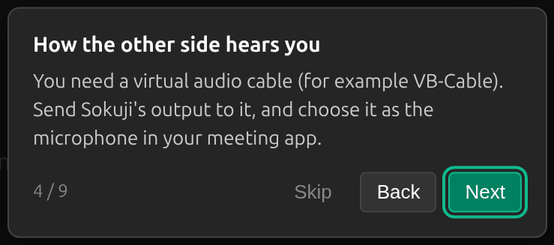
In Me and Both modes, the other side hears your translation because Sokuji sends its translated voice to a virtual microphone, and you choose that virtual microphone as the microphone in your meeting app. Your real microphone stays selected in Sokuji. How the virtual microphone is set up depends on your system.
1Windows: VB-CABLE
Sokuji uses VB-CABLE, a free virtual audio driver. While it is missing, Sokuji asks to install it when it starts (Install Now or Download Manually); allow the installation and restart Windows if asked. Sokuji then sends its voice to CABLE Input by itself. In the meeting app, choose CABLE Output (VB-Audio Virtual Cable) as the microphone.
2macOS
The Sokuji installer adds a virtual audio driver. In the meeting app, choose SokujiVirtualAudio as the microphone. If it is missing, run the installer again or restart the Mac.
3Linux
Sokuji creates Sokuji_Virtual_Mic through PulseAudio or PipeWire. Choose it as the microphone in the meeting app. If Sokuji reports that pactl is missing, install it (for example sudo apt install pulseaudio-utils) and click Retry.
4Browser extension
On supported meeting sites, the extension adds Sokuji Virtual Microphone to the site’s microphone list. Choose it there. See the supported sites.
Tips
- Select the virtual microphone in the meeting app, never as Sokuji’s own microphone. Sokuji warns you if you try.
- With Text Only on, nothing is spoken, so nothing reaches the virtual microphone.
- Make a short test call and check that the other side hears the translated voice.
Frequently Asked Questions
The other side hears nothing. What should I check?
That the meeting app’s microphone is the virtual microphone for your system, that Text Only is switched off, that Sokuji is in Me or Both mode, and that a session is running.
Does the other side hear my original voice?
Not by default: only the translation goes to the virtual microphone. Original Audio Passthrough can mix your own voice in quietly.
Troubleshooting
Still stuck? Send us feedback from the account menu, or write to support@kizuna.ai. You can also ask in GitHub Discussions.