
History
Overview
The desktop app keeps every session in History: the transcript with its translations, a recording of both sides, and the notes if you have them written. All of it stays on your computer. You can search it, play it back, correct it and export it, and a recording made elsewhere can be imported too. History is in the desktop app only; in the browser extension, use Export conversation in the main window instead (see Export the Conversation).
1Open History
Click History in the title bar. History takes the place of the conversation; a session that is running keeps going underneath, and Back to the session takes you back. There is nothing to switch on: every session in which something was said is kept. A session in which nothing was said is not.
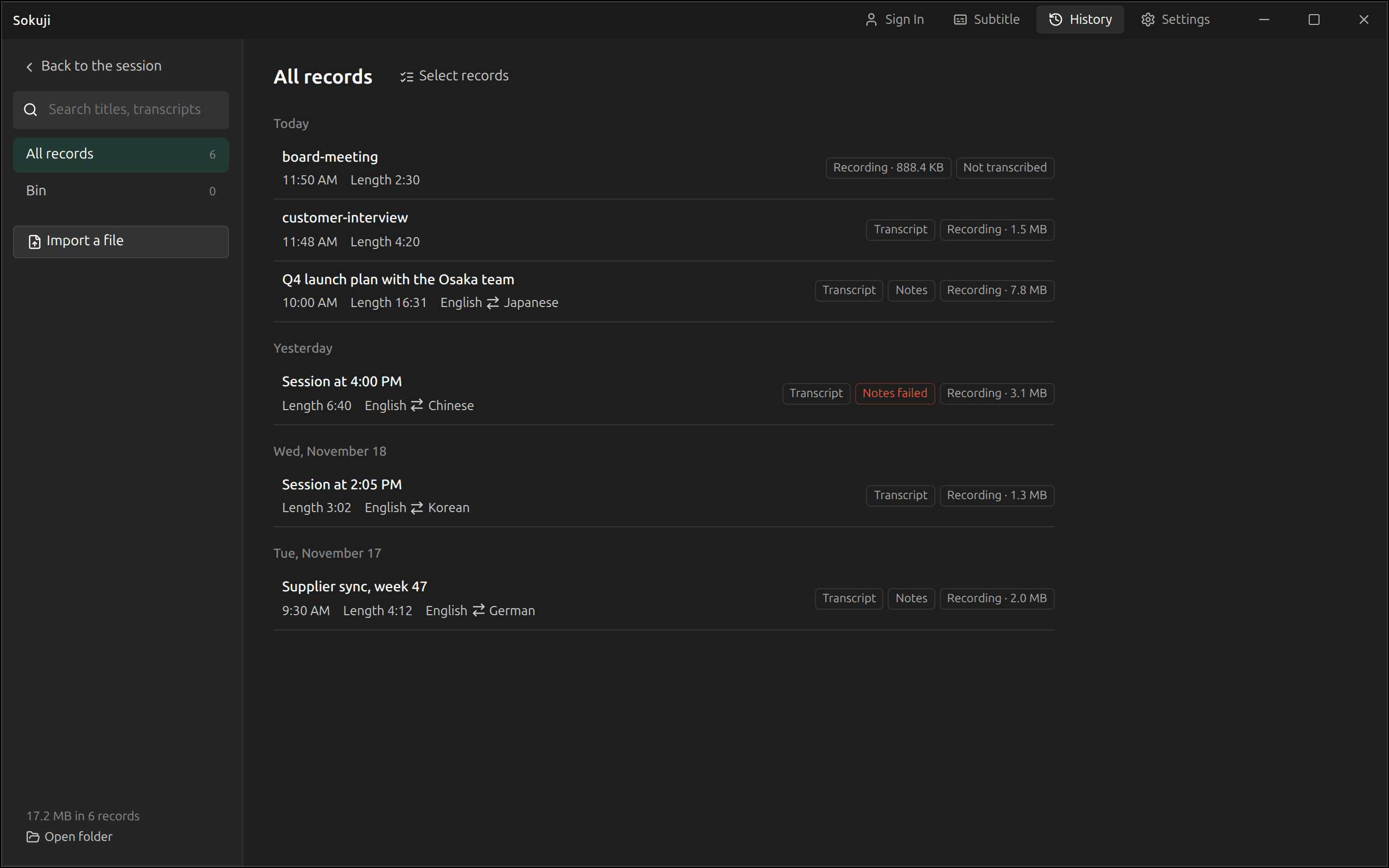
2Find a session
Sessions are listed newest first under day headings. Each row shows the title, the start time, the length and the languages, with tags for what it holds: Transcript, Notes (or Writing notes and Notes failed) and Recording with its size. A session takes its title from its notes; until it has notes it is called Session at and its start time. Type in the search box to look through titles, transcripts, translations and notes at once. Each result shows where it matched and opens the session at that place.
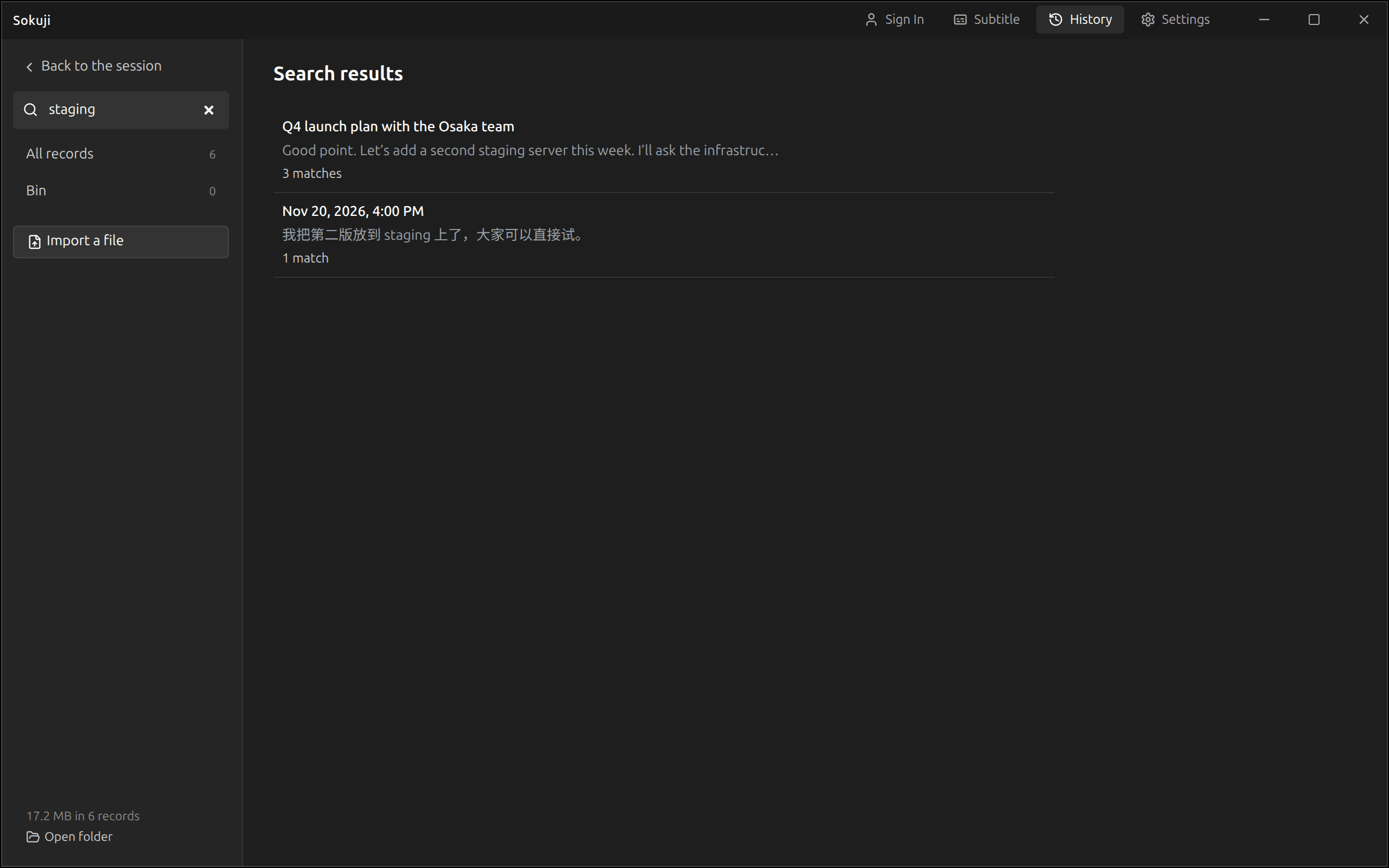
3Read a session
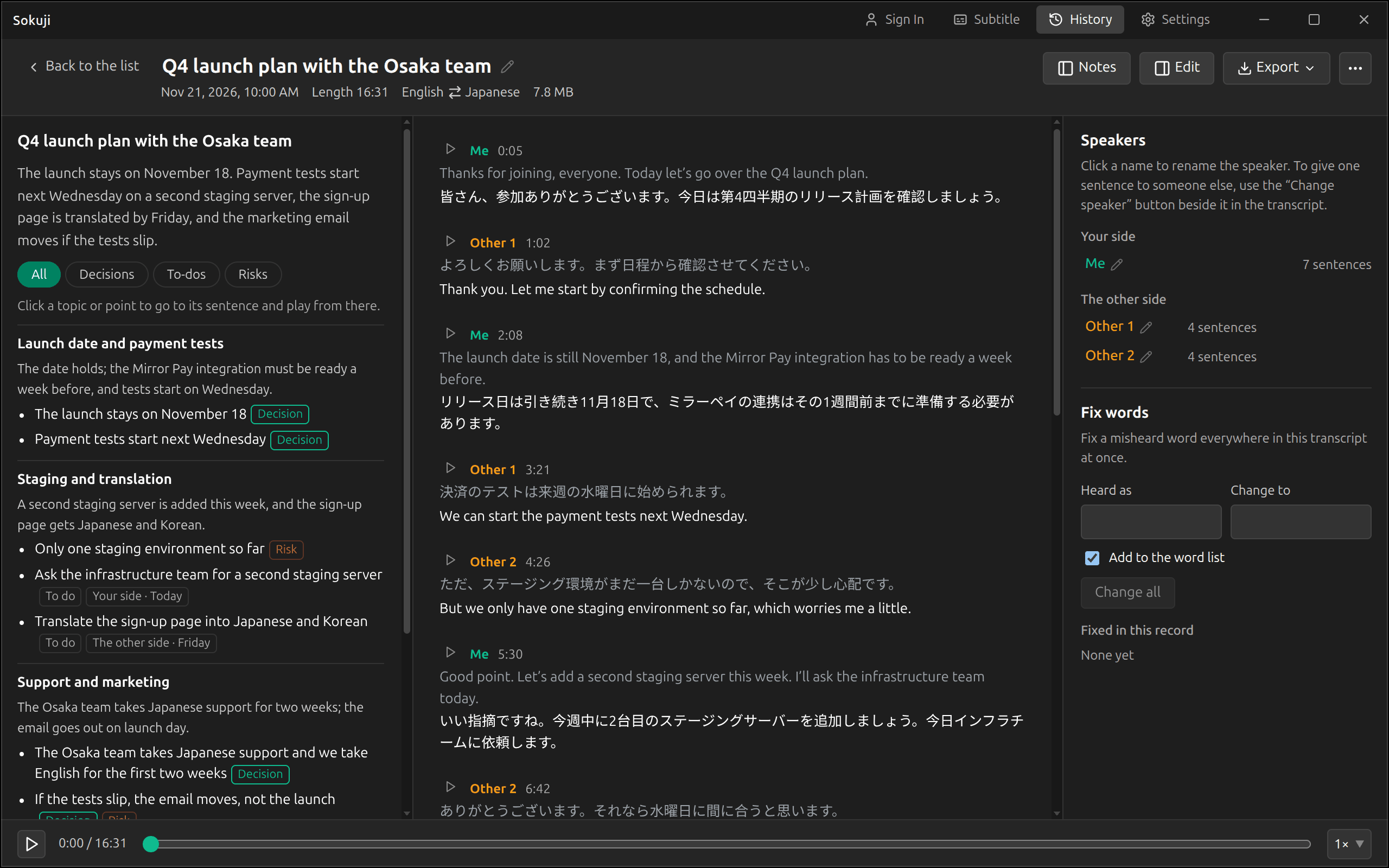
Click a session to open it. The transcript runs down the middle: each block says who spoke and when, with the translation under the original. Speakers are Me and Other, or Other 1, Other 2 and so on when the service told several people apart. The notes are on the left and the Edit panel on the right; the Notes and Edit buttons at the top show and hide them, and in a narrow window they become tabs. Click the title to rename the session.
4Play the recording
Sokuji records both sides of every session, so you can play it back from the bar at the bottom: play, pause, drag to a moment, and pick a speed from 0.75× to 2×. The ▶ beside a block plays from there. Clicking a topic or point in the notes takes you to the sentence it came from and plays from there. The recording is made from the audio that went to speech recognition, so time when your microphone was muted is silent.
5Export
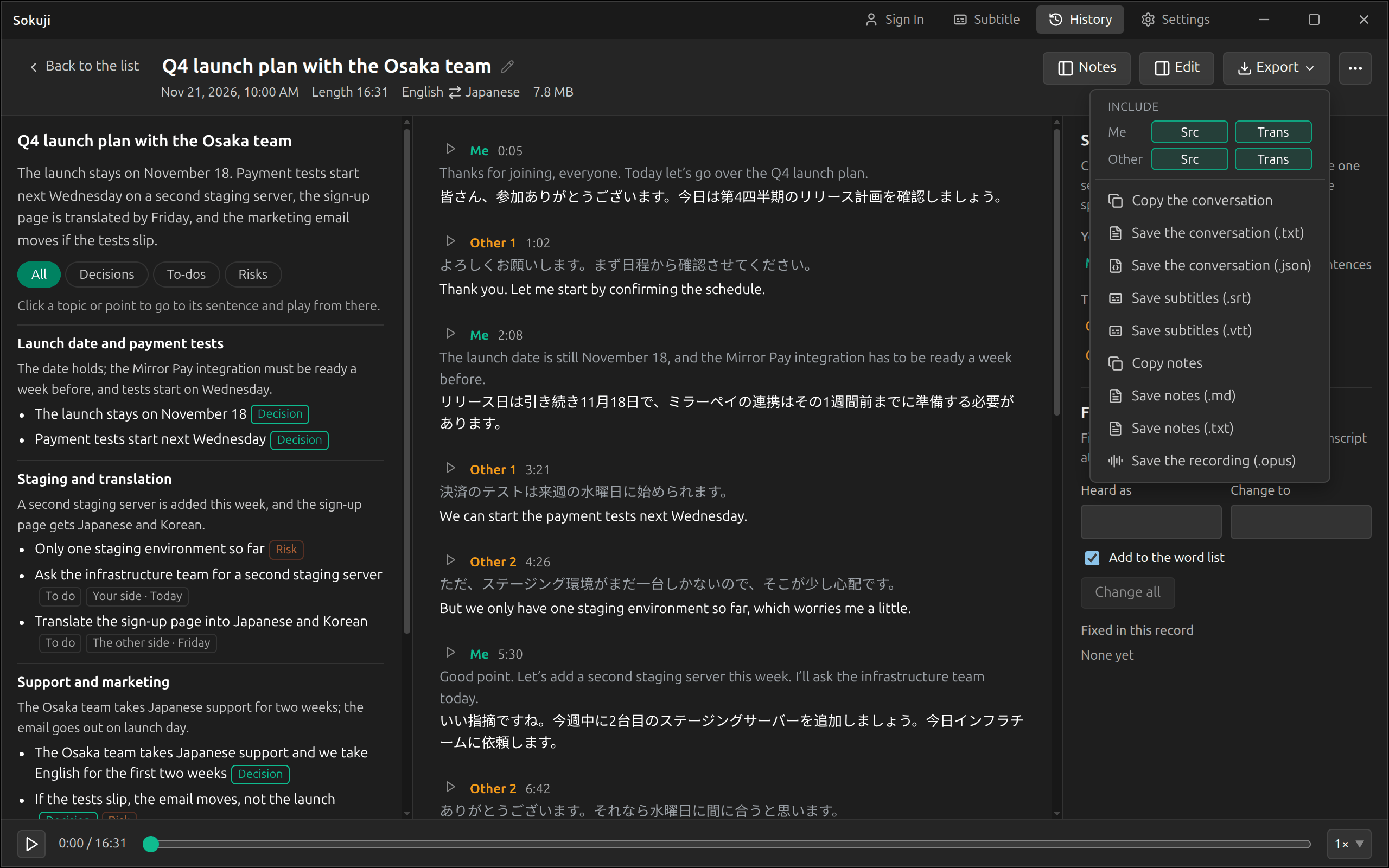
Export saves or copies a session: the conversation as text (.txt) or JSON (.json), subtitles (.srt or .vtt), the notes (Copy notes, or a .md or .txt file) and the recording (.opus, one file for each side). Under Include, choose whether the conversation and the subtitles keep the original and the translation of each side. Your corrections are in every export, and files are named after the time the session started, for example sokuji-conversation-20261121-100000.txt.
6Delete what you no longer need
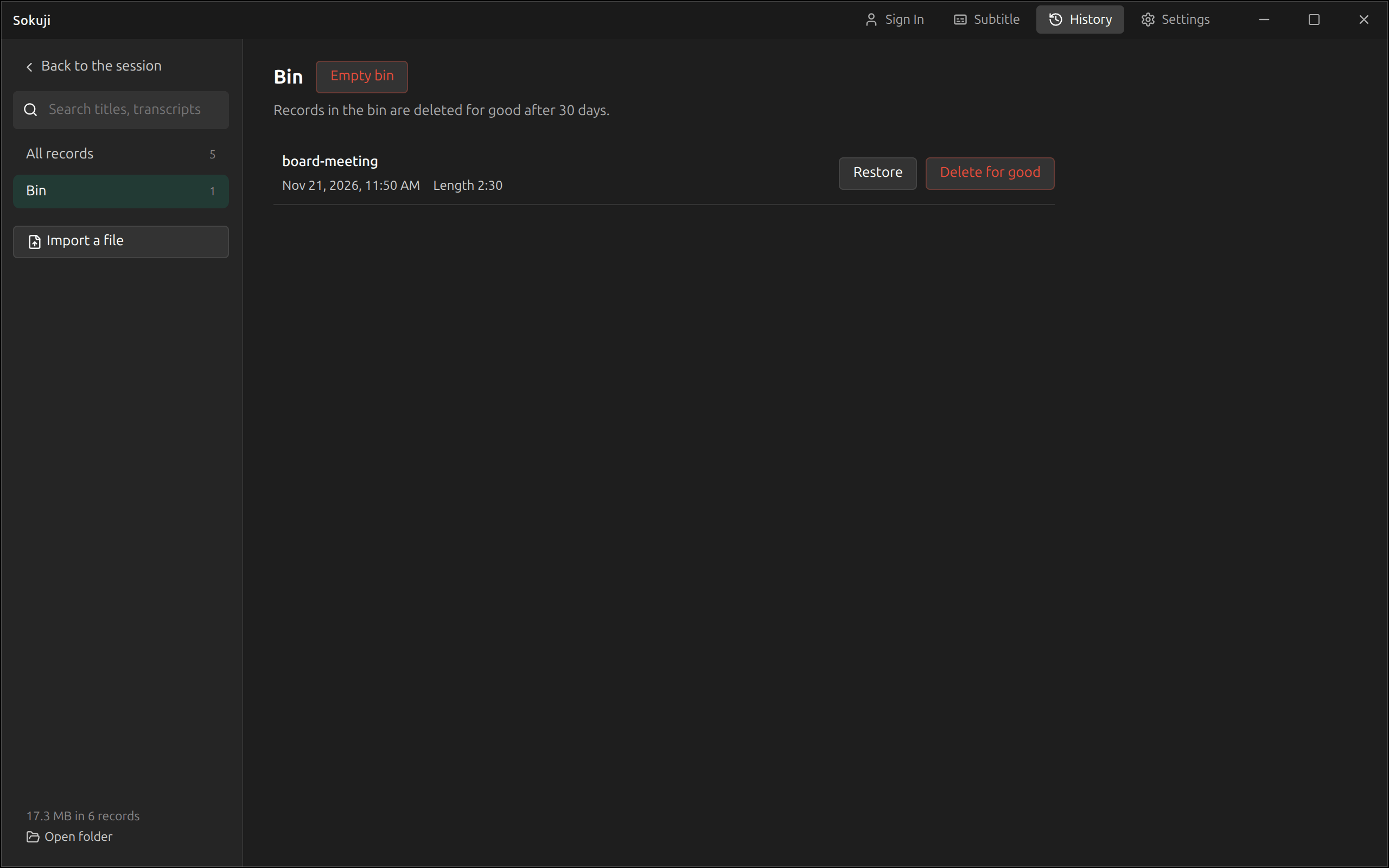
To delete sessions, click Select records, tick them and click Move to bin; an open session has Move to bin under More (…). In the Bin, Restore brings a session back, and sessions are deleted for good 30 days after they were moved there. Delete for good and Empty bin do it at once. To keep a session but free its space, choose Delete the recording under More: the transcript and the notes stay.
7See where History is kept
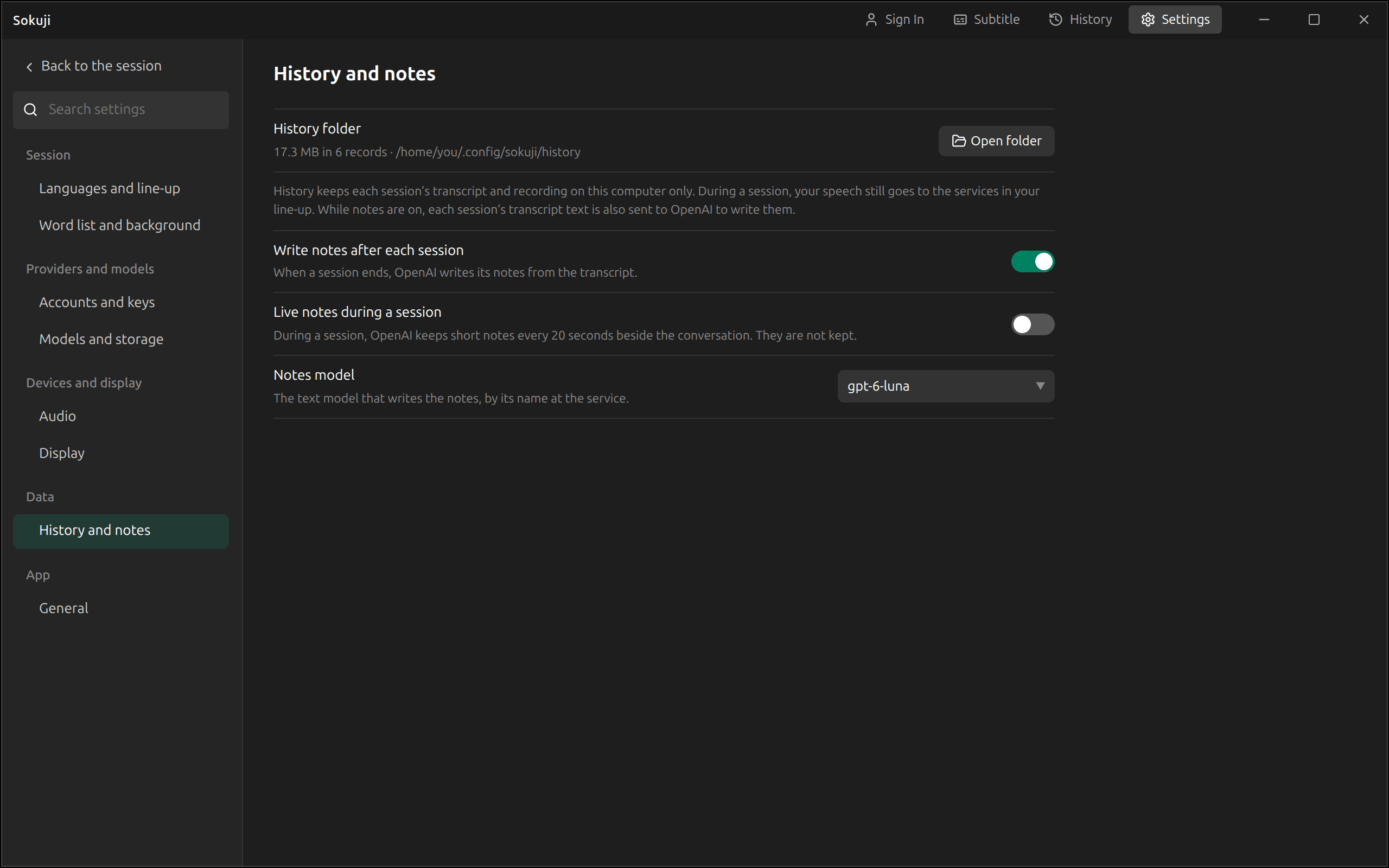
History is a folder on your computer. Settings → History and notes shows how much space it takes and where it is, with Open folder; the same line is at the bottom of the History list. The switches on that page turn on the meeting notes and the live notes. When History grows past 1 GB, the list tells you once.
Tips
- A session that is still running shows In progress. You can open it to read what has been said so far (Refresh brings it up to date), but it can be corrected, moved to the bin or transcribed again only after it ends.
- Search finds a word in the translations too, so you can look for something in the language you read.
- Exports carry your corrections, so fix the names first and then export.
Frequently Asked Questions
Can I stop Sokuji from keeping sessions or recordings?
No. Every session in which something was said is kept with its recording. You can delete a session, or only its recording, at any time.
Is anything in History sent anywhere?
No. History stays on your computer. Only what you ask for leaves it: writing notes sends the transcript text to the service that writes them, and transcribing a recording sends the recording to Soniox.
What happens if Sokuji closes in the middle of a session?
The next time Sokuji starts, the session is in History with everything up to that moment, the recording included.
History says it was written by a newer version of Sokuji.
You went back to an older version after a newer one had opened History. Update Sokuji to open it again; the file is left as it is.
Troubleshooting
Still stuck? Send us feedback from the account menu, or write to support@kizuna.ai. You can also ask in GitHub Discussions.