
Using Sokuji with Google Meet
Overview
This guide will walk you through setting up and using Sokuji with Google Meet for real-time language translation during your meetings.
1Visit Google Meet
Open your browser and navigate to meet.google.com. Join or start a meeting as you normally would.
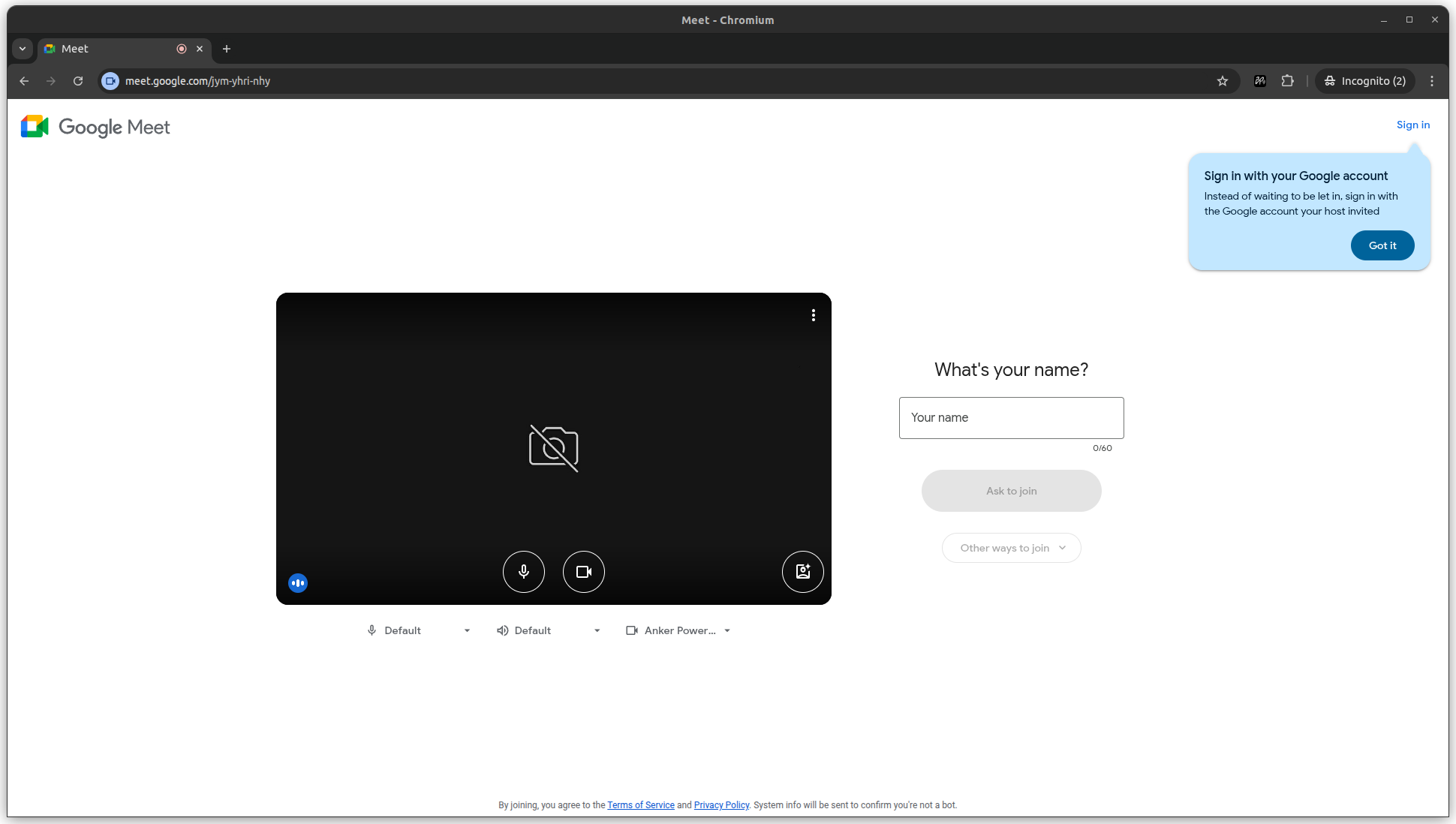
Tip
Make sure you have the Sokuji extension installed and enabled in Chrome or Edge.
2Grant Microphone Permission
If Sokuji requests microphone permission, click "Allow while visiting the site" to grant access.
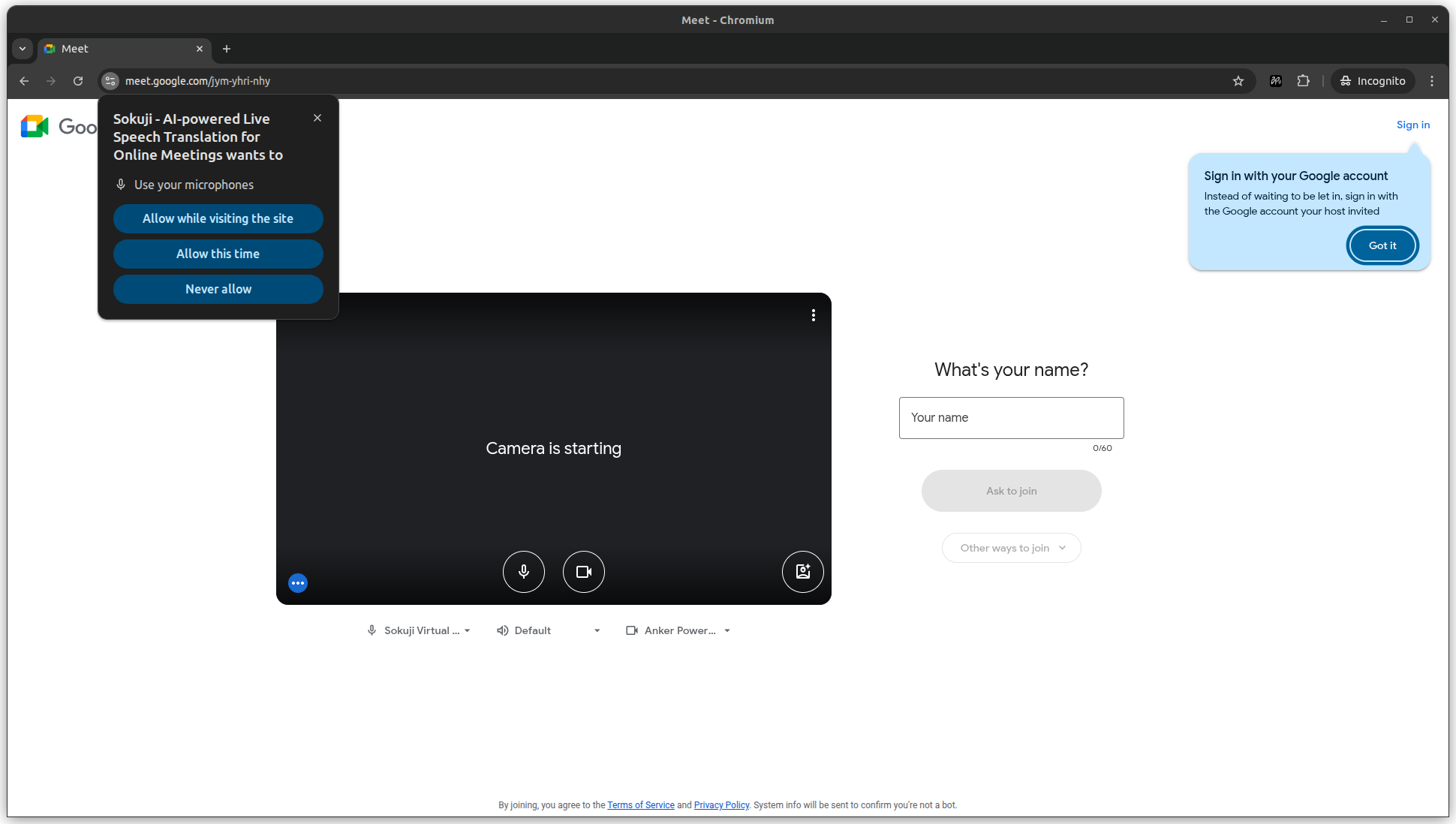
Tip
This permission is required for Sokuji to process your audio for translation.
3Open Sokuji Extension
Click the Sokuji extension icon in the top-right corner of your browser, then click "Open Sokuji" to launch the sidebar panel.
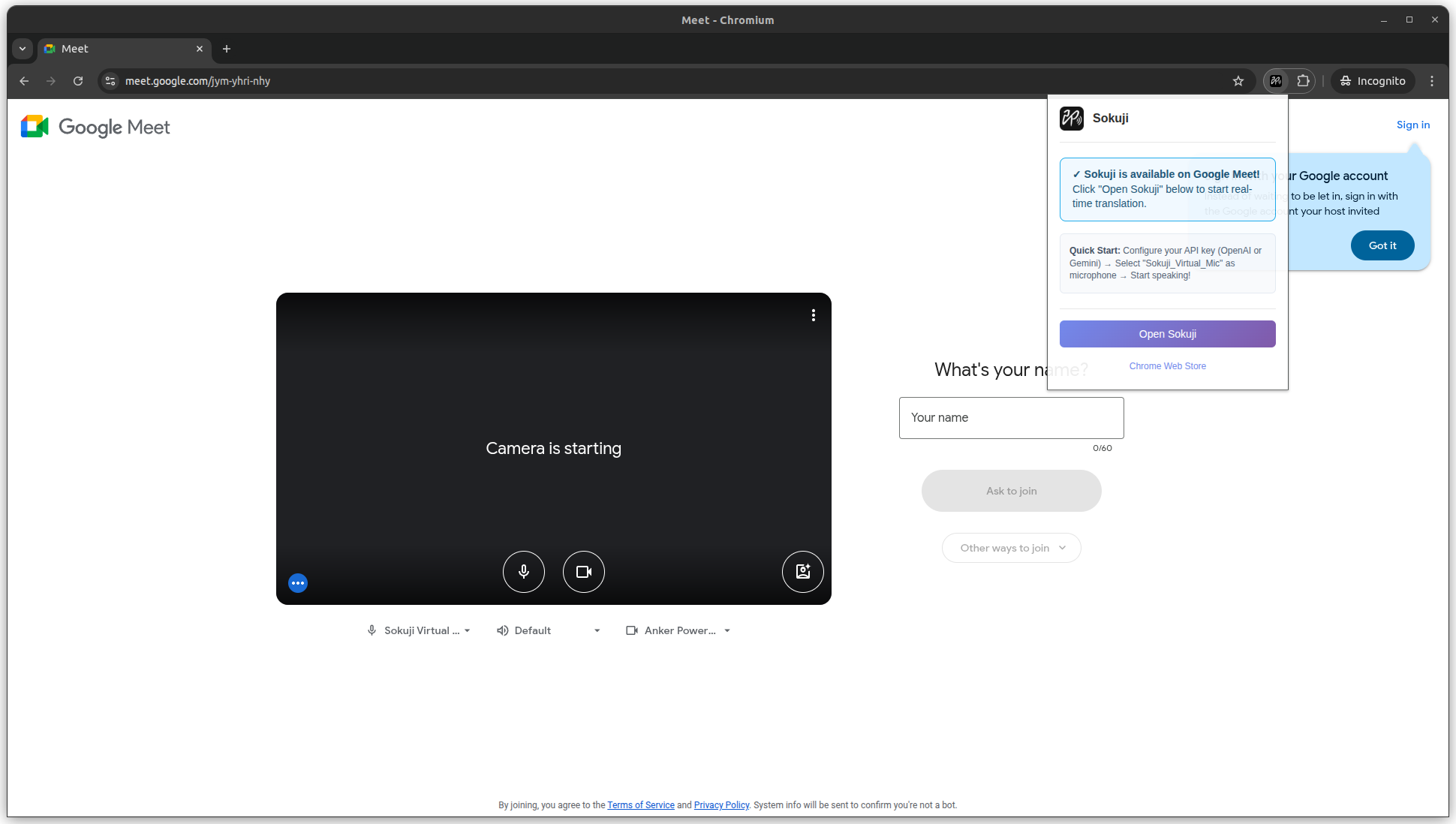
Tip
The Sokuji sidebar will open on the right side of your browser window.
4Configure Sokuji Settings
In the Sokuji sidebar, configure your translation settings including source and target languages, AI provider, and other preferences.
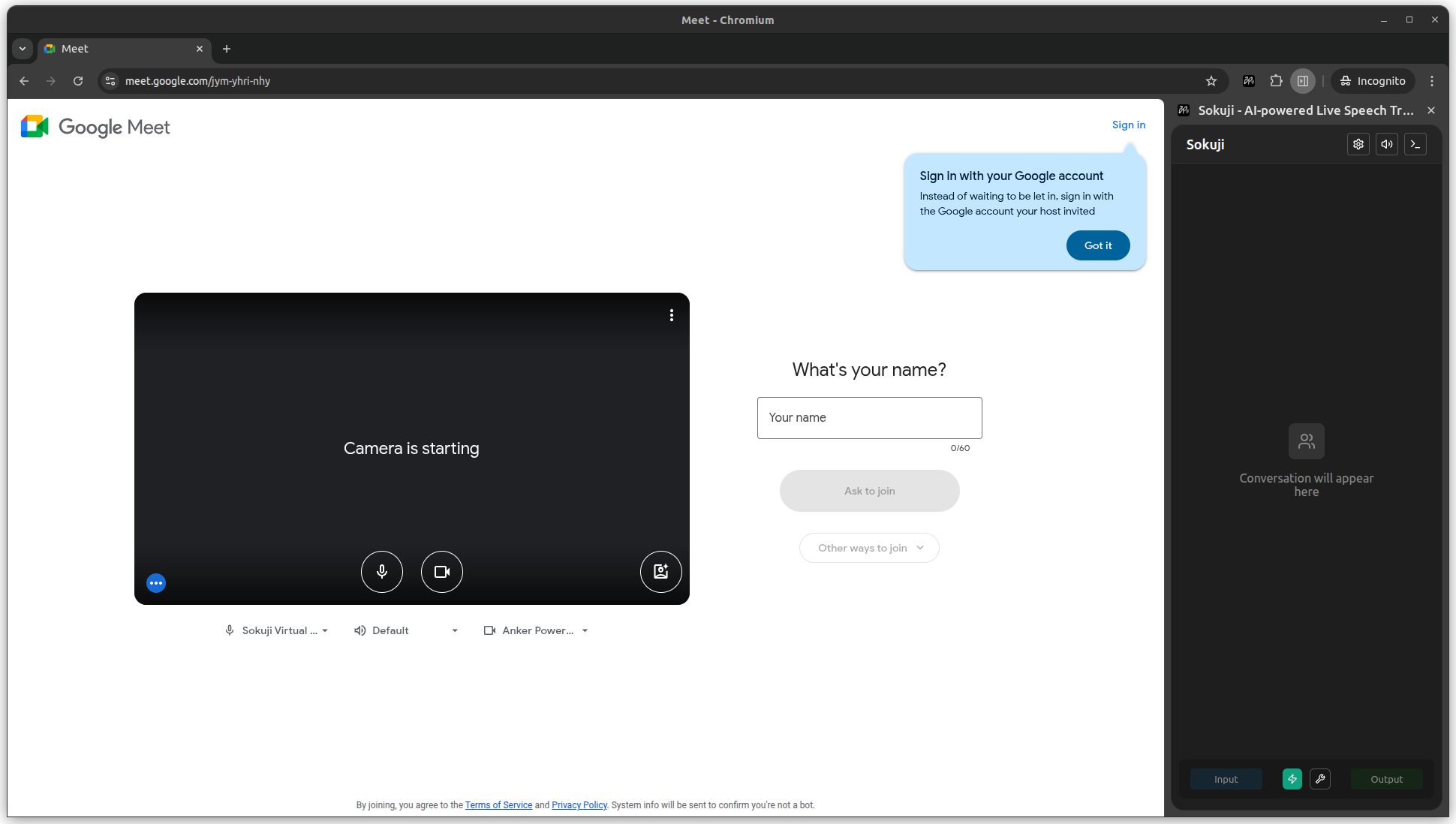
Tip
Test your microphone input to ensure Sokuji is receiving audio correctly.
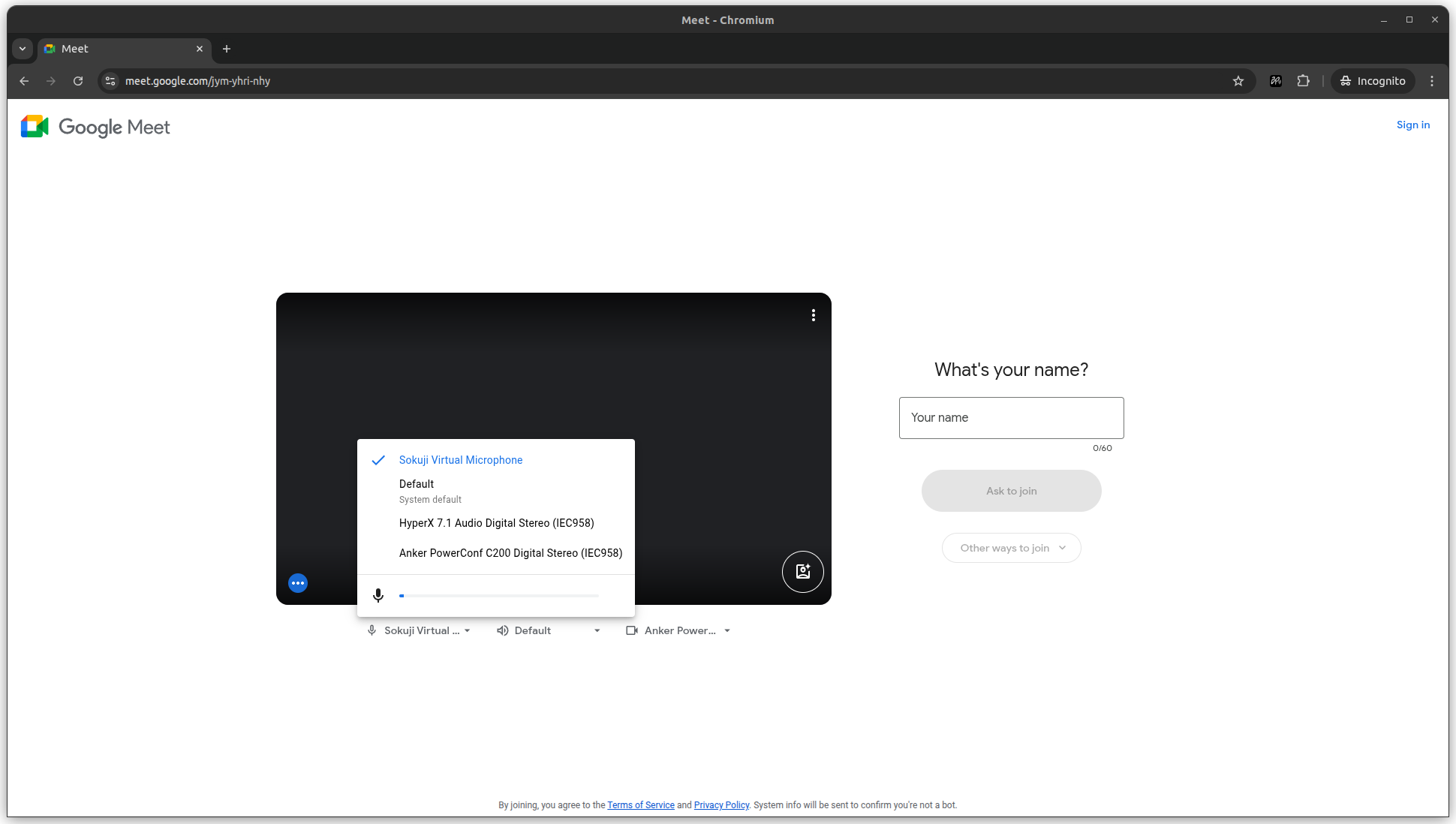
5Select Sokuji Virtual Microphone
In Google Meet's audio settings, click the microphone icon and select Sokuji Virtual Microphone from the dropdown menu.
Tip
If you don't see the virtual microphone, refresh the page and ensure the extension is active.
Tips for Best Results
- Speak clearly and avoid background noise
- Pause briefly between sentences for better translation accuracy
- Test your audio before important meetings
Frequently Asked Questions
Why can't I see the Sokuji Virtual Microphone?
Make sure the Sokuji extension is installed and active. Try refreshing the Google Meet page. If the issue persists, check that you've granted microphone permissions to the extension.
Can other participants hear both languages?
By default, participants only hear the translated audio. However, when you enable 'Original Audio Passthrough' in Sokuji's audio settings, participants will hear both your original voice and the translation simultaneously. This feature is useful when you want listeners to hear both languages for context or verification.
Does Sokuji work with Google Meet recordings?
Yes, the translated audio will be included in the meeting recording if you're using Sokuji Virtual Microphone.
What is Original Audio Passthrough?
Original Audio Passthrough is a feature that allows your original voice to be transmitted alongside the translation. When enabled, listeners hear both languages simultaneously - your natural speech at a lower volume (30% by default) mixed with the AI translation. This is particularly useful for bilingual audiences or when you want to maintain the emotional tone and nuance of your original speech.
Troubleshooting
If you encounter any issues, please visit our GitHub repository or contact us at support@kizuna.ai for support.