
Display Settings: What the Conversation Shows
Overview
The toolbar above the conversation controls what you see: the original, the translation or both for each side, the text size, a compact view and the colours.
1The toolbar
From left to right: which lines to show for Me and for Other, smaller and larger text, compact view, export, display settings and clear conversation.

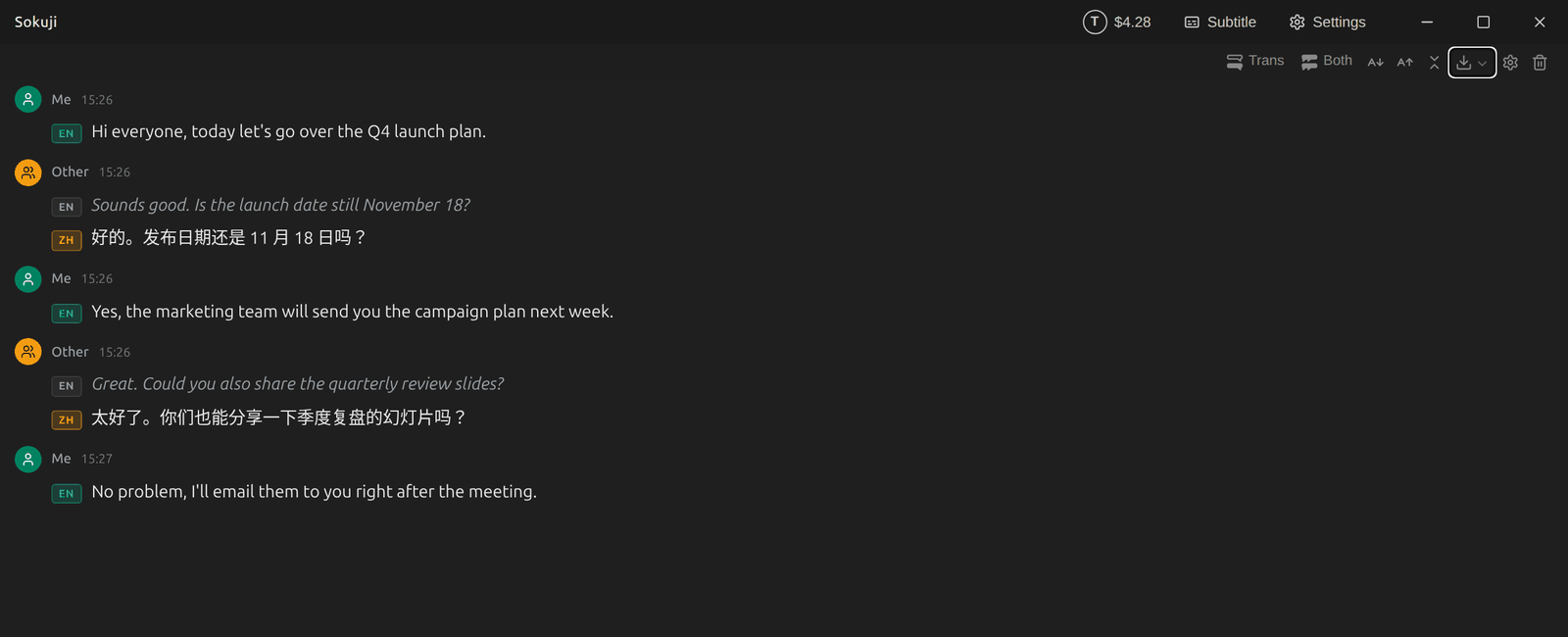
2Original, translation or both
Click the Me or Other button to cycle through Src (only the original), Trans (only the translation), Both and Off (hide that side). Here, Me shows only the translation.
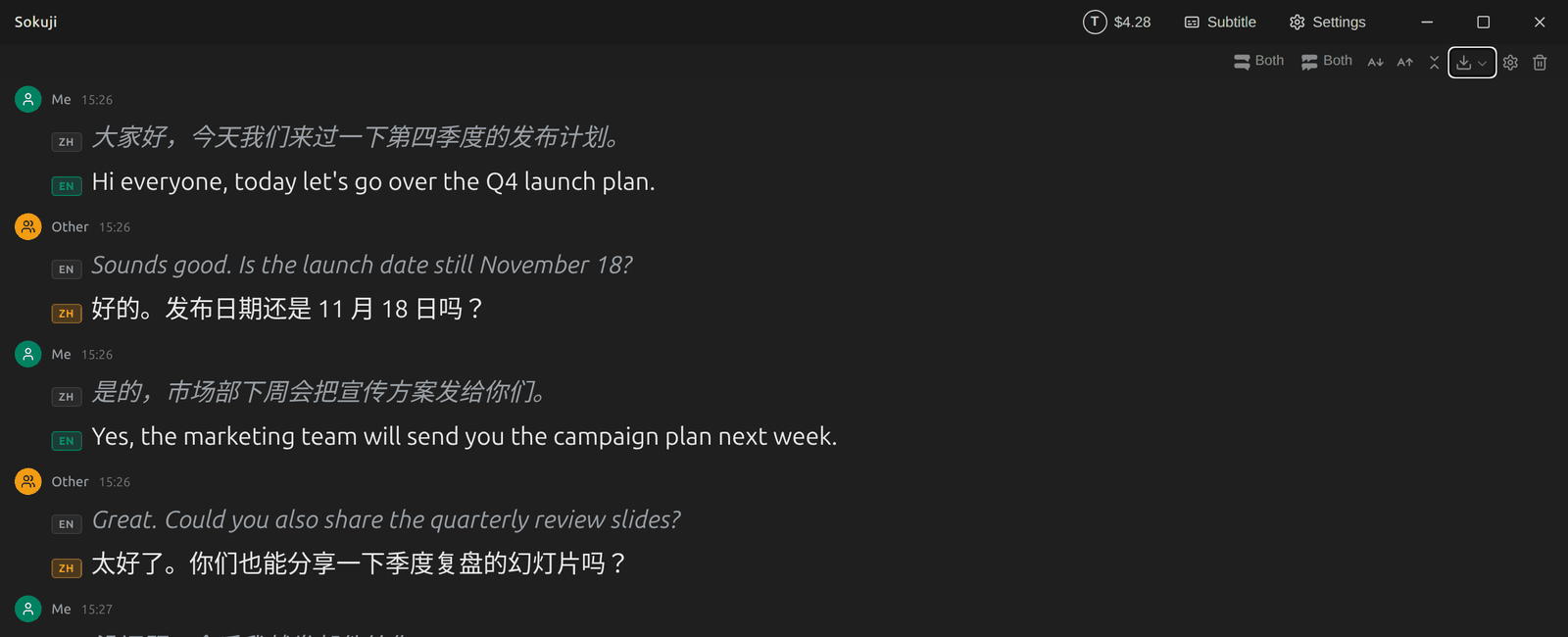
3Text size
Use the smaller and larger text buttons to change the size, from 12 to 64 pixels.
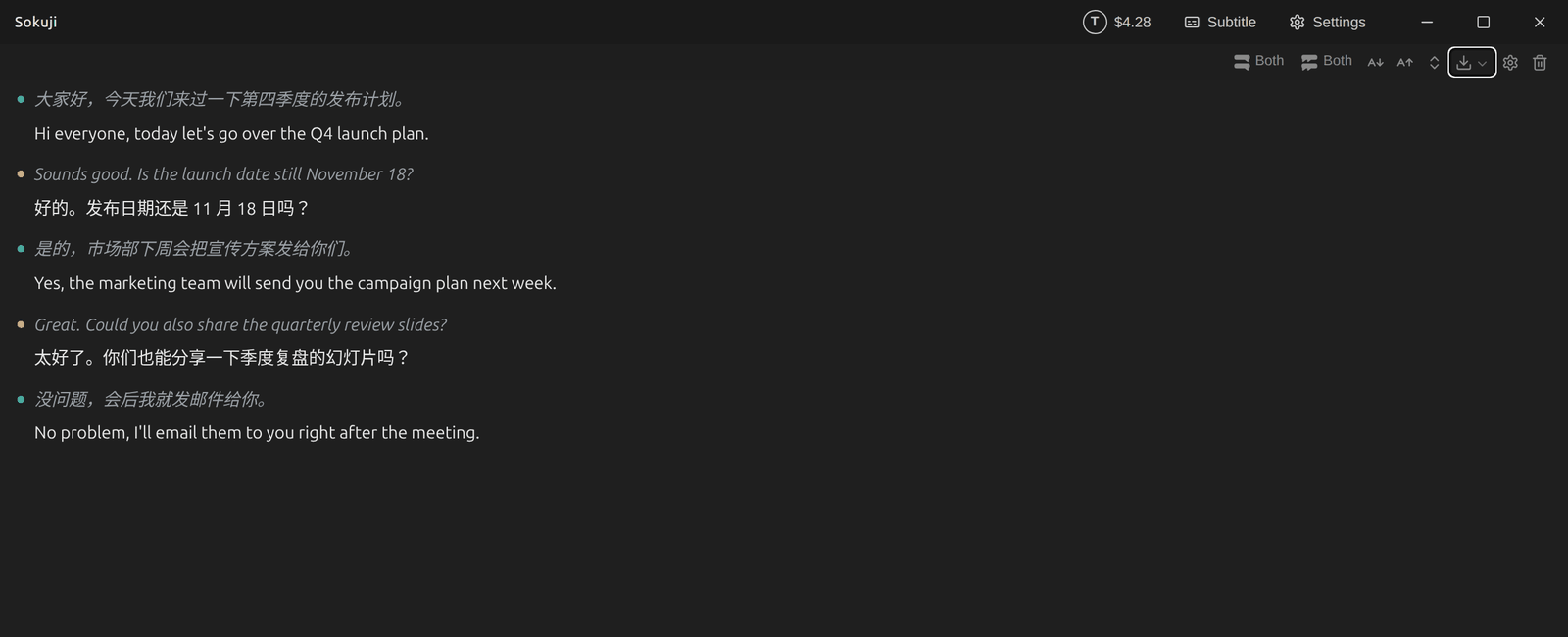
4Compact view
Compact view shows each message on one line without names and times. Click it again for the expanded view.
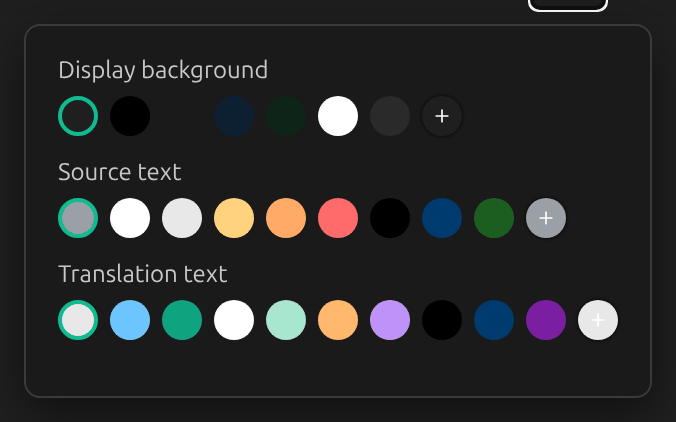
5Colours
The gear button opens the display settings: Display background, Source text and Translation text.
Tips
- The subtitle window has its own display settings, independent of these.
- Clear conversation removes everything shown. Export first if you want to keep it.
Frequently Asked Questions
Do these settings change what gets exported?
The export menu starts from what the conversation shows, but you can change its choices before exporting.
Troubleshooting
Still stuck? Send us feedback from the account menu, or write to support@kizuna.ai. You can also ask in GitHub Discussions.