
Follow Meetings, News and Live Streams in Another Language
Overview
This guide sets up the Sokuji desktop app to translate what you hear into subtitles in your own language: a meeting you only listen to, a foreign-language news broadcast, a YouTube video or a live stream. Sokuji only listens. Nothing is sent into the meeting, and you need neither a microphone nor a virtual audio cable. It uses KizunaAI (Powered by Soniox). The screenshots are from Sokuji 0.41.1 on Windows, following an English live stream in Google Chrome with subtitles in 中文.
1Set up Sokuji with KizunaAI
If you have not done so yet, follow the KizunaAI quick start to install Sokuji and sign in.
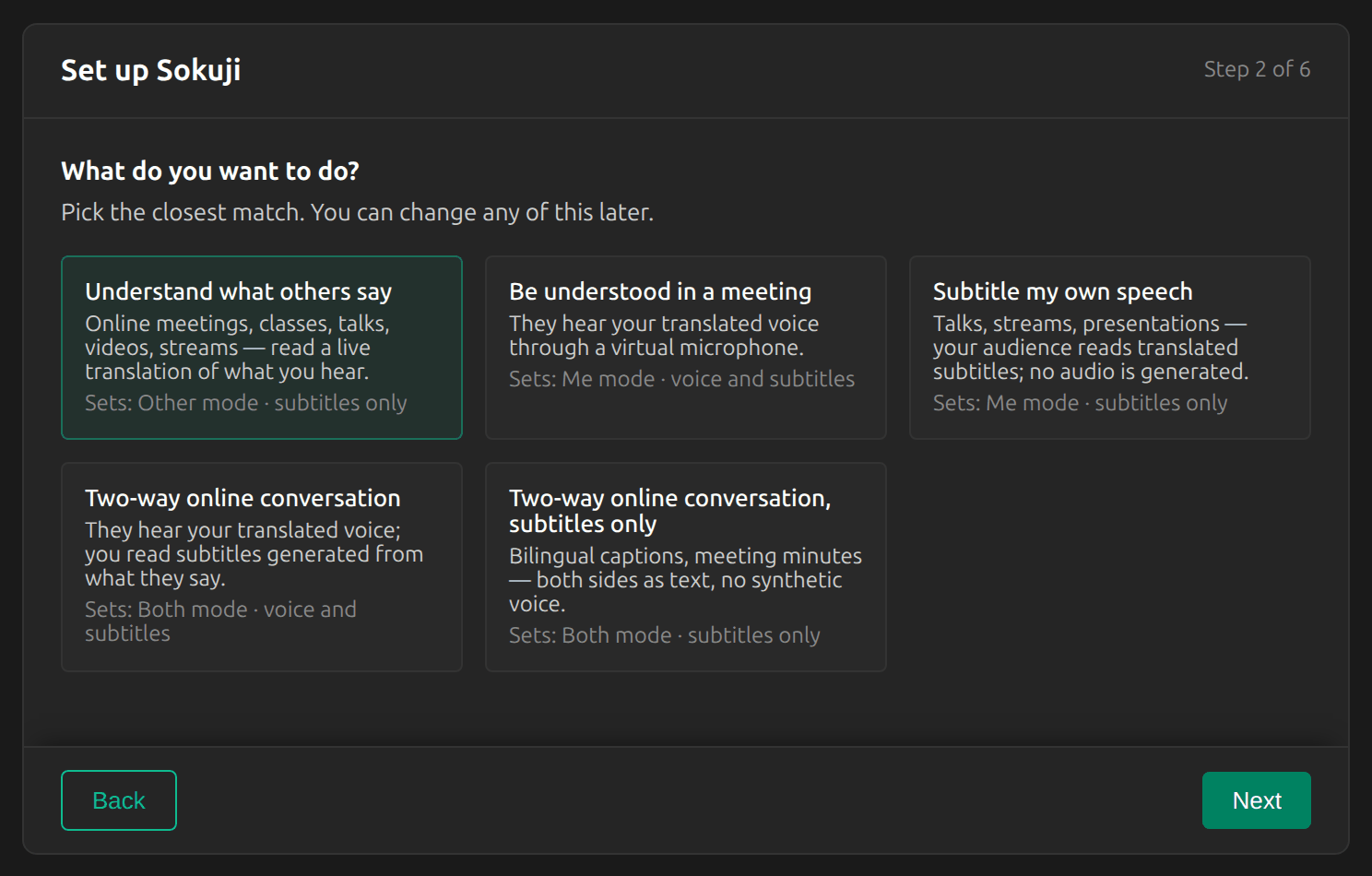
2Choose “Understand what others say”
In the setup guide, choose Understand what others say. It puts Sokuji in Other mode with subtitles only. If you have already finished the setup, click Other in the mode switch at the bottom left of the main window instead.
3Set the two languages
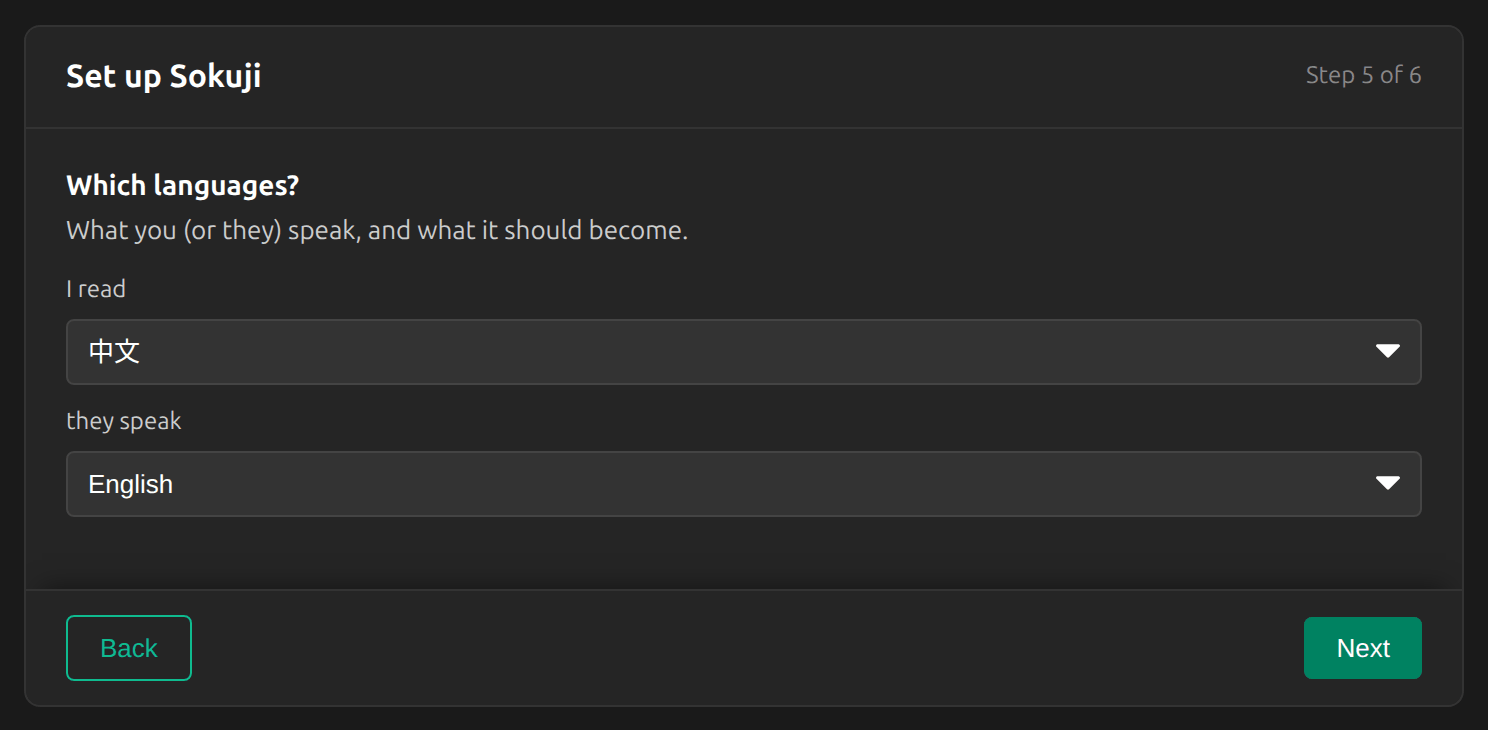
Set I read to the language you want the subtitles in, and they speak to the language of the meeting or video. Here: I read 中文, they speak English.
Tip
Set I read to a specific language, not Auto Detect. Sokuji needs to know which language to translate into, and Start stays disabled until you choose one.
4Choose what Sokuji listens to
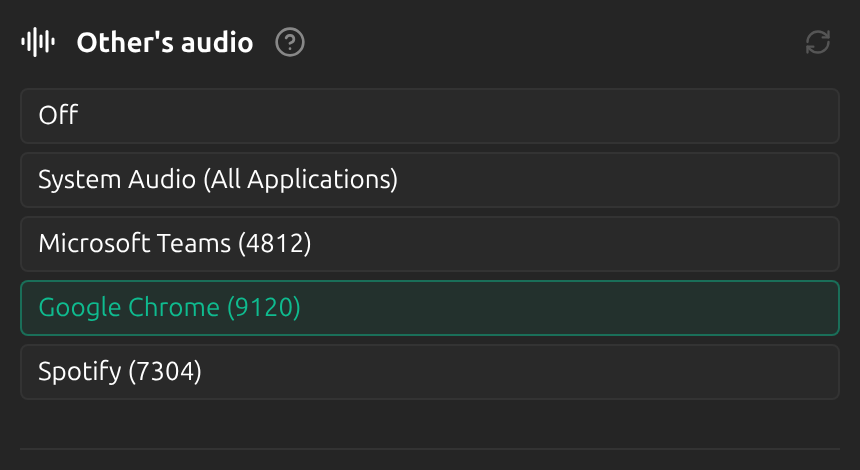
In Settings, under Other’s audio, pick the app that plays the sound: your meeting app (for example Microsoft Teams or Zoom), or your browser (here Google Chrome) for news, YouTube and live streams. System Audio (All Applications) takes everything your computer plays. The original sound keeps playing as usual.
Tip
An app often appears in the list only once it is playing sound. Start the video or join the call first, then click the refresh icon.
5Start translating
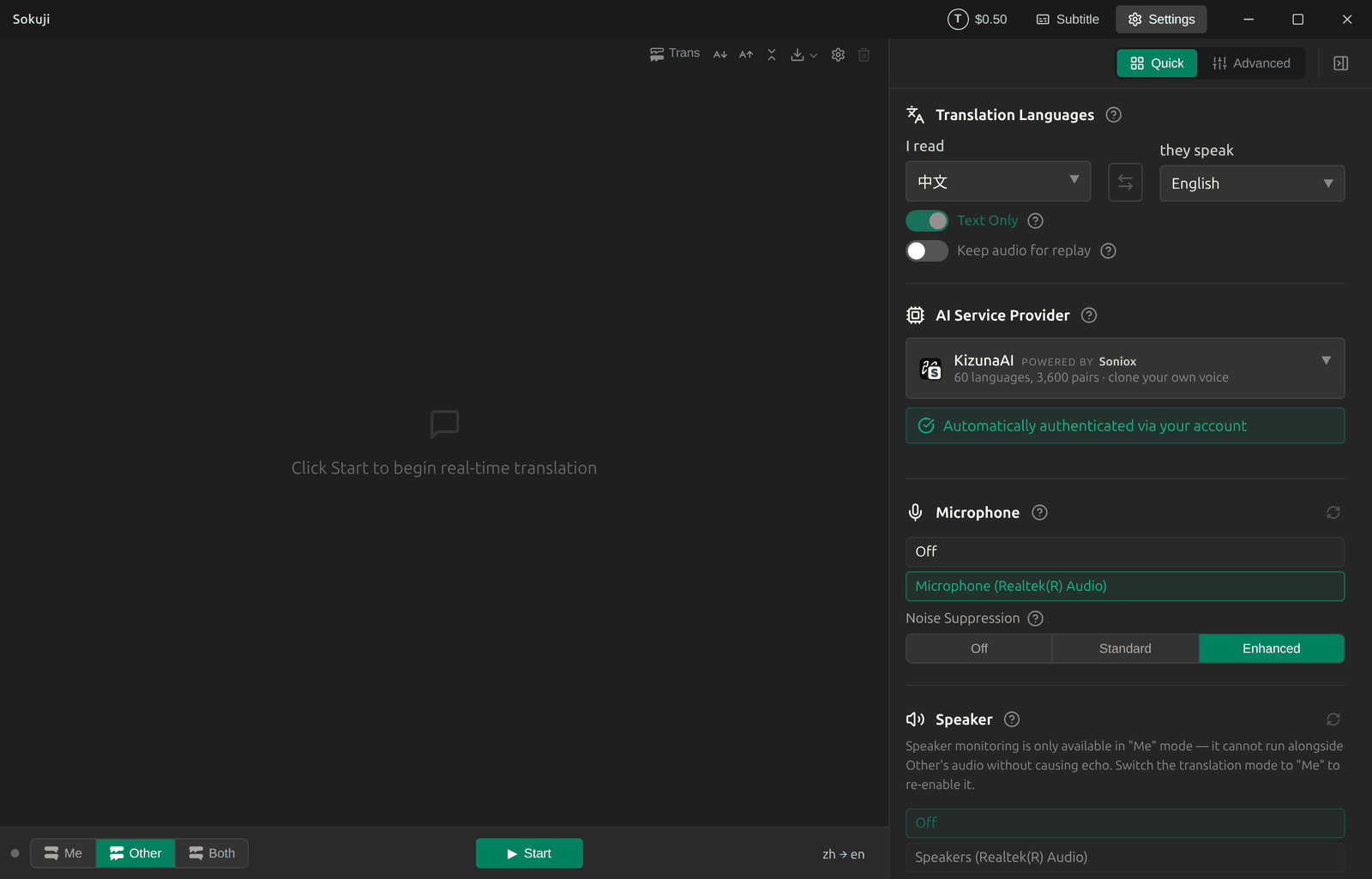
Click Start. Sokuji shows the translation as subtitles in the main window while the original keeps playing. Text Only is already on in this mode, so nothing is spoken aloud.
6Put the subtitles over the video
Click Subtitle in the title bar to turn Sokuji into a slim subtitle window. Move and resize it, for example over the bottom of the video, then click Start translating. Return to main window brings the full window back.

Tips for Best Results
- Pick the specific app rather than System Audio, so that notification sounds and music from other programs are not translated.
- Stop the session when the meeting or video ends: a running session keeps using your balance.
- Use the download button in the toolbar to save the transcript when you are done.
Frequently Asked Questions
Do I need a microphone or VB-CABLE for this?
No. In Other mode Sokuji only listens to the app you choose. The microphone is only needed when your own speech is translated, and the virtual audio cable only when others should hear your translated voice.
Will the other participants notice anything?
No. Sokuji listens to the sound on your own computer and sends nothing into the meeting.
Can I also talk back in their language?
Yes. Switch to Both mode and follow the two-way meeting guide.
Troubleshooting
Still stuck? Send us feedback from the account menu, or write to support@kizuna.ai. You can also ask in GitHub Discussions.