
Correct a Session
Overview
Speech recognition mishears names and terms. In History you can correct a session once it has ended: change a misheard word everywhere at once, edit a sentence, put sentences under the right speaker, and edit the notes. Corrections stay in the session and go into its exports. The translations are left as they were.
1Change a misheard word everywhere
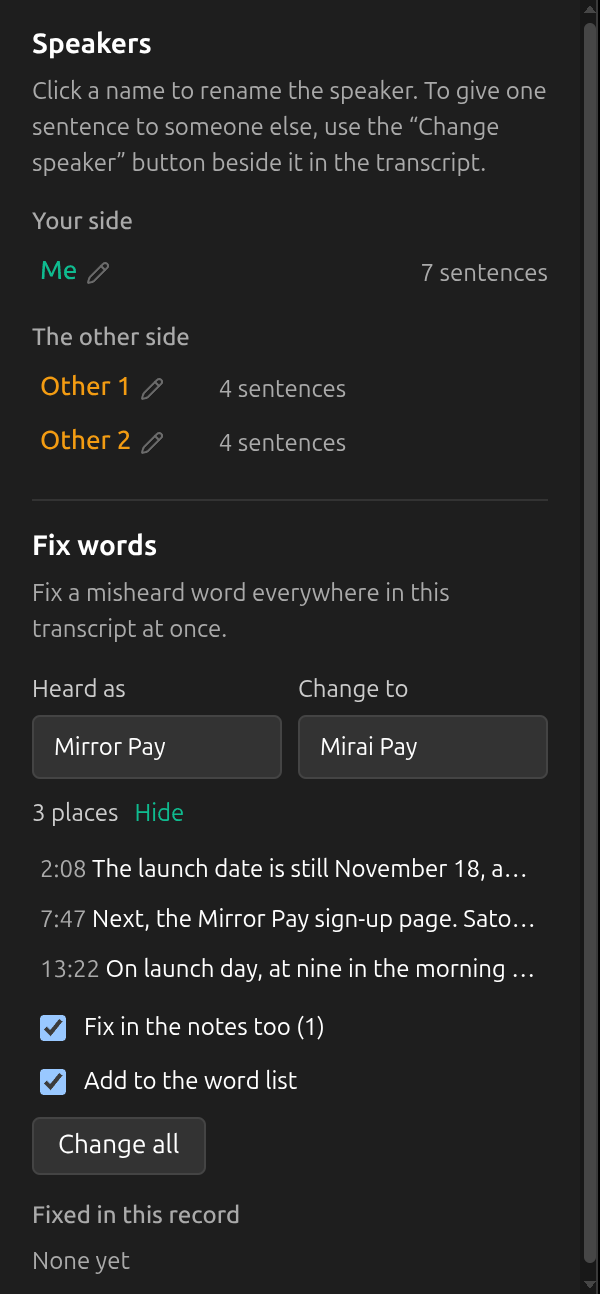
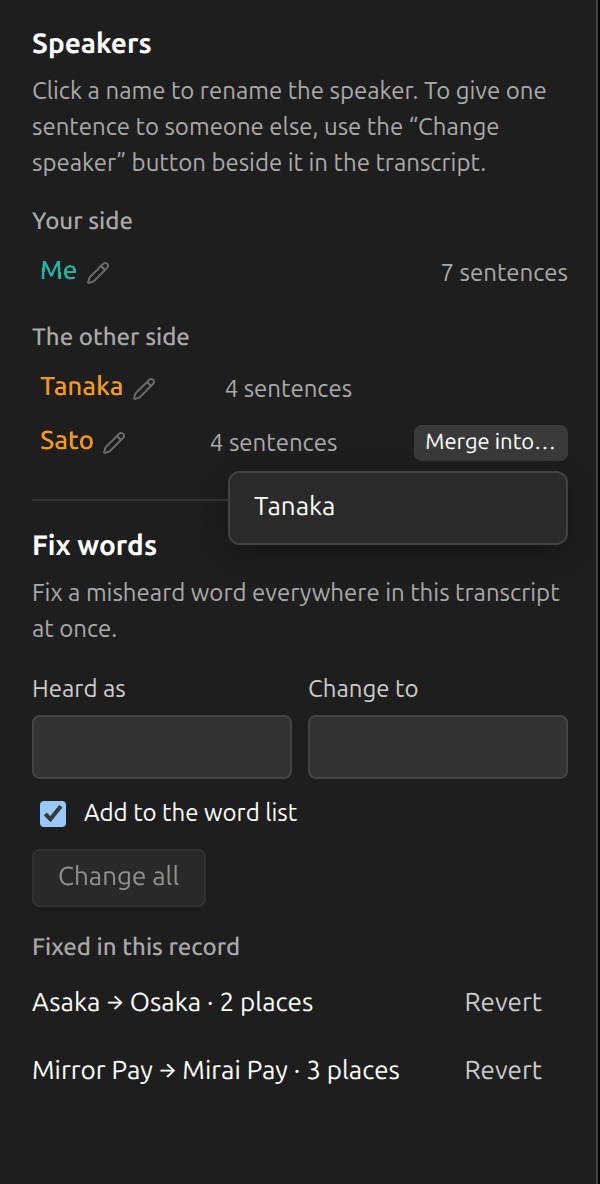
Open the session and the Edit panel. Under Fix words, type the word as it was written in Heard as and what it should be in Change to. Sokuji counts the places; Show each lists them, and a click takes you to one. In Latin, Cyrillic and Greek script only whole words match, in any case; Chinese and Japanese match anywhere. Places already written right are left alone.
2Choose what else changes, and apply
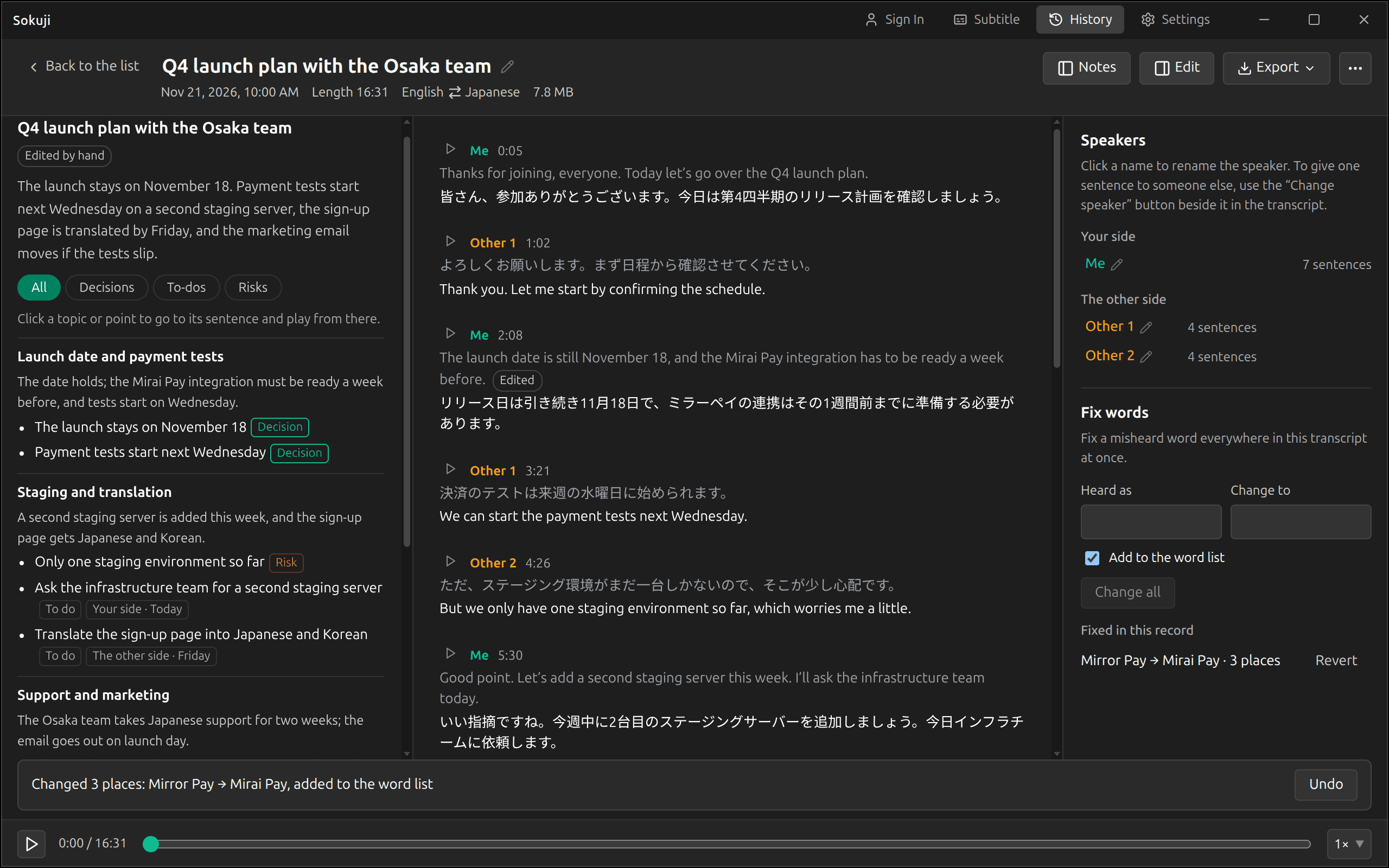
Fix in the notes too appears when the notes contain the word, and changes it there as well. Add to the word list adds the right spelling to your word list, together with the misheard one, so that later sessions get it right. Both start ticked. Change all applies the fix. Each fix is listed under Fixed in this record, where Revert takes it back at any time; changes you made since are kept.
3Start from the transcript or the notes
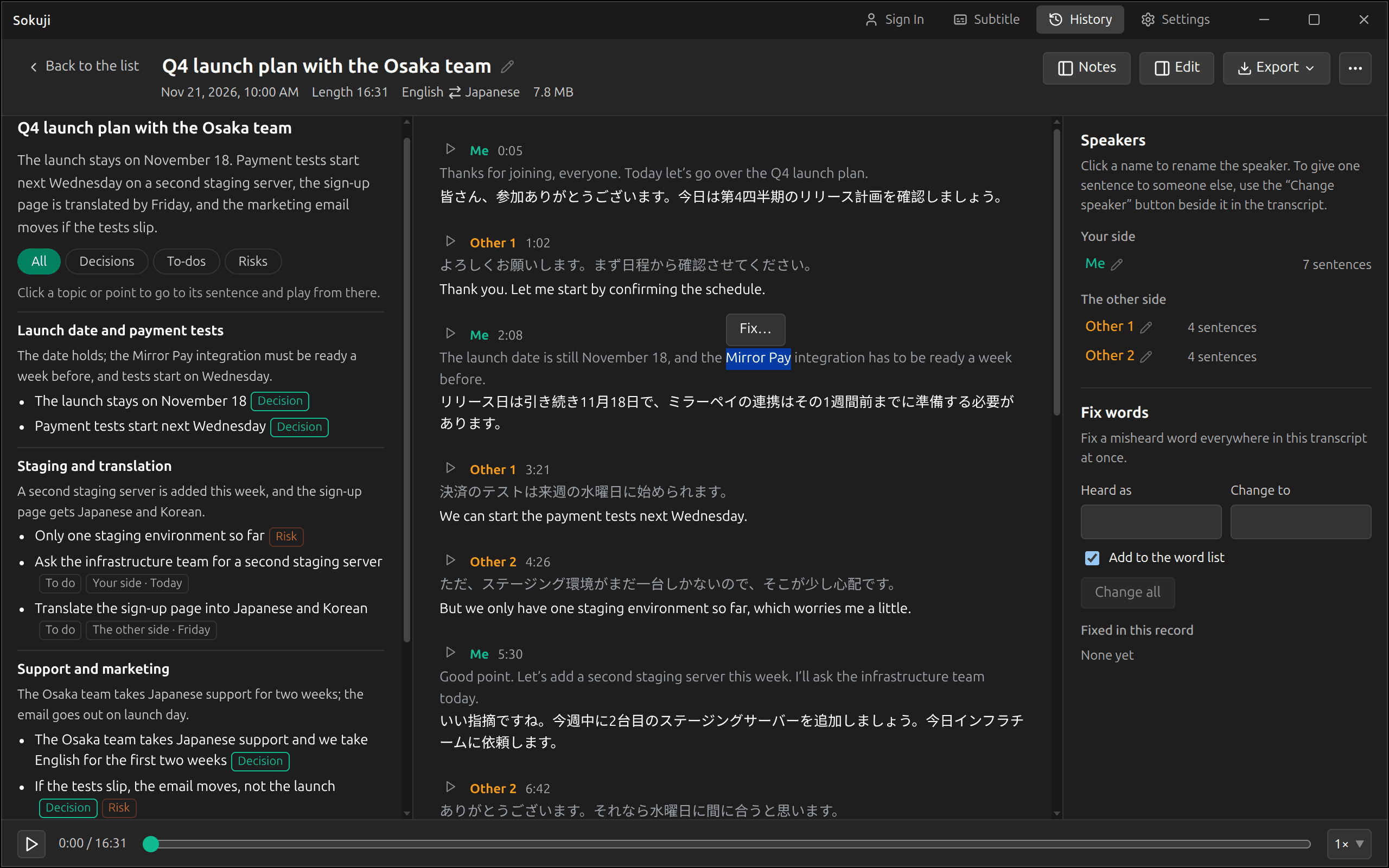
Select a word inside a sentence and click Fix… to bring it into Fix words; you can then choose All … places or Only the selected one. The notes also list Names to check: names and terms that speech recognition probably wrote wrong. Go fix brings one into Fix words; Dismiss takes it off the list.
4Edit a sentence
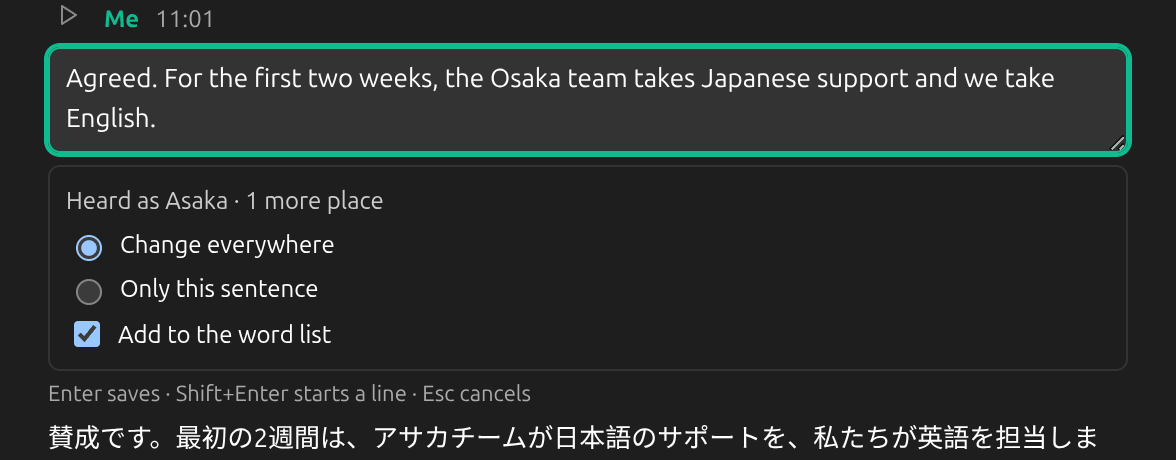
Point at a sentence and click its pencil. Enter saves, Shift+Enter starts a new line and Esc cancels. If you changed one word that also appears in other sentences, Sokuji offers Change everywhere or Only this sentence. An edited sentence is marked Edited; click the mark to see the original and Restore original.
5Put sentences under the right speaker
Under Speakers, click a name to rename that speaker everywhere. Change speaker, beside a sentence in the transcript, gives it to another speaker on the same side or to a New speaker. When the service split one person into two, Merge into… joins them; renaming a speaker to a name already used on that side offers the same.
6Edit the notes
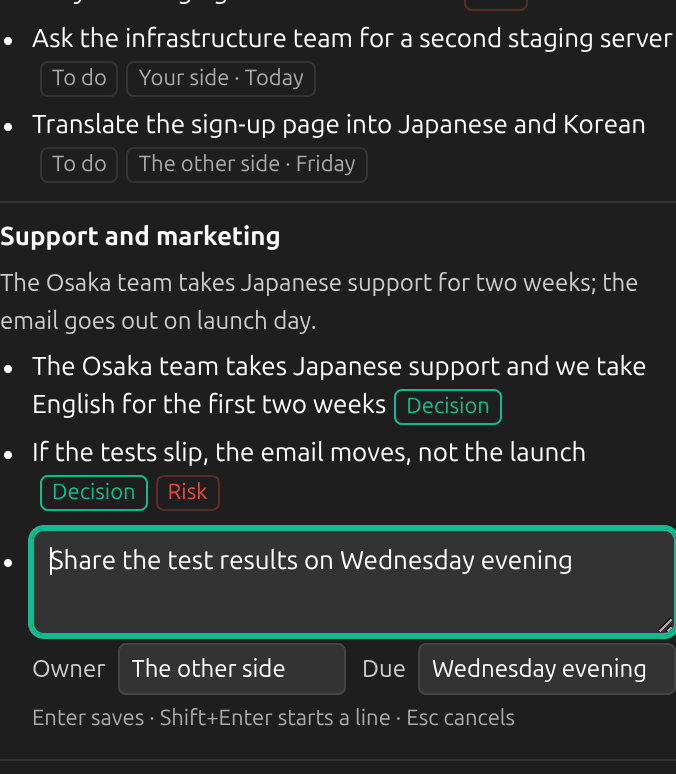
Point at the title, the overview, a topic or a point in the notes and click its pencil. A to-do also has Owner and Due. Emptying a point removes it. Notes you changed are marked Edited by hand.
7Undo
After each change, a message at the bottom says what changed, with Undo. Ctrl+Z (⌘Z on a Mac) undoes too, up to the last 20 changes. Undo lasts only while the session is open: once you go back to the list it is gone. A word fix can still be taken back later with Revert, and an edited sentence with Restore original.
Tips
- Corrections apply to the transcript version you are looking at. Transcribe again makes a new version from the recording, without your corrections.
- The word list is in Settings, under Word list and background. A fix adds to it only when Add to the word list is ticked.
- Other sessions can be corrected while a new one is running.
Frequently Asked Questions
Are the translations corrected too?
No. Corrections change the original text and the notes. The translations stay as they were.
Can I correct a session that is still running?
Wait until it ends. Until then the session can only be read.
Can I delete a sentence?
No. A sentence can be changed but not removed; emptying it leaves it as it was.
Can I move a sentence from my side to the other side?
No. Change speaker and Merge into work within one side.
Troubleshooting
Still stuck? Send us feedback from the account menu, or write to support@kizuna.ai. You can also ask in GitHub Discussions.