
Share Live Captions on Your Network
Overview
The Sokuji desktop app can share its live captions and translations with people on the same Wi‑Fi or office network. They scan a QR code or type an address, and read along on their own phone or laptop in the language they choose. There is nothing to install and no sign-in.
1Open the share panel
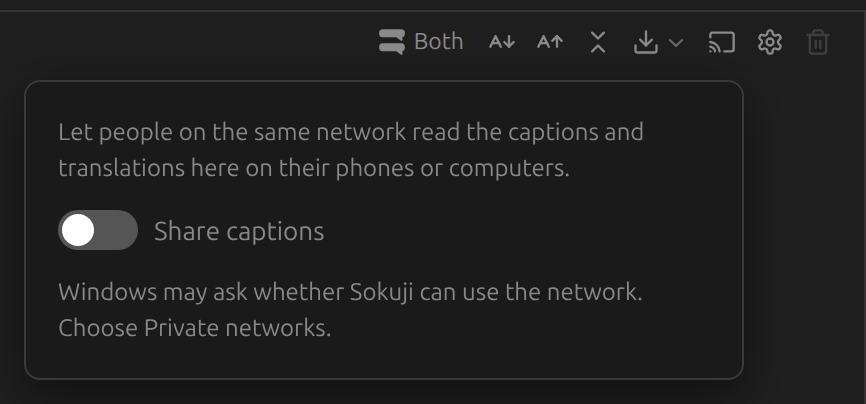
In the desktop app, click the cast button in the toolbar above the conversation (its tooltip says Share captions). Nothing is shared until you switch it on.
2Turn on sharing
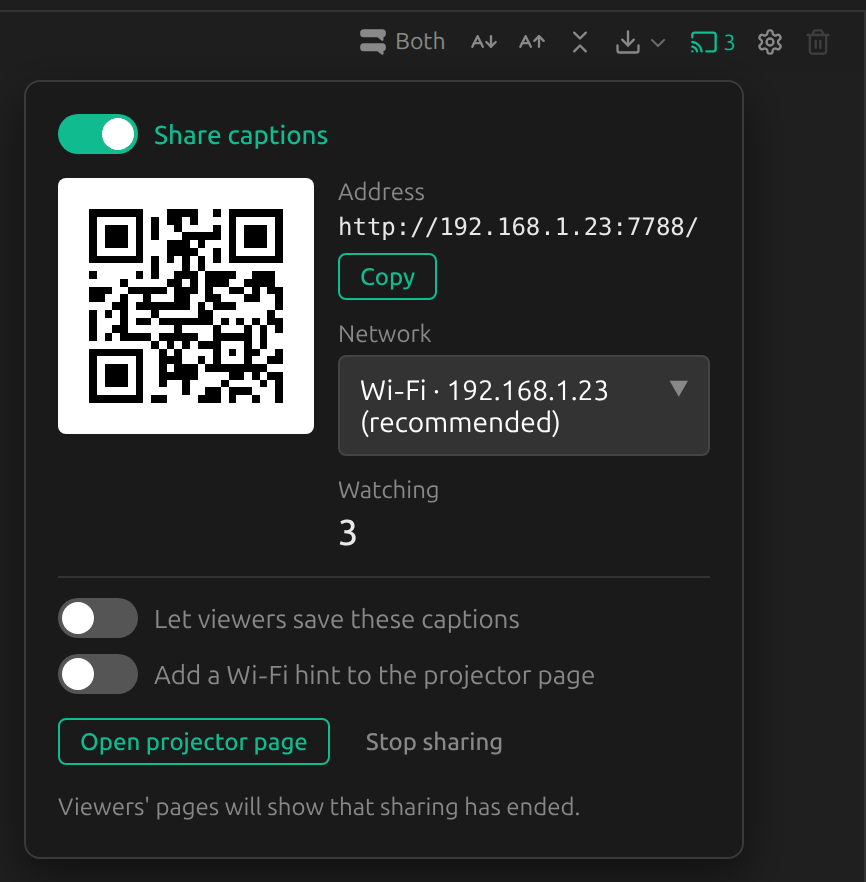
Switch on Share captions. The panel shows a QR code and an address such as http://192.168.1.23:7788/, and Watching counts the devices that have the page open. The first time, Windows may ask whether Sokuji can use the network: allow it on private networks. If your computer has more than one network connection, a Network list appears; choose the one your viewers are on.
3Viewers open the page
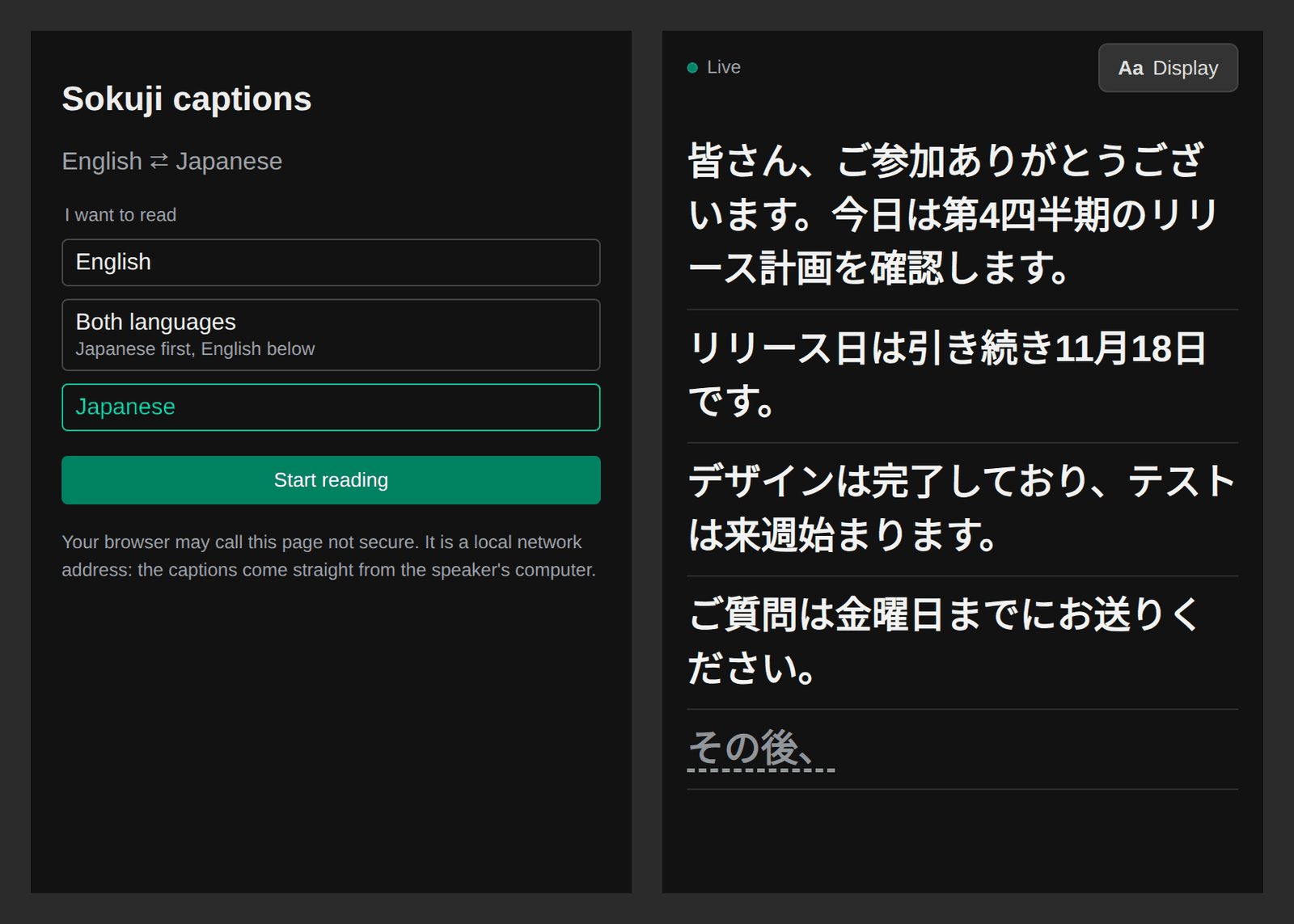
People on the same network scan the QR code with their phone camera, or type the address into a browser. Copy copies the address so you can send it in a chat. They choose what to read (the original language, the translation, or both) and tap Start reading. Someone who joins late also gets what was said before.
4Read on a laptop
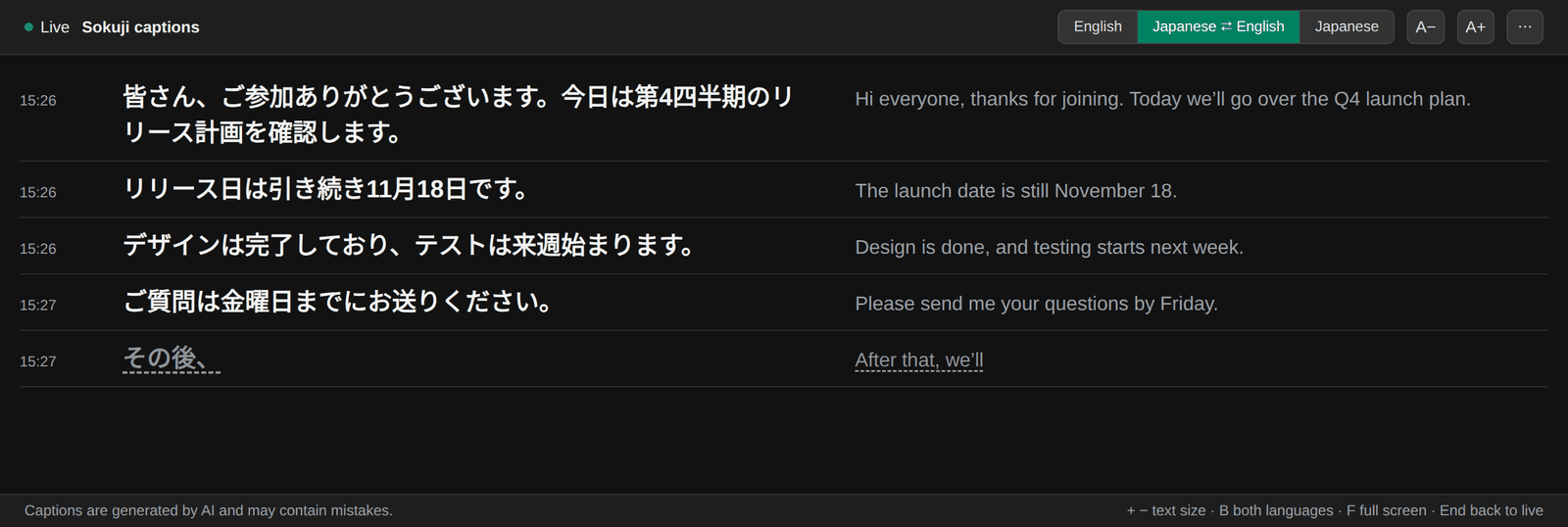
On a wide screen, choosing Both languages puts the two languages side by side, with the time of each line. Click the selected button again to swap which language comes first. Keys: + and − change the text size, B switches both languages on or off, F goes full screen, and End returns to the newest line.
5Viewers adjust their own page
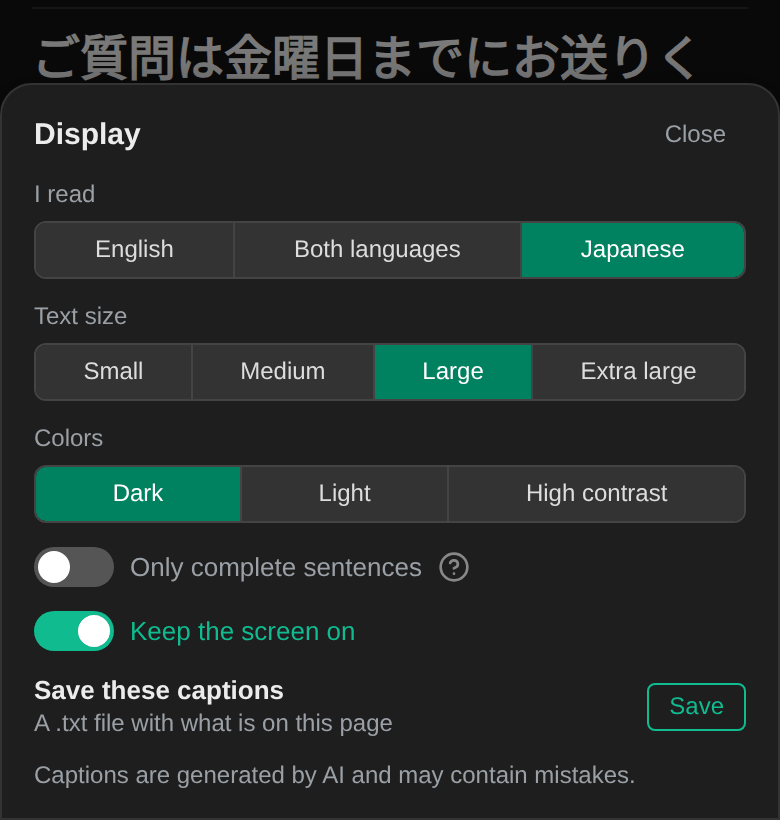
Under Display (the ⋯ button on a laptop), each viewer can change the text size, pick Light or High contrast colors, hide the sentence still being spoken with Only complete sentences, and use Keep the screen on. These choices apply to that device only. If you switch on Let viewers save these captions in the share panel, viewers also get Save these captions, which downloads the captions on their page as a .txt file.
6Show the QR code on a big screen
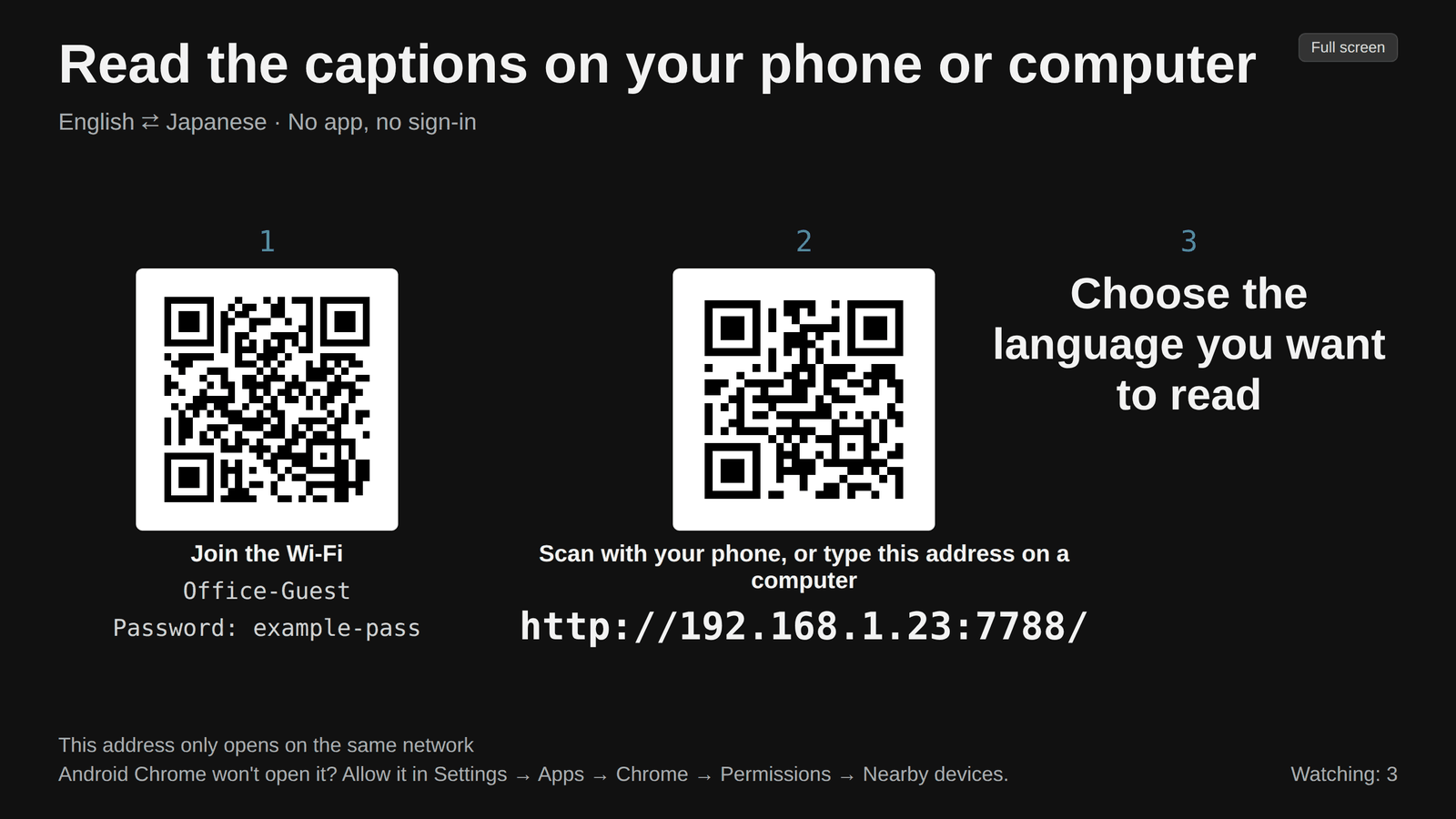
Click Open projector page. A separate window opens with the QR code and the address in large type; drag it to a projector or a second display and make it full screen. To help guests get online first, switch on Add a Wi‑Fi hint to the projector page and enter the Wi‑Fi name and the password. The page then shows them, with a second QR code that joins the Wi‑Fi. Sokuji uses these details only on this page and does not save them.
7Stop sharing
Click Stop sharing, or quit Sokuji. The viewers’ pages show Sharing has ended. While sharing is on, their pages follow your conversation: when you clear it or start a new session, their pages start again from empty. Sharing is always off when Sokuji starts.
Tips
- Everyone must be on the same network as your computer. A phone on mobile data cannot open the page.
- Guest Wi‑Fi and some company networks stop devices from reaching each other. If nobody can connect, use a phone hotspot or your own router. Sokuji warns you when no device has connected after two minutes.
- Android Chrome won't open it? Allow it in Settings → Apps → Chrome → Permissions → Nearby devices. The projector page shows this reminder too.
- The address starts with http://, so a browser may call the page “not secure”. It is an address inside your own network.
- The page has no password: anyone on the network who has the address can read the captions. Turn sharing off when the conversation is not meant for everyone on that network.
- If your computer changes network, the address changes. Sokuji tells you; send the new address or open the projector page again.
- When you also translate the other side of a call, each line is marked On site or Remote.
Frequently Asked Questions
Do viewers need Sokuji or an account?
No. A current browser on a phone, tablet or computer is enough.
Does it work over the internet?
No. Viewers must be on the same Wi‑Fi or wired network as your computer.
Do the captions pass through Kizuna AI’s servers?
No. Sokuji serves the page from your own computer, and the captions go straight to the viewers’ devices over your network. The translation itself still comes from the provider you use, as in any session.
Does sharing cost more?
No. Viewers read the captions your session already produces, however many of them there are.
Can viewers hear the translation?
No. The page shows text only.
Is it in the browser extension?
No. Caption sharing is in the desktop app for Windows, macOS and Linux.
Why did the address stop working?
The address belongs to your computer on its current network. It changes when you switch networks, and sharing is off again each time Sokuji starts. Turn sharing on and share the new address.
Troubleshooting
Still stuck? Send us feedback from the account menu, or write to support@kizuna.ai. You can also ask in GitHub Discussions.