
Import a Recording
Overview
The desktop app can turn an audio or video file into a session in History: transcribed, with the speakers told apart, translated if you like, and with its recording to play back. It can also transcribe a session’s own recording again. Files are transcribed by Soniox, either with your own Soniox key or through Kizuna AI, paid from your balance.
1Set up Soniox for transcription
In Settings → Languages and line-up, choose Soniox for transcription: Soniox with your own key (added under Accounts and keys; see Soniox setup), or KizunaAI running on Soniox (a sign-in). With any other service, the import says that files are transcribed only by Soniox.
2Choose the file and its languages
Open History and click Import a file. Choose an audio or video file: WAV, MP3, FLAC, Ogg, AAC (.m4a), MP4 or WebM. From a video only the sound is used. Then pick the Main language, add any Other languages it may contain, and choose what to Translate into. The panel says who will transcribe it and who pays. Click Start.
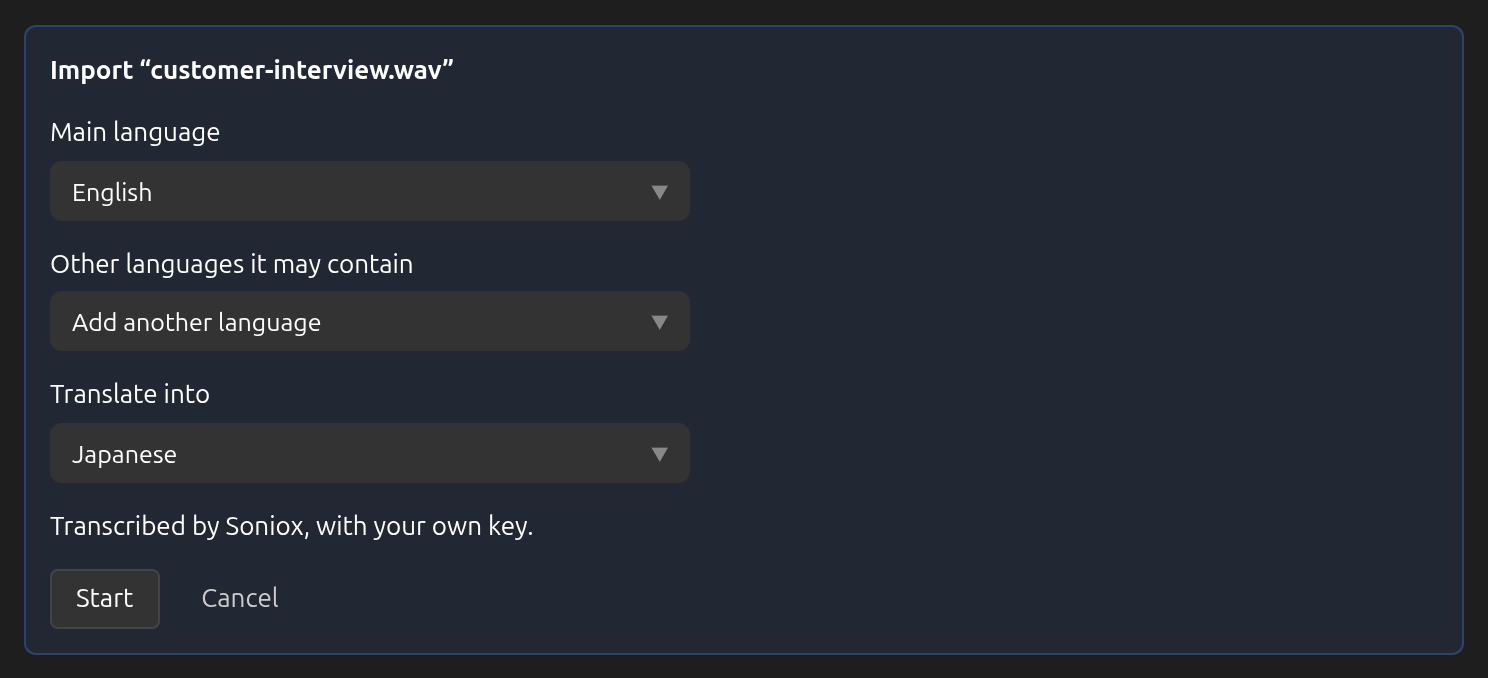
3Wait for it, or carry on
A line at the top of History shows each step, from reading the file to writing the transcript. You can use the rest of the app meanwhile, and Cancel stops the import. Through Kizuna AI, once Soniox is transcribing, cancelling is still charged. An import cannot start while a session is running, and one import or transcription runs at a time.
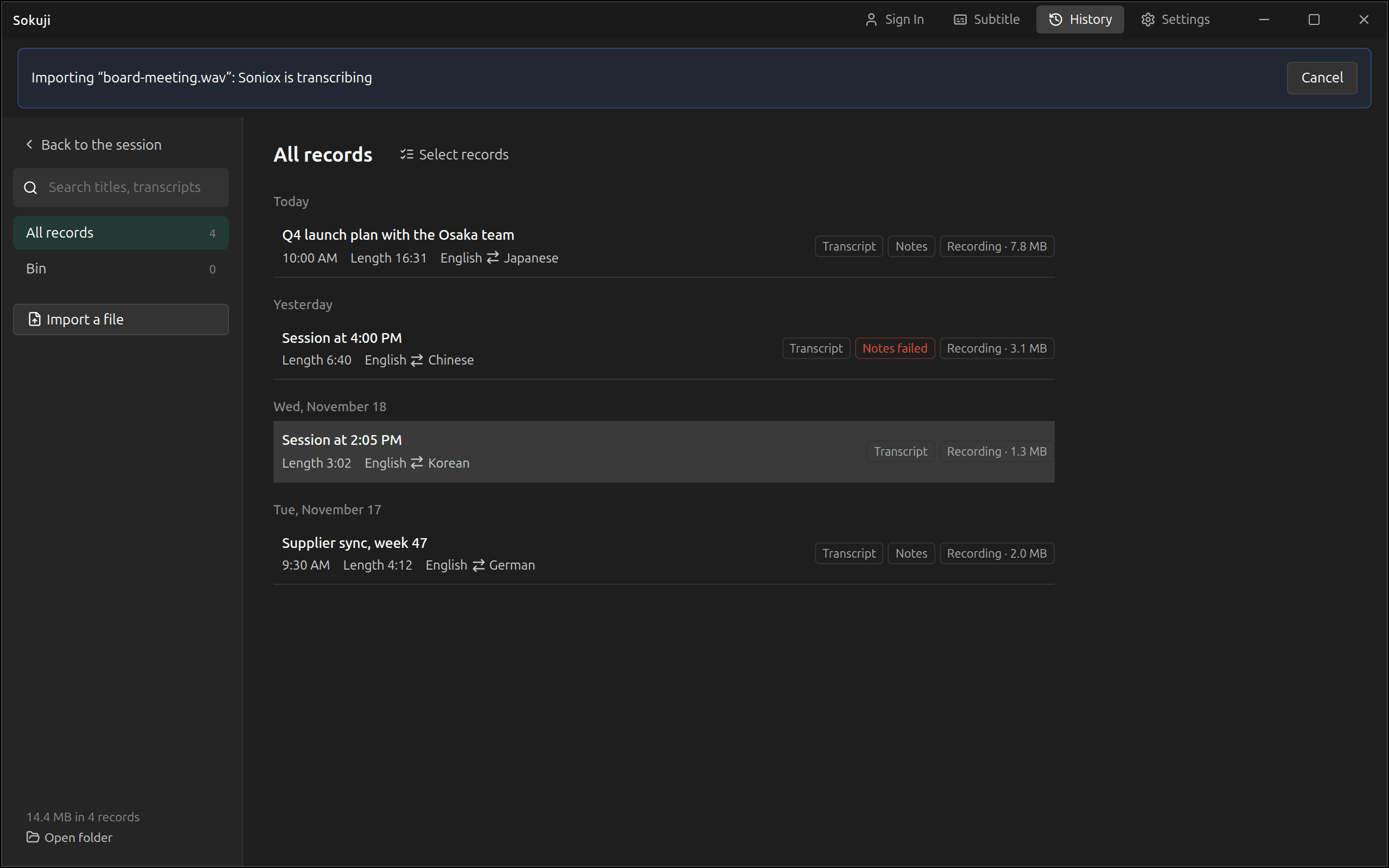
4Open the result
The new session is named after the file. Its speakers are Speaker 1, Speaker 2 and so on, which you can rename (see Correct a Session), with the translation under each sentence and the recording to play. If notes after each session are switched on, they are written for it too. If an import stops after the recording was saved, the session stays as Not transcribed; open it and choose Transcribe under More.
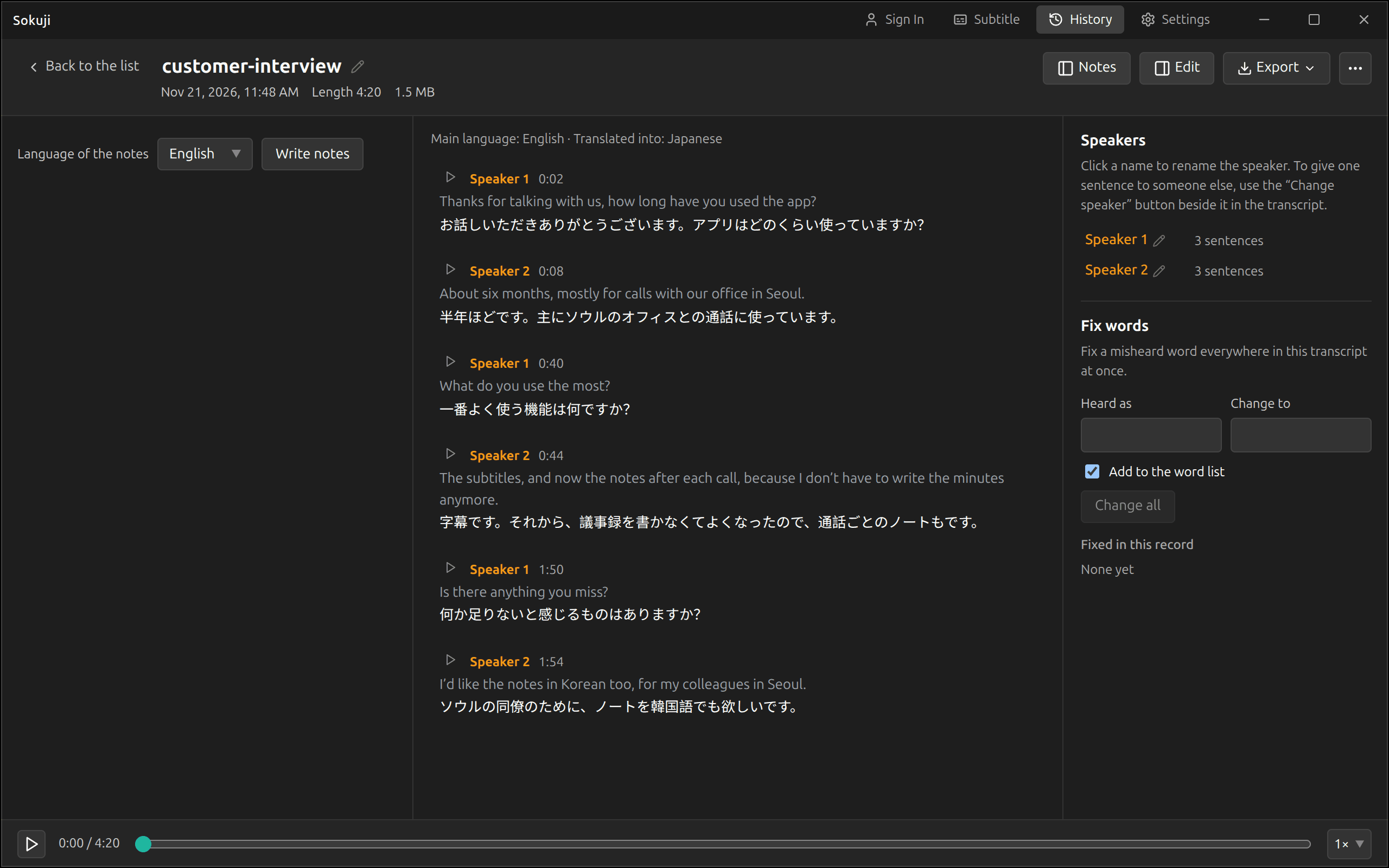
5Transcribe a session again
Any finished session that still has its recording can be transcribed again by Soniox, for example to get the speakers told apart or a better transcript of a live session. Open it and choose Transcribe again under More. For a session with both sides, each side’s recording is transcribed on its own, and Each side into the other’s language translates both. Through Kizuna AI, the panel shows the estimated cost before you start.
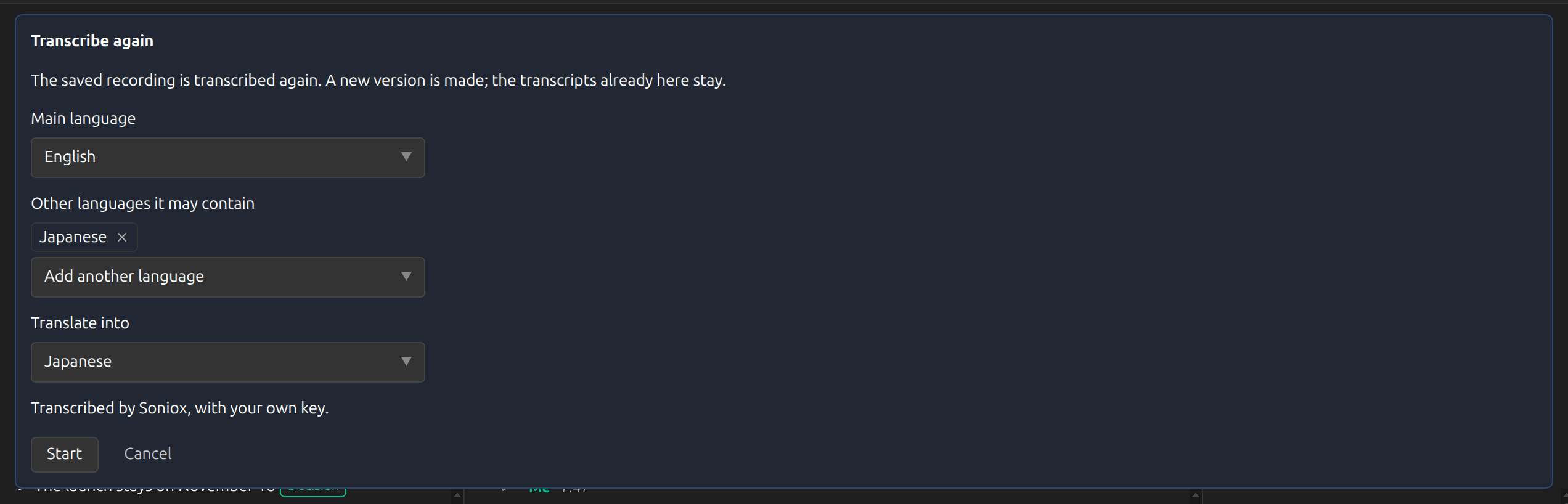
6Switch between versions
Transcribing again adds a new version and keeps the old ones. Transcript version at the top of the session switches between them, for example Live and Soniox file. The notes and corrections belong to the version they were made on; to have notes for the new version, click Write a new version in the notes.
Tips
- Your word list is sent with the file, so the names in it are recognised and translated the way you set them.
- With your own Soniox key, a file can be up to five hours long and 16 GB. Through Kizuna AI, up to four hours; for longer recordings, write to support@kizuna.ai.
- If Sokuji cannot read the sound of a file (ALAC, AC-3 and E-AC-3 audio), convert it to AAC or MP3 and import it again.
Frequently Asked Questions
Where does the audio go?
Sokuji first makes its own recording of the file’s sound, which is what History keeps; the original file is not copied. That recording is sent to Soniox. With your own key it goes straight from your computer to Soniox. Through Kizuna AI it passes through Kizuna AI’s server on its way to Soniox and is not stored there. Either way, the recording and its transcript are deleted at Soniox when the job ends.
What does it cost?
With your own key, Soniox charges your Soniox account. Through Kizuna AI, the transcription is taken from your balance (or your organization’s) by Soniox’s own measure of the job, and the Wallet page of your Kizuna AI account lists it as File transcription.
Does the browser extension import files?
No. Importing and transcribing again are in the desktop app only.
Troubleshooting
Still stuck? Send us feedback from the account menu, or write to support@kizuna.ai. You can also ask in GitHub Discussions.