
Two-Way Voice Translation in Teams, Zoom and Other Meeting Apps
Overview
This guide sets up the Sokuji desktop app for a video call with someone who speaks another language. They hear what you say, spoken in their language; you read what they say, translated into yours, as subtitles. It uses KizunaAI (Powered by Soniox) and works with any meeting app that lets you choose a microphone, including the Microsoft Teams and Zoom desktop apps. The screenshots are from Sokuji 0.41.1 on Windows with Microsoft Teams.
1Set up Sokuji with KizunaAI
If you have not done so yet, follow the KizunaAI quick start to install Sokuji and sign in.
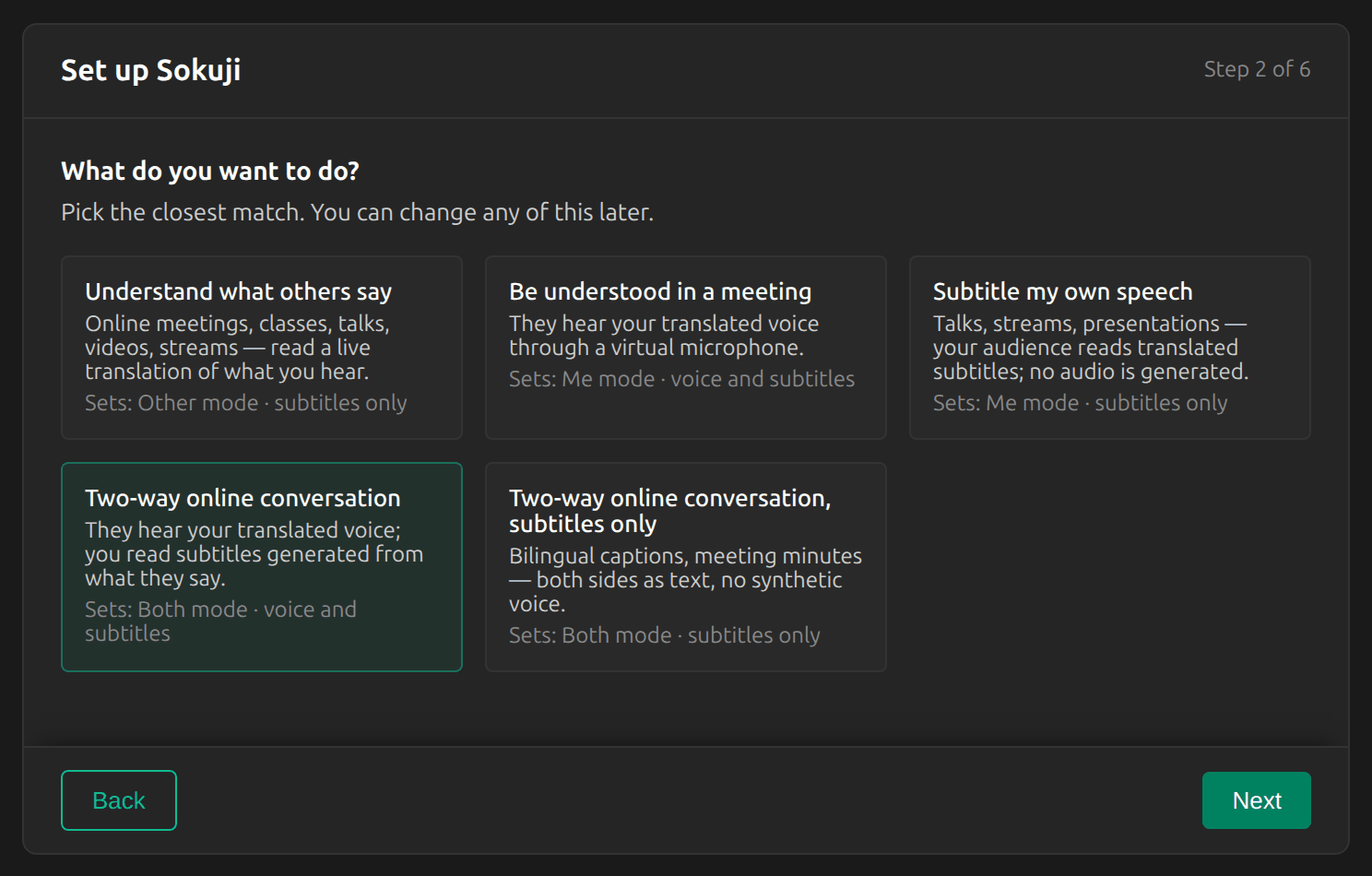
2Choose the two-way scenario
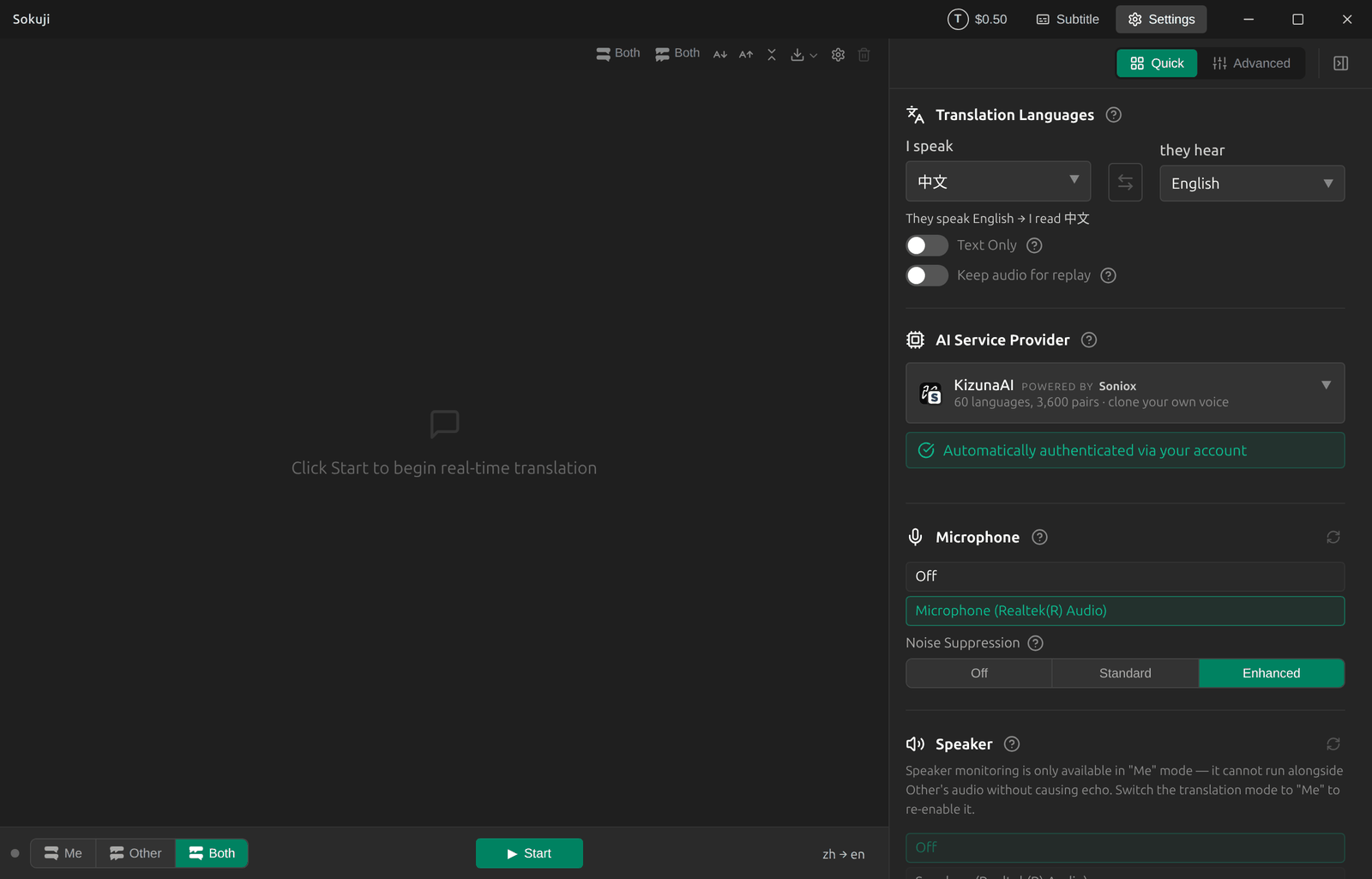
In the setup guide, choose Two-way online conversation. If you have already finished the setup, click Both in the mode switch at the bottom left of the main window instead: it does the same thing.
3Set the two languages
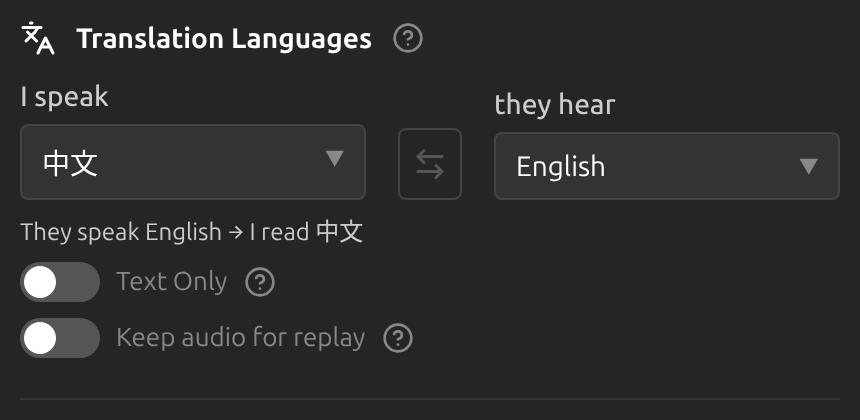
In Settings, under Translation Languages, set I speak to your own language and they hear to the other person’s. The line underneath shows the other direction. For a call with a client in the UK, for example: I speak 中文, they hear English.
Tip
Do not leave I speak on Auto Detect. In Both mode Sokuji has to know your language to translate the other side into it, and Start stays disabled until you choose one.
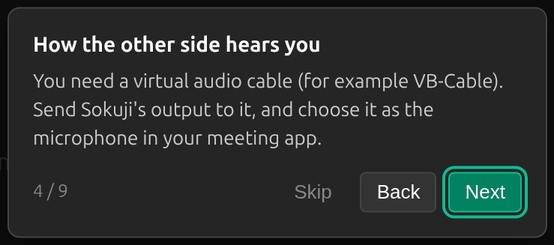
4Install the virtual audio cable
Your translated voice reaches the meeting through a virtual microphone. On Windows this is VB-CABLE, a free driver. While it is missing, Sokuji asks to install it each time it starts: click Install Now, and restart Windows if it asks you to. From then on, Sokuji sends its translated voice to VB-CABLE by itself.
Tip
On macOS the Sokuji installer adds a virtual audio driver, and on Linux Sokuji creates its own virtual microphone. The rest of this guide is the same.
5Choose your microphone and the meeting app
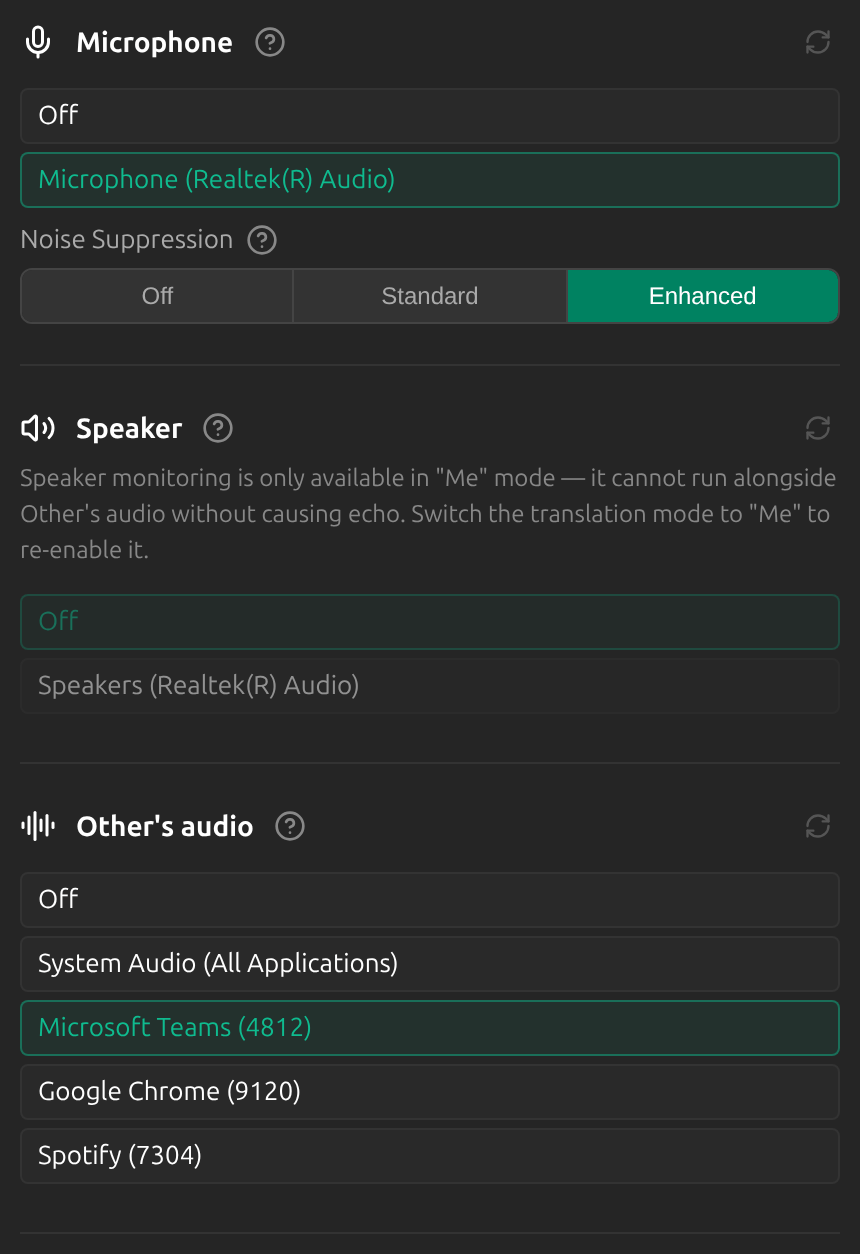
Still in Settings: under Microphone, pick your real microphone. Under Other’s audio, pick your meeting app, here Microsoft Teams. Sokuji then listens only to that app, so sound from other programs is not translated. You keep hearing the other person’s own voice through Teams as usual.
Tip
If your meeting app is not in the list, join the call first (an app often appears only once it plays sound) and click the refresh icon, or choose System Audio (All Applications).
6Choose VB-CABLE as the microphone in the meeting app
In Microsoft Teams, open Settings → Devices and set the microphone to CABLE Output (VB-Audio Virtual Cable). In Zoom the same setting is under Settings → Audio → Microphone. Leave the speaker on your usual headset or speakers.
Tip
Your real microphone is selected in Sokuji, not in the meeting app: Sokuji listens to you, and the meeting app receives only the translated voice.
7Start translating
Click Start in Sokuji. When you speak, the other side hears your words in their language through the meeting app, and Sokuji shows both sides as subtitles. When they speak, you hear their voice as usual and read Sokuji’s translation.
Tips for Best Results
- Wear headphones. Otherwise your microphone picks up the other person from your speakers, and Sokuji translates them as if they were you.
- Make a short test call first, for example with a colleague, and check that they hear the translated voice.
- Pause briefly at the end of each sentence: the translation is spoken once you finish a thought.
- Only your side is spoken aloud. The other person’s speech is translated into subtitles for you.
Frequently Asked Questions
Does the other person need to install anything?
No. Only you run Sokuji. The other person just hears a microphone that speaks their language.
Does this work with the Teams desktop app?
Yes. The Sokuji desktop app works with any meeting app that lets you choose a microphone, including the Teams and Zoom desktop apps.
The other person hears nothing. What should I check?
Check that the meeting app’s microphone is CABLE Output (VB-Audio Virtual Cable), that Text Only is switched off in Sokuji, and that Sokuji is in Me or Both mode with a session running.
The other person’s words are not translated. What should I check?
Check that Other’s audio is set to your meeting app or to System Audio (All Applications), that Sokuji is in Both mode, and that the call is actually playing sound.
Does translating both directions cost twice as much?
No. By default Both mode shares one Soniox session between the two directions. Advanced settings has a “Shared session in Both mode” switch; turning it off runs a separate session per direction, which is more reliable when both people talk at once but costs about twice as much.
Troubleshooting
Still stuck? Send us feedback from the account menu, or write to support@kizuna.ai. You can also ask in GitHub Discussions.