
OpenAI Setup Tutorial
Overview
This guide will help you set up OpenAI for use with Sokuji, which uses the Realtime API for speech-to-speech translation.
Requirements
- OpenAI account (create one at platform.openai.com)
- Payment method added to your OpenAI account
- API credits (minimum $5 recommended)
- Realtime API access (included with paid accounts)
API Key Verification Tool
Paste your OpenAI API key below to verify it has the required permissions for Sokuji.
1Create an OpenAI Account
Go to platform.openai.com and sign up for an account. You can use your email or sign in with Google/Microsoft.
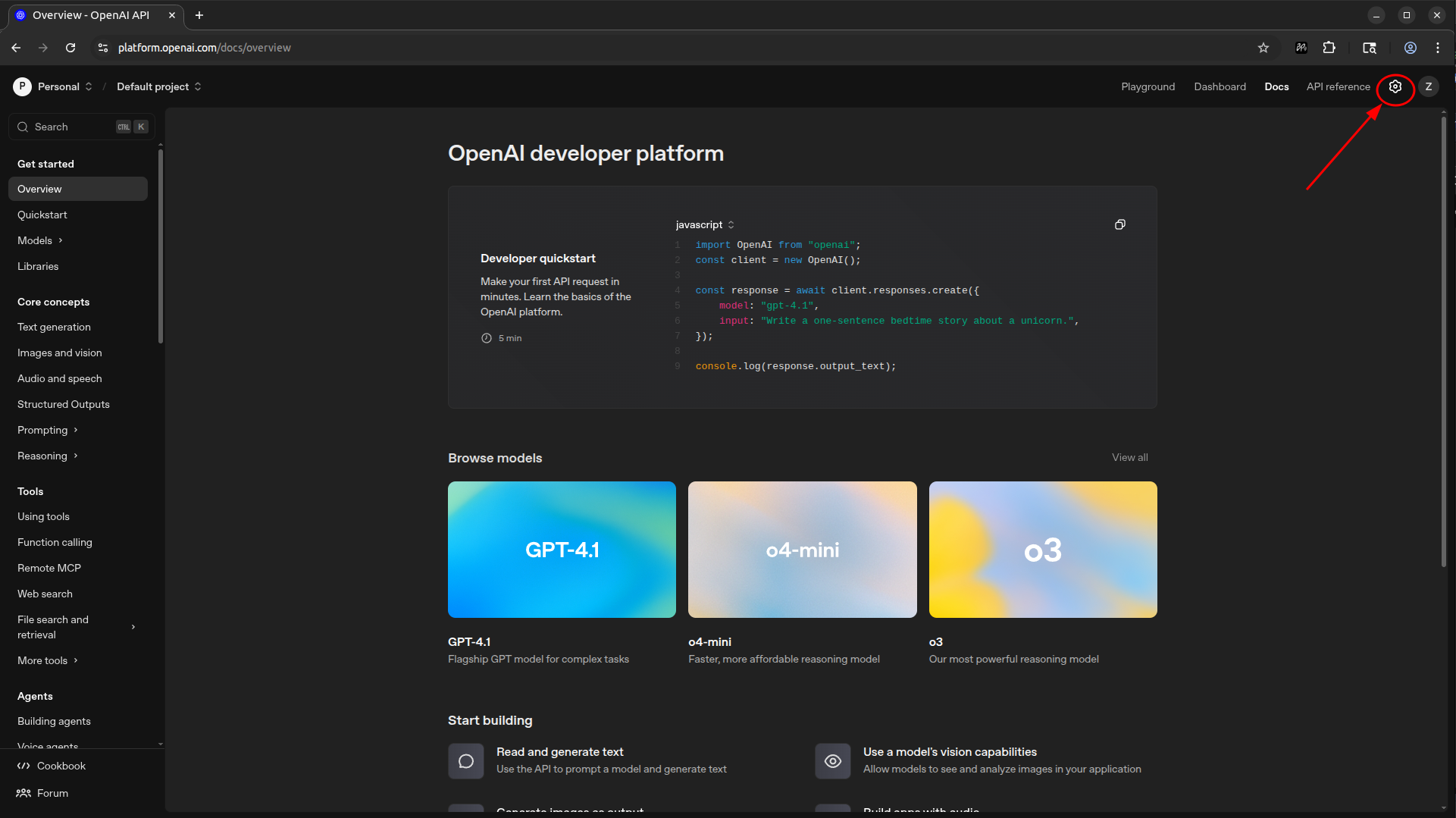
2Generate an API Key
Navigate to API Keys in your OpenAI dashboard. Click "Create new secret key", give it a name (e.g., "Sokuji"), and copy the key. Make sure to save it securely as you won't be able to see it again.
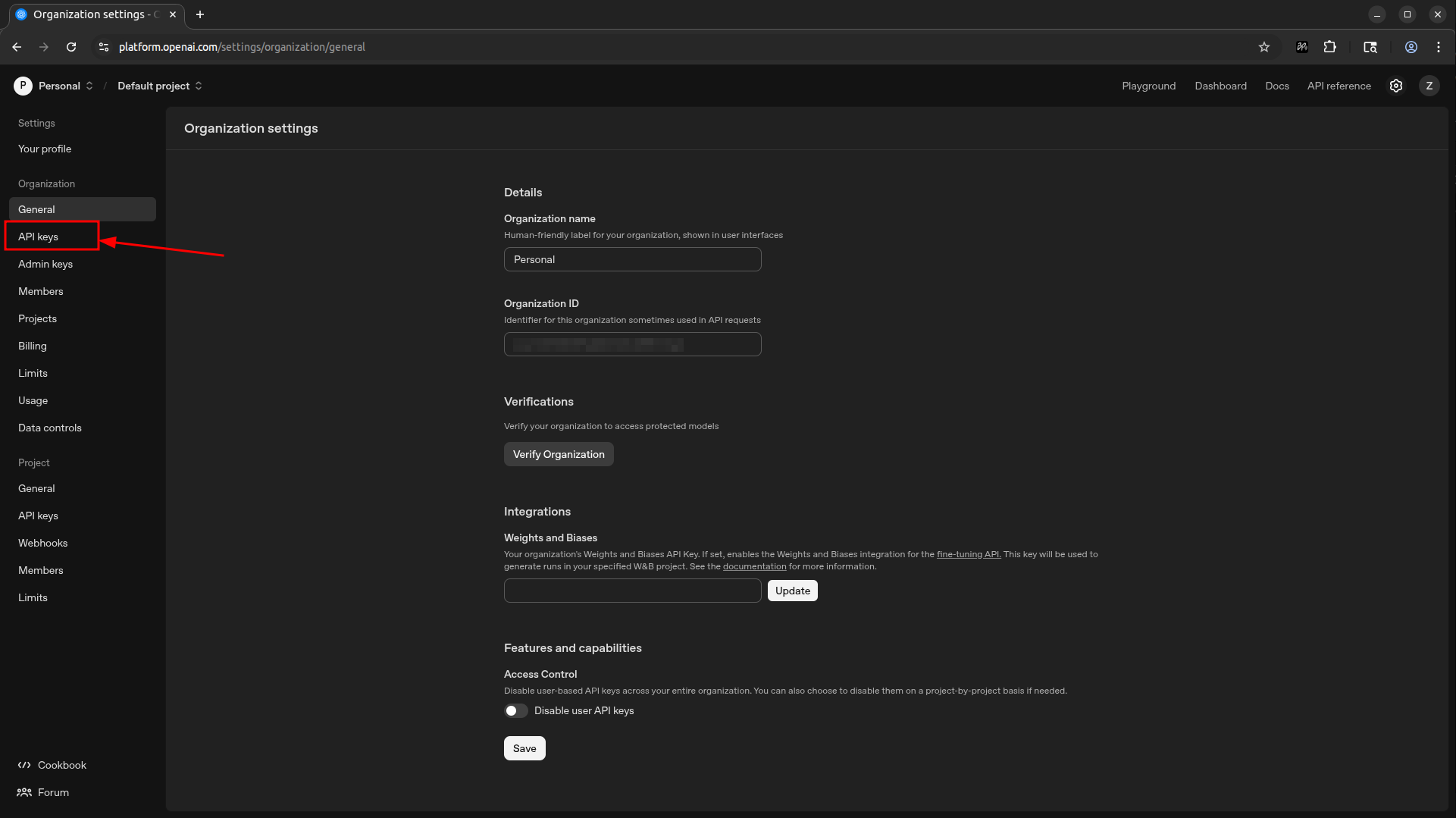
3Add Credits to Your Account
Go to Billing and add a payment method. We recommend adding at least $5-10 in credits to start. The Realtime API costs approximately $0.06 per minute of audio.
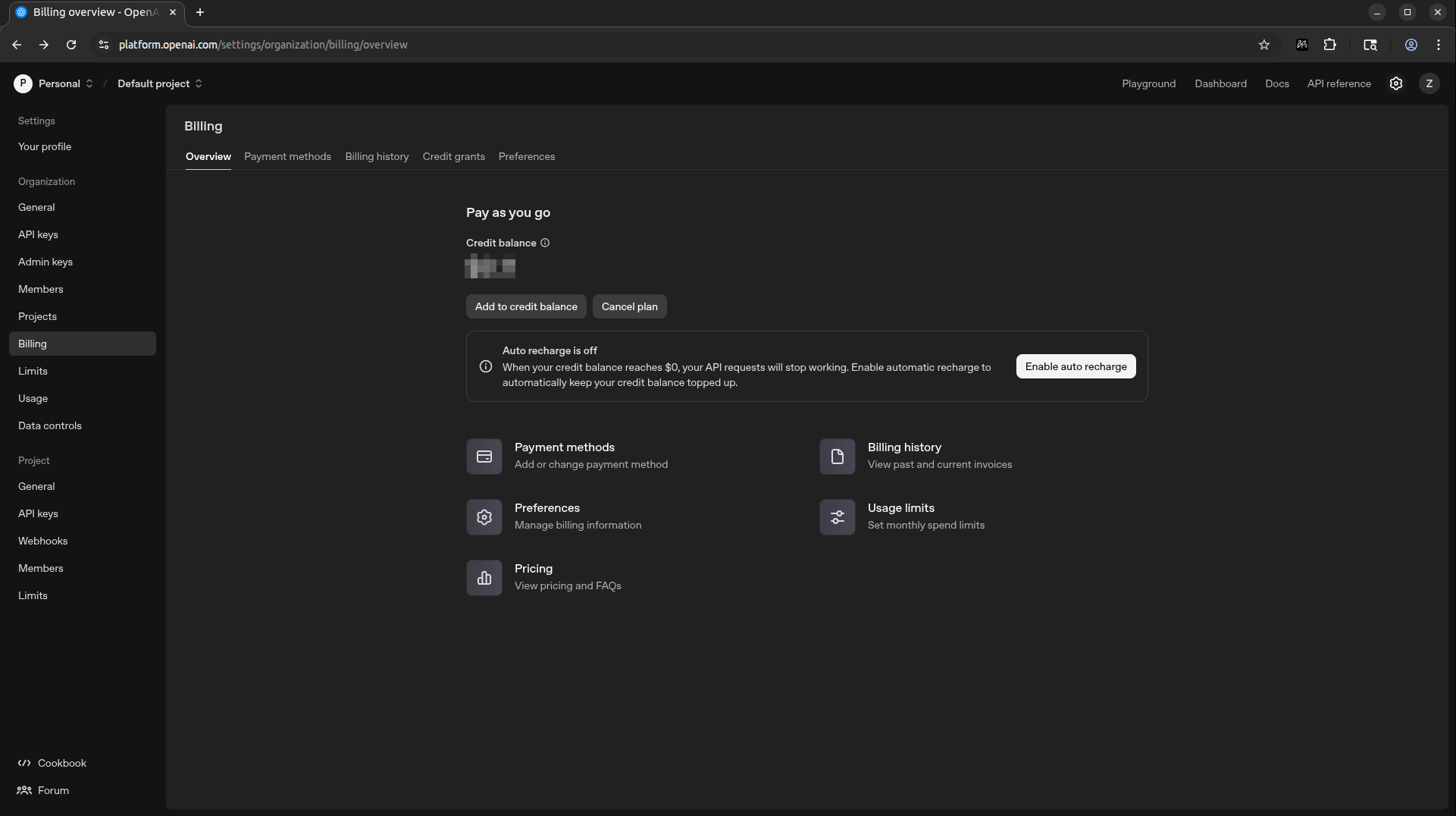
4Configure in Sokuji
Open Sokuji and go to Settings. Select "OpenAI" as your AI provider and paste your API key in the API Key field. Click "Verify" to ensure the key is working correctly.
Tips for Best Results
- Monitor your usage in the OpenAI dashboard to avoid unexpected charges
- Set up usage limits in your OpenAI account settings
- The Realtime API provides the best quality for real-time translation
- Keep your API key secure and never share it publicly
Troubleshooting
If you encounter issues, check your API key permissions, ensure you have sufficient credits, and verify Realtime API access is enabled. Visit OpenAI Documentation for more help.